
The new iPhone SE for 2020 is the first budget iPhone that Apple has offered since the first iPhone SE in 2016. While it’s mostly an upgraded iPhone 8, it packs a punch where it counts and is an affordable upgrade if you’re in the market for a new device. We’re taking a look at how to get the absolute most out of your new phone, even though it may lack some of the gadgets and gizmos of its bigger brothers.
How to use swipe typing
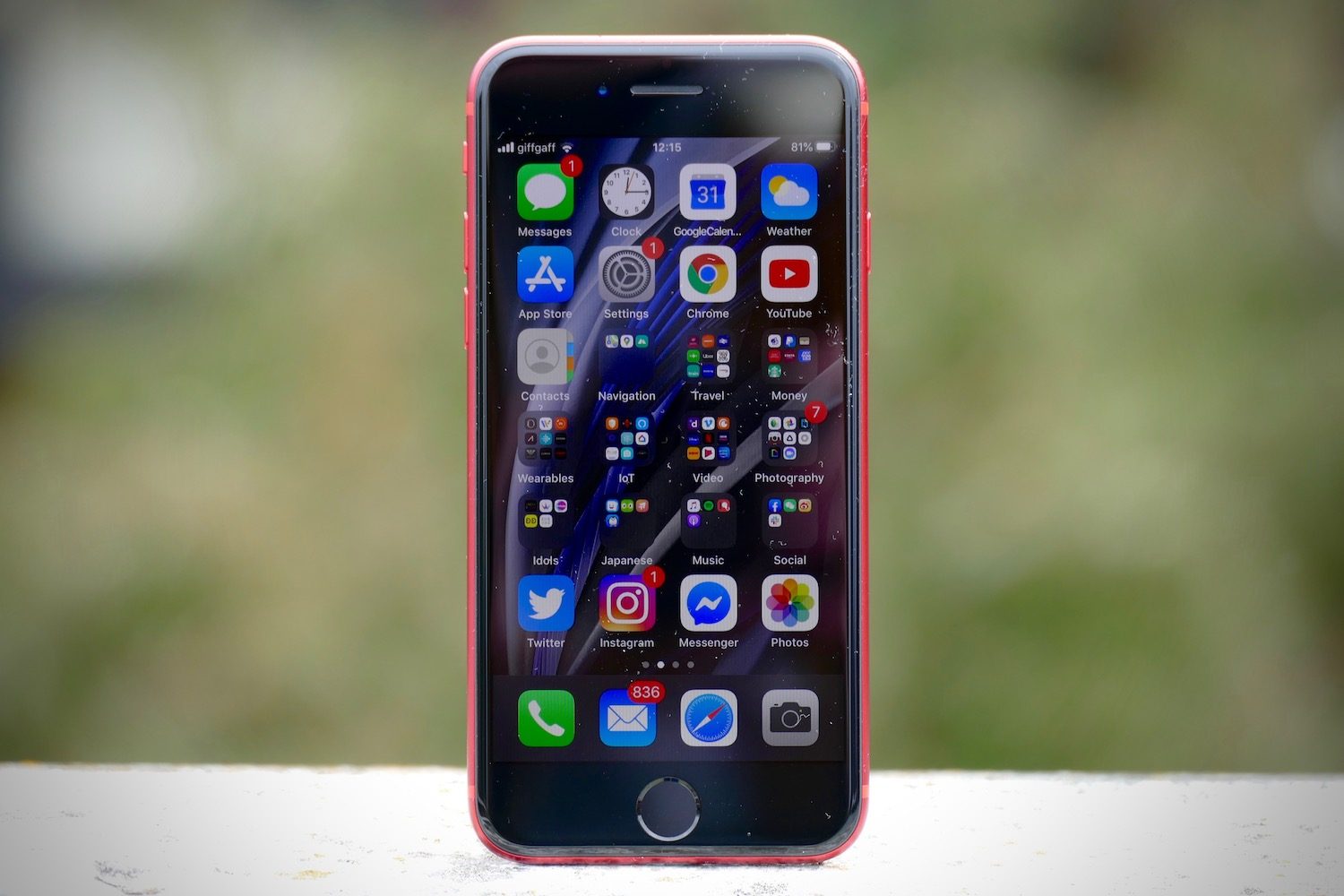
The new iPhone SE comes loaded with the same iOS 13, and it can be updated to iOS 14. While that means that most software-based tips are universal across all of Apple’s iOS products, there are some things that specifically benefit from the SE’s smaller footprint.
Being that the iPhone SE features a 4.7-inch display, you’ll find gesture or swipe typing that much easier on this device. We can see this feature being heavily used on the iPhone SE, and it’s a powerful way to quickly compose a message. To get started, drag your finger over the keyboard from letter to letter — it’s enabled by default.
How to use fast charging and wireless charging
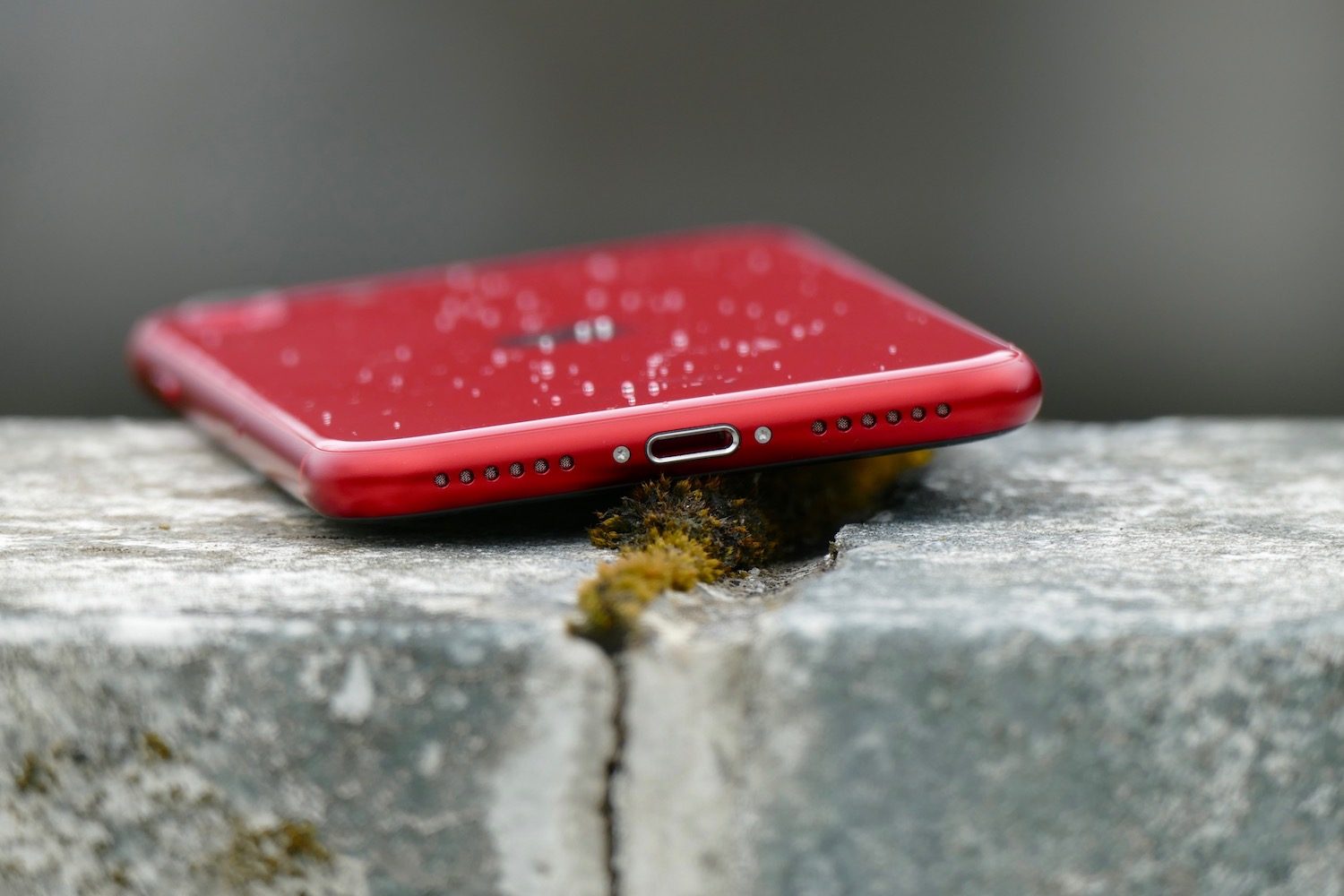
When looking at what sets the iPhone SE apart, it helps to take a look at it next to its direct predecessor, the 2016 iPhone SE. One of the most useful features that has brought this SE into the present is the addition of fast charging. The iPhone SE supports 18W fast charging, which is the same standard supported on all other current iPhone models.
One of the tradeoffs for the SE given its smaller frame is its shorter battery life, which makes its fast charging feature extremely useful for anyone with a busy on-the-go lifestyle. Apple pegs the iPhone SE fast charging capabilities as reaching a 50% charge in just 30 minutes when connected to an 18W lightning charger. This can be achieved with a separate 18W charger and USB-C to lightning cable or with a USB-C to lightning cable plugged into your MacBook or iPad Pro charger. However, it’s worth pointing out you will need to buy a separate charger to access these faster charging speeds.
The new iPhone SE has also left behind the full aluminum body of the older generation and features a glass back, which is necessary to support wireless charging. With this, Apple has made sure that you aren’t leaving behind any of the best features to hit recent iPhones. You can make sure you stay powered in just about any situation.
Using Apple Pay


Apple has also brought Apple Pay to the new iPhone SE. You’ll be able to pull out your conveniently petite iPhone from any pocket or purse and pay for your coffee, books, or anything else with a single tap. Previous iPhone owners may be familiar with the Touch ID system for Apple Pay, which is the biometric security feature on the iPhone SE since it does not carry the Face ID technology of current generations.
To use this feature, go to Settings > Wallet & Apple Pay > Add Card. You then have to scan your card to add it. Once you’ve added a card, you can begin using Apple Pay to purchase items by double-clicking the home button. Keep your Touch ID registered finger on the home button to approve and allow the transaction.
How to use QuickTake to take a video
Along with the iPhone 11 and 12 series, the 2020 iPhone SE packs in one easy-to-miss but worthwhile feature: The ability to shoot videos without having to select Video in the Camera menu. If you’ve ever seen something so amazing and you know no one will believe you without video evidence, but you weren’t able to switch to video mode in time to capture it, then this feature is for you.
To take advantage of QuickTake, simply hold the Shutter button while in photo mode to begin filming. Release it to end filming. This is pretty much how Snapchat video works, so most smartphone users should find it intuitive.
How to take a Slofie
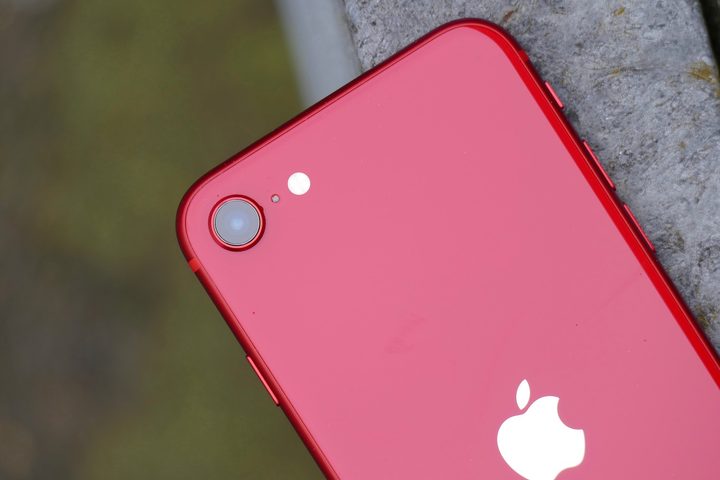
Steve Jobs once said, “Some people say, ‘Give the customers what they want.’ But that’s not my approach. Our job is to figure out what they’re going to want before they do.” This sentiment couldn’t be more applicable than with the advent of the Slofie. Introduced with the iPhone SE, iPhone 11, iPhone 11 Pro, and iPhone 11 Pro Max, you can shoot a slow-motion video of yourself if the mood should strike or the need arise.
To make use of this feature, open the Camera app. Tap SLO-MO, and then tap the Camera-Switching Icon to use the front camera. Finally, tap the Record button.
How to shoot 4K video at 60fps
Even though the iPhone SE uses the same exact camera assembly as the iPhone 8, its juiced-up A13 Bionic processor and iOS 13 (now iOS 14) allow it the same video capacities as the iPhone 11 lineup.
To shoot 4K video at 60fps, simply launch the Camera app and tap Video. Next, when in video mode, tap the Resolution Icon (at the top of the screen) to switch between 4K and full HD, and tap the Frame Rate Icon to switch between 60fps, 30fps, and 24fps.
How to change the intensity of your home button
The iPhone SE does feature a home button, but not in the conventional way you might be used to. Much like the iPhone 8, it doesn’t sport an actual clickable button, but instead a stiff home button-shaped surface that features haptic feedback. If you fancy changing the intensity with which you receive that feedback, simply navigate to Settings > General > Home and adjust it to your liking.
How to show battery percentage
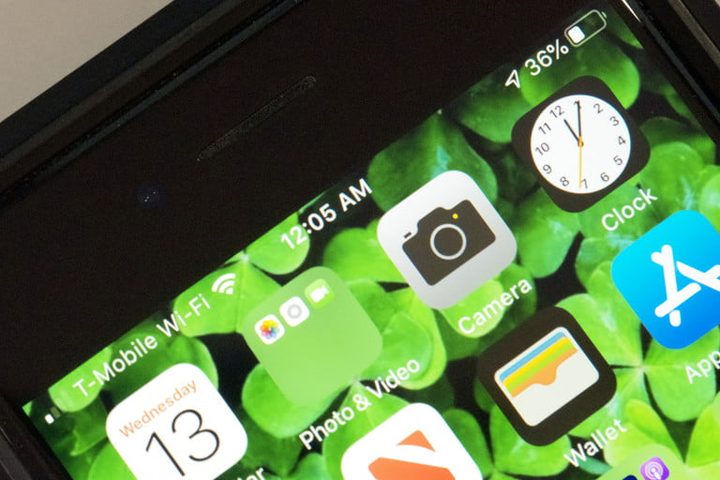
Given that the iPhone SE (2020) has a smaller battery than more premium iPhones, you may find it useful to have its battery’s current capacity displayed as a percentage at the top-right corner of the screen. To do this, simply take the following steps:
Step 1: Open the Settings app.
Step 2: Select the Battery option.
Step 3: Tap to enable Battery Percentage.
The iPhone SE will now show its battery percentage at all times in the top-right corner. To switch off this feature, simply take the course of action outlined above for a second time.
How to turn on Dark Mode
One neat feature common to all iPhones using iOS 13 and later is Dark Mode, which as the name suggests turns the default color scheme of your iPhone’s OS from light/white to dark/black. This might sound like an innocuous and superficial feature, but it has two fairly significant benefits: 1) it reduces the strain on your eyes, particularly at night, and 2) it conserves battery power.
It also looks pretty cool, so here’s how you turn it on. First, go to Settings > Display & Brightness > Appearance. Next, tap Dark to activate Dark Mode immediately. Alternatively, you can tap Automatic to have Dark Mode come on by itself at sunset, and then revert to Light Mode at sunrise. You can also tap Options to set specific on and off times.


