
It’s fairly slim pickings for anyone who wants a powerful smartphone with a smaller screen, so Apple’s iPhone SE certainly has a big market. If you’ve been tempted to buy an iPhone SE because of its manageable size and you’d like to unlock your new phone’s potential, then you’re in the right place. Behold, our menu of tasty, bite-sized tips designed to help you get more from your smartphone. After all, they do say good things often come in small packages — and it doesn’t get much smaller than the SE.
Siri, battery life, Live Photos, Night Shift, and Wi-Fi calling
How to use Siri hands-free

You can activate Siri on your iPhone SE without even touching the phone. Take a look in Settings > General > Siri and toggle Allow ‘Hey Siri’ on. You’ll need to say, ‘Hey Siri’ three times, so your iPhone knows what you sound like. Now, it will listen for your commands, and you can say, ‘Hey Siri’ at any time to get some help.
How to save battery life

If you take a look in Settings > Battery, you’ll find a Low Power Mode. It extends your battery life, but it will disable some background syncing, animations, and the ‘Hey Siri’ feature. Check out our iPhone battery tips for more ideas.
How to use Live Photos

The iPhone SE boasts an excellent 12-megapixel camera and support for Apple’s Live Photos feature, which debuted on the iPhone 6S. You can tap and hold on a photo to bring it to life with Live Photos. It basically captures a short video, with a second or two on either side of your shot.
To turn it on, tap the three circles icon in the Camera app. When it’s yellow, the Live Photos feature is on. Remember that Live Photos also records audio, so you have to be careful what you say while shooting. Live Photos also take up considerably more space than regular photos, so you may want this feature turned off by default, especially if you only opted for the 16GB iPhone.
How to use Night Shift
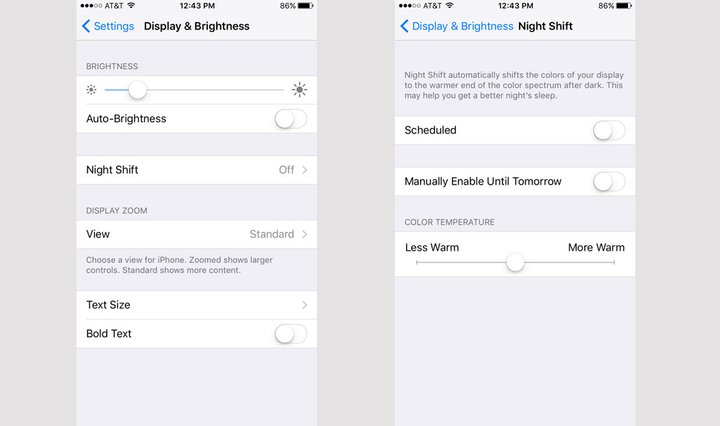
There’s a fair bit of evidence that blue light can keep us awake at night, and so Apple has included the Night Shift feature on the iPhone SE. It reduces the amount of blue light your display gives off, thus reducing the impact of blue light on your natural drowsiness. Turn it on in Settings > Display & Brightness > Night Shift and set a schedule or allow your iPhone to work it out by selecting Sunset to Sunrise.
How to use Wi-Fi calling
With Wi-Fi calling, your iPhone SE can detect when you have no cellular signal and allow you to make a call over Wi-Fi instead. It’s not supported by every carrier, but try going to Settings > Phone > Wi-Fi Calling and toggle Wi-Fi Calling on This Phone to on, if you want to check. You should see “Wi-Fi” after your carrier name in the status bar if it’s available.
Secure notes, hide photos, desktop site, delete typing, and storage
How to secure notes

Did you know that you can lock your notes with a password or your fingerprint to make them accessible only to you? Go to Settings > Notes > Password to add a password, with a hint in case you forget it, or toggle on Use Touch ID. To actually lock an individual note, open it up and tap the Share icon, and then hit Lock Note. You’ll see a lock icon on all your protected notes.
How to hide photos
You can hide photos from Moments, Collections, and Years. Select the photo you want to hide and then tap Share > Hide. You can tap, hold, and drag to select multiple photos. They will still be visible in the Album and All Photos view, though.
How to get the desktop site

It can be annoying to get stuck with the mobile version of a website sometimes. If you want to request the desktop version, like you would see on your laptop or desktop, all you have to do is tap and hold on the refresh icon and select Request Desktop Site in Safari.
How to quickly delete typing
If you make a mistake while typing and want to delete everything you just entered, you don’t have to do it one letter at a time. You can shake your iPhone SE. When the Undo Typing pop-up window appears, just tap Undo.
How to free up space

It’s easy to run out of space on your iPhone SE, particularly if you’ve opted for the 16GB model. Take a look in Settings > General > Storage & iCloud Usage > Manage Storage to find out which apps are using the most space. Check out our iPhone storage guide for more ideas on freeing space.
Apple Music offline, quick respond, sketching, reverse panorama, and hands-free messaging
How to listen to Apple Music offline

If you’re an Apple music member, or are part of a Family Sharing group that has an Apple Music Family Membership, then you can download songs, albums, and playlists to listen to wherever you are. To do this, launch the Music app, find the Apple Music content you want, tap the three red dots, and then tap the download icon next to it to make it available offline. To see the songs you’ve previously downloaded, open the Music app and tap the red Artists category — or Albums or Songs — beneath the Recently Added section. Then, at the bottom of the list, toggle on Only Downloaded Music. Once activated, you’ll only be able to see music you’ve downloaded to your device.
How to quickly respond to missed calls
Sometimes you’re unable to answer a call, but you want to provide the caller with a reason explaining why you didn’t answer. While your phone is ringing, swipe up on the green phone icon located beside the unlock slider. You’ll get three options when you do, including “Sorry, I can’t talk right now,” “I’m on my way,” and “Can I call you later?” You can also customize any of these by going to Settings > Phone > Respond with Text, but you can only have three messages at a time.
How to sketch in your Notes
The Notes app is great for making lists and keeping track of small bits of information, but it can also be used to make small pictures. Launch the Notes app and create a new note on your iPhone SE. In the new note, tap the gray addition sign on the right, followed by the squiggly line to see a ruler, an eraser, various color options, and a host of drawing tools. To quickly erase everything, tap and hold the erase icon, which will bring up the Erase All option.
How to change the direction of a Panorama

Did you know you can change the starting direction of a panorama? It’s incredibly easy to do. Open the Camera app and swipe over to Pano mode, but before you start shooting, tap the arrow to move it to the other end of the screen. Proceed to shoot the panorama as you would normally, but by moving the phone in the opposite direction.
How to send a hands-free message
If your hands are preoccupied with something else and you’re unable to type a text message, you can use Siri to help you out. Of course, you’ll need to have Siri set up and able to recognize your voice, but after that’s done, you can simply say, “Tell [contact’s name]…” followed by the message you want to send. For example, say, “Tell Chris I’m still tied up and will be late.”


