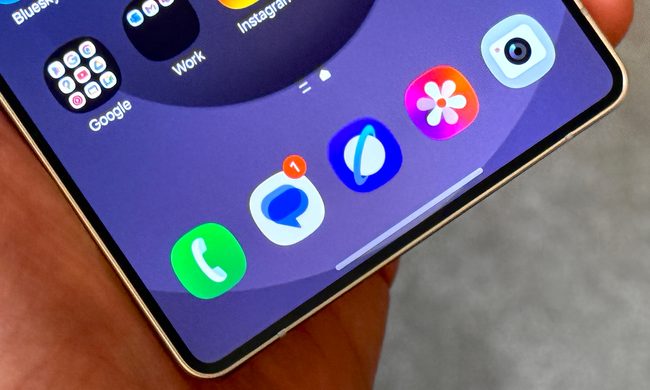
The first time I used a Samsung phone with One UI 7, I wondered if I’d stopped receiving notifications. I tend to glance over at the lock screen on my phone to see if anything is new, and after not seeing anything at all for some time, I had a feeling something wasn’t working. It was actually working fine, and my confusion was caused by Samsung changing a key default notification setting. Now, after using a host of phones with One UI 7, it’s a setting I immediately change during setup, and if you rely on the lock screen for information, it’s one you need to know about too.
What’s the setting?

Samsung has slightly altered the way it shows notification indicators on the lock screen in One UI 7. Previously, icons were displayed below the clock in the center of the lock screen, making it quite easy to spot when something was new, along with cards showing more detail. In One UI 7, the notification icons have been moved to the top right of the lock screen, where they are smaller and far less noticeable, particularly if you’re used to looking for them in the middle of the screen.
By default, no further notification information is shown on the screen either. It actually took me a minute to work out what was different about the lock screen, but once I spotted the new icons in the corner, I set about trying to change the notification display on the lock screen back to something more useful. Thankfully, Samsung gives you a choice on how the lock screen appears, meaning its odd design decision isn’t fixed.
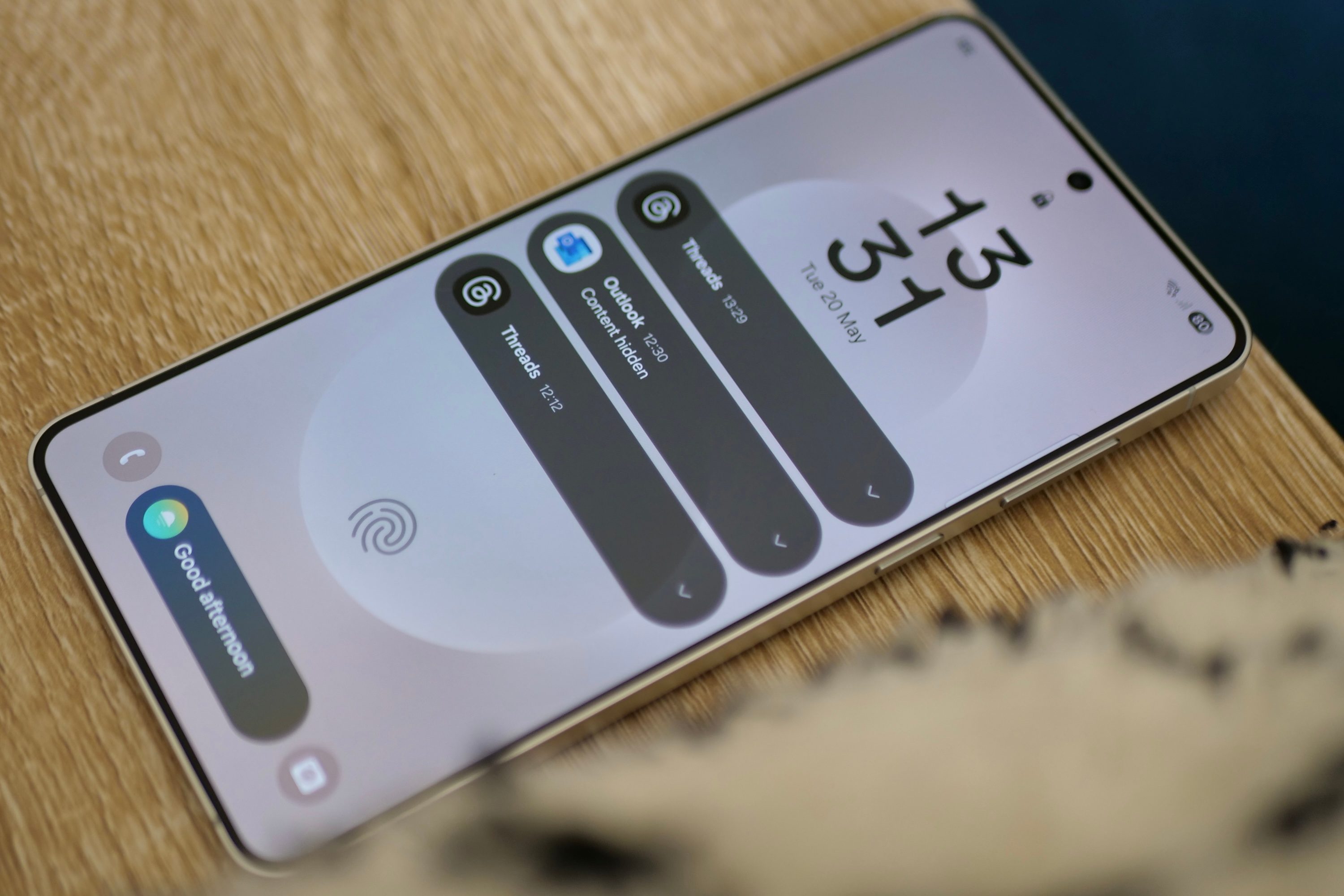
To make things right again, you visit Settings, Notifications, and then Lock Screen Notifications. Here, there are three choices available — Dot, Icons, Cards — and it’s the Icons mode which is selected by default. Those who want to see notifications at a glance on the lock screen should select Cards. This moves the notification icons back under the clock, and when you press the power key to light up the screen, cards with information appear.
Best of all, these cards can be expanded to show more detail, and most include some level of interaction too. It’s surprising Samsung decided to make the least useful notification mode the default, but it’s great to see plenty of customization when you do figure out why the lock screen appears so bare when you first use the phone.
More One UI 7 changes to make

The notification settings change has been added to an ever-growing list of alterations I make every time I set up a Samsung phone, but most aren’t unique to One UI 7. They are Samsung defaults that have been standard for years but don’t work for me, and stop the phone working in the ideal way from my perspective.
In no particular order, I make sure the always-on screen is set to Scheduled (Settings, Lock Screen and AOD, Always-on Display) rather than the tap-to-show option selected by default. This is a good example of a useful feature hobbled out of the box, presumably to vaguely help extend battery life. I change the default browser from Samsung’s app to Chrome, and the Samsung keyboard to Google’s Gboard. These fit better with my general use across multiple devices.
The notification settings change has been added to an ever-growing list of alterations I make
I always change the default Samsung ringtone and notification sound too. There’s nothing wrong with either, but if I want to hear the phone ring, I don’t like it to sound the same as all the many other Samsung phones, where people never bother to change the ringtone. I change the 4×4 home screen grid to 5×6 (long press the home screen, select Settings, then Home Screen Grid), and sort the app drawer alphabetically (open the app drawer, tap the menu button in the search bar, then Sort) to get one long list instead of multiple pages.
Wi-Fi Calling is necessary and not enabled by default, so it’s imperative I remember to turn it on in the Quick Settings menu. I will say I appreciate Samsung making the button to activate Wi-Fi Calling easy to find, something a lot of other manufacturers do not. Samsung still enables Android buttons as the default navigation mode too, so you have to change it to swipe gestures in Settings, Display, Navigation Bar.
Phones with One UI 7
Most recently I’ve been using One UI 7 on the Samsung Galaxy S25 Edge, but have needed to make the notification setting change on the Galaxy S24 Ultra after updating it to One UI 7, along with the Galaxy S25 Ultra, Galaxy S25 Plus, and Galaxy A56. If you’ve bought one of these phones, or are patiently waiting for the One UI 7 update on an older phone, keep some of these changes in mind as you set it up.
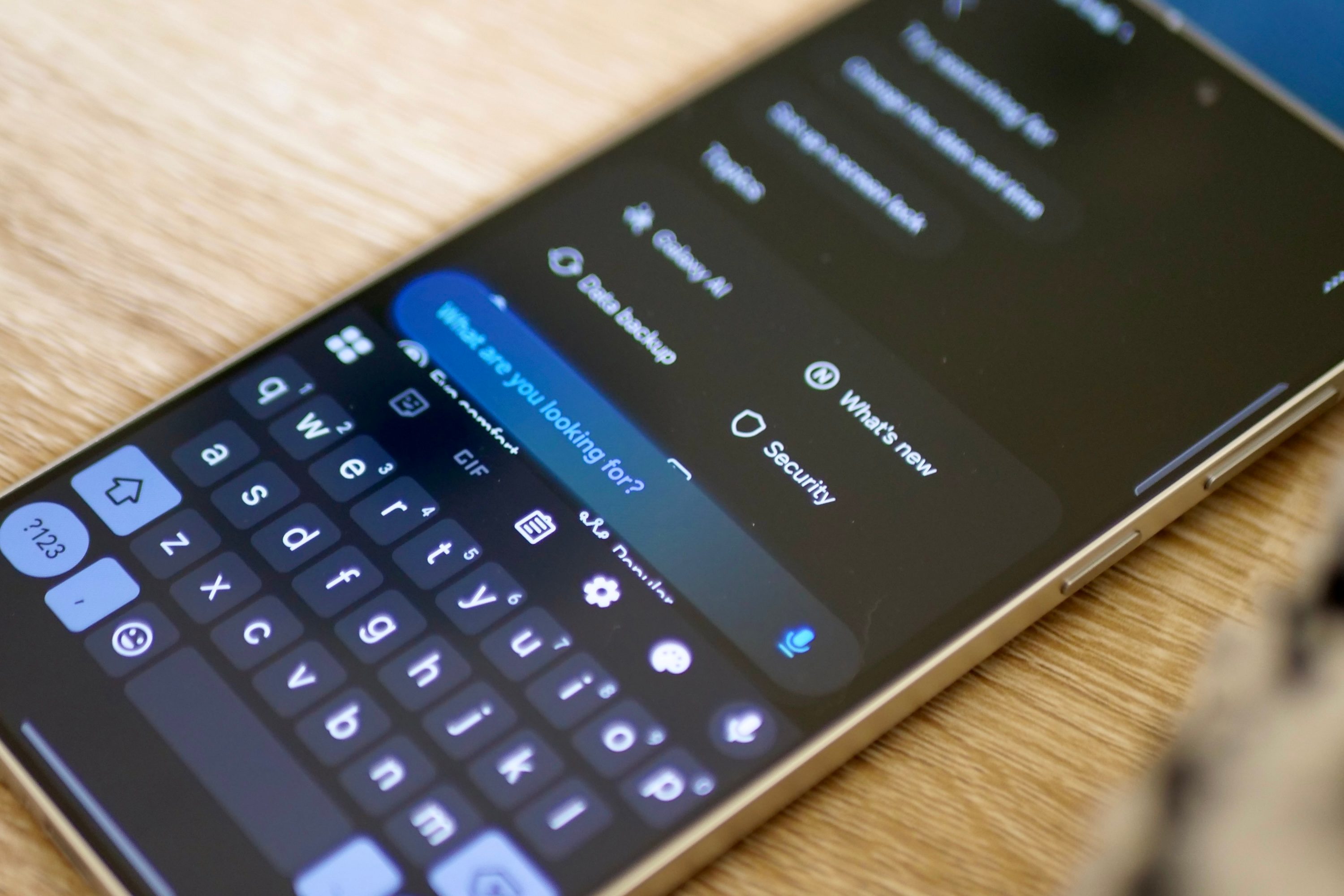
After all this my Samsung phone is ready for everyday use, and One UI 7 settles down into a very easy to use, fast, and reliable operating system. I’m still adjusting to the bizarre decision to keep the Search icon at the top of the Settings screen, only to make the search bar appear in the middle of the screen above the keyboard after you tap it though. But as some of these settings alterations prove, Samsung enjoys keeping us on our toes with its ergonomic decisions.