
If your iPhone is not charging as you would expect, there are a number of potential fixes available, from restarting your iPhone to changing your Lightning cable. They’re all easy to try, and in the vast majority of cases, they’ll get your iPhone juiced back up again.
Check, change, or replace the Lightning cable

Your iPhone charges by receiving electricity through its Lightning cable. If it’s not charging, then there may be a problem with this cable. Here are a number of things you can try.
- Make sure your cable is connected properly. This means making sure it’s inserted properly into your iPhone and into either the wall charger, a computer, or a USB hub. It also means checking for any obstruction that might be in the cable’s jack or in iPhone’s Lightning port, such as lint or a bent prong.
- Try using the cord that came with your phone first, then try a different cable, if you have one. If other cables work, then it’s clear the first cable was the problem.
- If no other cables work, then it’s likely that something else is causing the problem. That said, the cables you’ve tried may all be faulty, so you may want to purchase a new Lightning cable anyway.
Restart your iPhone
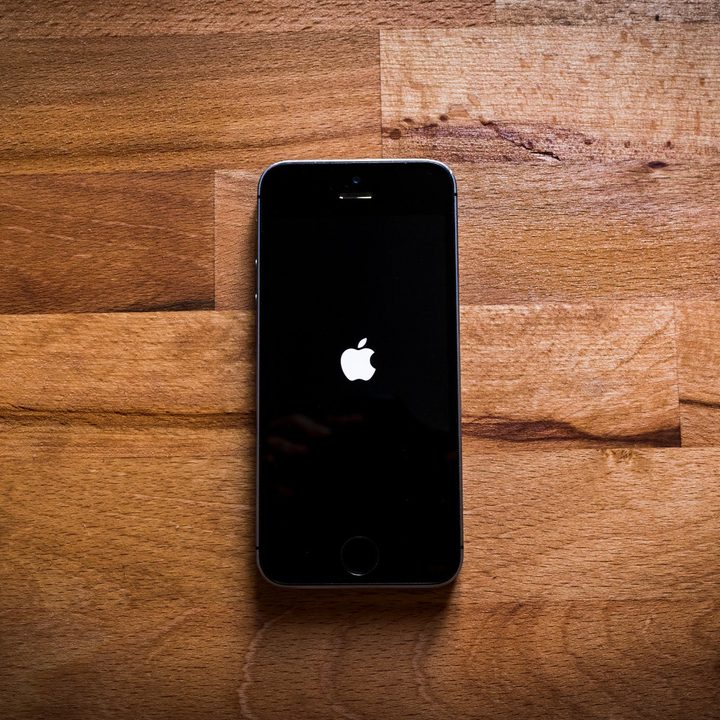
Restarting your phone is one of the safest and most dependable solutions to virtually any iPhone problem. The same thing applies when your iPhone won’t charge.
With the iPhone X, XS, or iPhone 11 range and higher, simultaneously hold one of the Volume buttons and the Side button, until the power off sliders appears. With the iPhone SE (2020) down to the iPhone 6, hold the Side button. If you have an iPhone 5 or older, press and hold the Top button.
Apple also recommends a force restart. This is similar to a normal restart, but it works even when your iPhone is frozen. For the iPhone 8 or later, press and release the Volume Up button, press and release the Volume Down button, and then press and hold the Side button, until the Apple logo appears. For an iPhone 7 range, simultaneously press and hold the Side button and the Volume Down button until the phone restarts. For the iPhone 6S or earlier, simultaneously press and hold the Side (or Top) button and the Home button until you the Apple logo appears.
Check your power source

Similar to checking or changing your cable, it’s possible that your iPhone is not charging because of your power source. If you’re using a power adaptor, try a different adaptor. You can also try plugging your Lightning cable into a compatible USB 2.0 or 3.0 port on your computer (or on a USB hub or docking station). If you’re already using a hub or docking station, try connecting directly to your computer to make sure it’s working properly. Likewise, if you’re using a wireless charger, try charging using a Lightning cable. If this works, your wireless charger may need replacing.
If you’re plugging your iPhone into a computer (or docking station), make sure that the port you’re using is compatible with your Lightning cable. This means the port should be USB 2.0 or USB 3.0 compatible. Don’t use the USB ports on a keyboard — these won’t work.
Cool your iPhone down

In cases where your iPhone won’t charge past 80%, Apple recommends moving your iPhone to a cooler location because recent versions of iOS contain a feature that prevents your iPhone’s battery from getting too warm, something which can reduce its longevity. If it’s already warm, charging it may make it too warm, so the iPhone will limit itself to charging up to 80%.
Again, if it stops at 80%, take your iPhone somewhere cooler and keep it out of sunlight. Also, if you have iOS 13, you can go to Settings > Battery > Battery Health and tap Optimized Battery Charging, so that its slider moves into the off position. This isn’t recommended, since it may accelerate the aging of your battery, but it will prevent your iPhone from charging up to 80% in some cases.
Do a DFU restore

The DFU or Device Firmware Upgrade restore is a last resort troubleshooting strategy for iPhones that suffer from bugs or software glitches. It’s a deep system restore, letting your device interface with iTunes or Finder. It reinstalls the firmware — the programming that controls the hardware — which hopefully will solve your charging problem if all else has failed. It’s tricky, time-sensitive, and not for the faint of heart.
Warning: Do this operation with extreme caution because if your phone has sustained physical damage or liquid damage, a DFU restore will brick it. Repeat: This operation could break your phone forever if it has already been physically damaged and especially water damaged.
You’ll need an up-to-date Mac or Windows computer and the latest version of iTunes. On Macs running MacOS 10.15 Catalina or later, use the Finder instead of iTunes to DFU restore your iPhone. Before you do anything, back up your iPhone to iCloud or Finder, as the restore deletes your phone’s data. You do not have to turn your phone off first. Ready?
For iPhone 8 and newer, do the following.
- Connect iPhone to a computer with its cable.
- Launch iTunes or Finder.
- Quickly press and release the Volume Up button.
- Quickly press and release the Volume Down button.
- Press and hold the Side button until the screen goes black.
- Hold the Side and Volume Down buttons for 5 seconds, then release the Side button but continue to hold down the Volume Down button until iTunes or Finder says that it has detected an iPhone in recovery mode. (If the screen remains black, you know you’re in DFU restore mode. If the Apple logo appears you need to start over.)
- Click OK, then click Restore iPhone.
For iPhone 7 and iPhone 7 Plus, do the following.
- Connect your phone to Mac or PC with its cable.
- Launch iTunes or the Finder.
- Press and hold down the Side button and Volume Down button for 8 seconds, then release the Side button while holding the Volume Down button until iTunes or Finder says, “iTunes has detected an iPhone in recovery mode.” If you see the Apple logo, you need to start over.
- Click OK and let go of Volume Down button.
- Click Restore iPhone.
For iPhone 6S, 5S, 5, or earlier and SE (1st generation), do the following.
- Plug your phone into the computer.
- Launch iTunes or the Finder.
- Hold down the Power button and Home button at the same time for 8 seconds, then let go of the Power button but continue holding down the Home button until iTunes or the Finder says, “iTunes has detected an iPhone in recovery mode.” The screen should stay black, otherwise, you need to start over.
- Click OK and release Home button.
- Click Restore iPhone.
Take your iPhone to Apple

If you’ve tried all of the above and your iPhone still won’t charge, you may have a faulty battery. In this case, you need to go to Apple’s website and arrange to have your battery replaced. You can also take your iPhone to your nearest Apple Store, which you can also locate on Apple’s website.


