
If you want a slim, powerful, and premium iPad Air alternative, look no further than the Sony Xperia Z2 Tablet. It’s powerful, the display is vivid, and it can survive a short swim. There’s a lot to love about the best big Android tablet on the market right now, but it has its own set of flaws. We’ve been researching the most commonly reported Xperia Z2 Tablet problems and seeking out solutions or workarounds.
Click these to jump to a problem
- Glitch: Unresponsive touchscreen
- Problem: Creaking or bending
- Bug: Audio delay in certain games or apps
- Problem: Xperia Z2 Tablet won’t turn on
- Issue: Wi-Fi won’t connect or keeps dropping
————
Glitch: Unresponsive touchscreen 
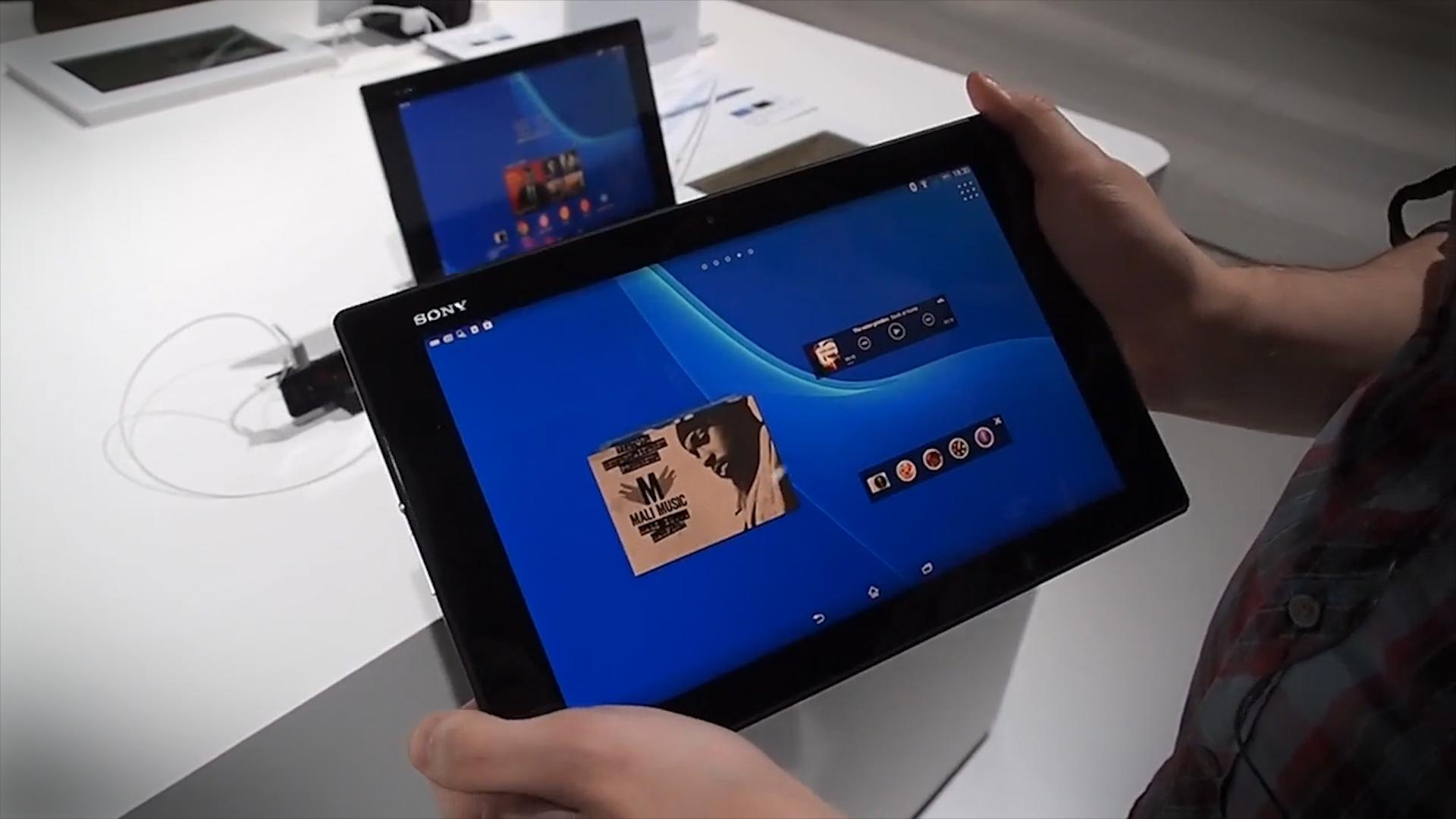
A lot of Xperia Z2 Tablet owners have been encountering issues with the touchscreen. Sometimes the screen will become unresponsive in an app, but the three Android buttons at the bottom of the screen will still work. Occasionally, it simply doesn’t register touches at all. A lot of people also have trouble getting the double-tap-to-wake feature working consistently and find that the lock screen can be unresponsive. For some, it’s a specific portion of the screen that tends to become unresponsive.
Workarounds:
- Tap the power button to turn the screen off and on again, and it will generally start working correctly.
- Hold down the power button and then select Power off, before turning the tablet back on again. If you can’t do that because the screen is unresponsive, then hold down the power button and the volume up key until the tablet vibrates three times, and then turn it on again.
- Unplug the charger because sometimes it can contribute to this issue.
Potential solutions:
- There’s a chance that this is a software issue, which will be fixed with an update. Load up the Update Center app to check if there’s anything available.
- You can test your touchscreen by going to Settings > About device > Diagnostics > Test device and running the Touchscreen test. If you don’t have that option, then download the Xperia Diagnostics apps. You can use this data when you call Sony to report the problem.
- You could try a factory reset. Back up first and then go to Settings > Backup & reset > Factory data reset.
- You could also plug the tablet into your PC and try using the PC Companion software to repair your tablet.
Problem: Creaking or bending
The Xperia Z2 Tablet is very slim, but unfortunately some people have found that their tablet is bent out of shape. The chassis may be warped and begin to curve over time, or it might arrive like that. It can also feel loose or creaky around the bezel when you hold it in landscape view.
Potential solution:
- Your only real option is to contact Sony and ask for a replacement. The tablet should be perfectly straight and it shouldn’t creak when handled.
Bug: Audio delay in certain games and apps

A few owners have been suffering from a noticeable audio delay or lag when using specific games or apps such as Skype, Netflix, some emulators, and certain games. The audio lags just a fraction of a second behind the action, but enough to be annoying.
Workaround:
- Go into Settings > Sound > Sound effects and turn off individual settings. You should also try changing your settings in Sound enhancements and see if it makes a difference. It’s possible that some audio processing effect is causing the delay.
Potential fixes:
- A software update might fix this issue so check in the Update Center app. Make sure that the problem app is up to date as well.
- You could also try going into Settings > Apps and choose the problem app then Clear cache and Clear data.
Problem: Xperia Z2 Tablet won’t turn on
You might panic when you press the power button and find that your tablet doesn’t come to life, but don’t worry it happens from time to time. A number of people have found their Xperia Z2 Tablet refuses to turn on, even though they are sure it has some battery life left.
Potential solutions:
- The first thing to try, is holding down the power button and the volume up button for a few seconds until you feel the tablet vibrate three times. Then, try turning it on again.
- Have a look under the flap where the microSD card goes and you’ll see a red button. Use something blunt to press it in for a few seconds and the device should turn off. Try turning it on again.
- If neither of those solutions works then plug your tablet into the charger for an hour. Then, try the same process again.
Issue: Wi-Fi won’t connect or keeps dropping
A lot of people run into issues with Wi-Fi connections when they buy a new tablet and the Xperia Z2 Tablet is no exception. Some people are having trouble getting the tablet to connect at all and other are reporting that the connection drops unexpectedly.
Potential solutions:
- Always start by just turning off your Xperia Z2 Tablet and your router and then turning them back on again. That will often resolve the problem.
- Go to Settings > Wi-Fi and tap the three dots at the bottom right to get more options. Make sure that Keep Wi-Fi on during sleep is set to Always. You can also try unchecking Avoid poor connections if it is selected and see if that makes a difference.
- Go to Settings > Wi-Fi, long press on your connection, then tap Forget network, and set it up again. Make sure that your password doesn’t have any special characters in it.
- Try changing the channel or mode on your router. You can use the Wi-Fi Analyzer app to see how busy the channels are around you.
- Make sure that the MAC filter on your router is off, so that you can add the Xperia Z2 Tablet to it. You’ll find the MAC address in Settings > About device > Status.
That’s all the Xperia Z2 Tablets problems we have found for now, but we’ll post more issues and fixes as we find them.


