
  1. Home
  2. Tablets
  3. Computing
  4. How tos

How to use AirDrop on a Mac

Add as a preferred source on Google
how to use airplay mac airdrop feature
Image used with permission by copyright holder

AirDrop is one of Apple’s most useful features for its ecosystem. AirDrop allows users to wirelessly send files between their Apple devices, everything from documents to photos and videos. It’s especially handy for sending files to your computer from your phone, but using AirDrop on MacOS is an equally simple and convenient feature.

Recommended Videos

Difficulty

Easy

Duration

5 minutes

What You Need

  • Mac with MacOS X 10.7 or later

Here is everything you need to know about how to use AirDrop on a Mac.

Make sure AirDrop is turned on

Before you can use AirDrop, you need to make sure that it is turned on.

Step 1: Open Finder and select AirDrop from the top left in the sidebar. You can also pull it up hitting the Command + Space keyboard shortcut and typing "AirDrop" into Spotlight.

how to use airplay mac airdrop in finder
Image used with permission by copyright holder

Step 2: Once you are in the AirDrop menu, you should see some blue text at the bottom that reads Allow Me To Be Discovered By. Hit the Blue Down Arrow to the right of this text, and select either Everyone or Contacts Only. The latter is the safer choice if you don’t want unsolicited files while in public.

how to use airplay mac airdrop be discovered
Image used with permission by copyright holder

Step 3: Once AirDrop is on, you should see some options pull up if there is an Apple device nearby with AirDrop enabled.

Drag and drop files into AirDrop

Step 1: With the AirDrop window open, pull up another Finder by hovering your mouse over the Finder icon, clicking with two fingers, and selecting New Finder Window.

(Other Mac trackpad gestures are available.)

how to use airplay mac airdrop menu
Image used with permission by copyright holder

Step 2: In the new Finder window, find the file you want to send and drag it into the AirDrop window. Hover the file over the appropriate device icon and release it. The file should automatically AirDrop to that device, and the user can either accept or decline it.

Step 3: Alternatively, if the file is on your desktop, you can just drag and drop it from the desktop to the AirDrop menu.

how to use airplay mac airdrop shortcut
Image used with permission by copyright holder

Double-click and share

If dragging and dropping is too much of a hassle, there is an easier way. In the Finder window, hover over the file you want to share and click with two fingers. Scroll down to Share and then select AirDrop from the submenu.

A new window will pop up showing potential devices. Select which one you want to AirDrop to, and the file should send automatically.
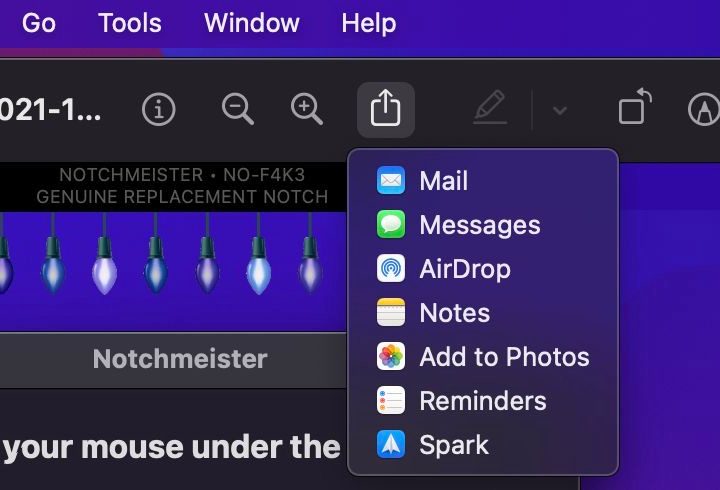
how to use airplay mac airdrop preview
Digital Trends

AirDrop with the file open

If you have the file open in front of you, you can typically AirDrop from right there. If you are viewing a document or photo in Preview, you can find the Share button in the top-center of the window. It looks like a square with an arrow pointing out of it.

how to use airplay mac airdrop quicktime
Image used with permission by copyright holder

AirDrop with QuickTime

If you’re viewing a video in QuickTime Player, the Share button is in the media controls.

Those are the main ways to use AirDrop on Mac. For more on the Mac, check out our guide on how to use AirPlay.

Caleb Clark
Former Digital Trends Contributor
Caleb Clark is a full-time writer that primarily covers consumer tech and gaming. He also writes frequently on Medium about…
Apple’s cheapest iPad might finally catch up on performance
The 2026 iPad is all about performance — not design
iPad (2025) colors.

Apple's entry-level iPad has always been about value, but performance wasn't its strongest suit. The company's Pro models offered much higher horsepower with their M-series chips.

But the 2026 iPad might finally be getting the boost it needs.

Read more
Apple apparently has a new entry-level iPad ready for launch in a few months
Apple's entry-level iPad is getting a long-overdue chip leap — and this time, it brings Apple Intelligence along for the ride.
11-inch iPad A16 deal

Apple’s most affordable iPad is gearing up for a meaningful refresh in a few months. This time, it looks like the changes run deeper than a simple silicon upgrade. 

According to a new report from Bloomberg’s Mark Gurman, the company has been on track since last year to launch a refreshed entry-level iPad in the first half of 2026, within the iOS 26.4 release timeframe, which runs until May 2026. 

Read more
Android tablets and foldables are getting an utterly useful Chrome upgrade
Chrome's new bookmarks bar finally brings Android tablets the one desktop browsing feature power users never knew they were missing.
Chrome tips

Google is rolling out a bookmarks bar for Chrome users on Android tablets and foldables (basically, large-screen devices) with Chrome version 146. The feature might sound familiar, as it has been available on Chrome for desktop for years. 

As seen on desktop, the bookmarks bar appears below the omnibox, spanning the full width of the screen and showcasing favicons alongside site names, while a right-facing chevron handles overflow. Long-pressing a bookmark reveals its full URL. 

Read more