

Android 10 is rolling out to selected phones, and as usual for a major Android update, it adds a bunch of new features to slot into your device’s existing repertoire of tools. But with even more new features joining social media, games, and messaging apps, your phone’s constant buzzing and bleeping threaten to pull you away from what really matters.
Google knows that, and it has added a feature to make sure you’re not distracted by a constant deluge of memes and funny videos. Whether you need to focus on work, are taking time with family, or are just looking to get some time away, here’s how you can cut out the chaff with Focus Mode in Android 10.
What is Focus Mode?
But what exactly is Focus Mode? It’s basically a refined version of Do Not Disturb. It’s a mode that blocks notifications from specific apps while active, clearing away any open notifications from those apps, and stopping any further notifications from showing up while the mode is active. In addition, the offending apps will also be blocked during Focus Mode, stopping you from “accidentally” opening them when you should be doing something else.
Don’t worry about losing your notifications either, as previous notifications will be restored once you turn off the mode, in addition to any notifications that arrived while Focus Mode was active.
Signing up for the beta
Although Android 10 has rolled out, Focus Mode isn’t available quite yet. Google is seemingly still putting the final touches to its distraction-cutting tool, and as such, it’s only available in the beta build of the Digital Wellbeing app.
If you’re happy to throw yourself into the beta to get access to Focus Mode, then it’s simple to do so. Head over to Google’s beta webpage and apply to enter the beta. Then head over to Digital Wellbeing on the Play Store on your Android device to download the beta update. Once you’ve done that, you’ll have access to Focus Mode through the updated Digital Wellbeing app.
How to access Digital Wellbeing
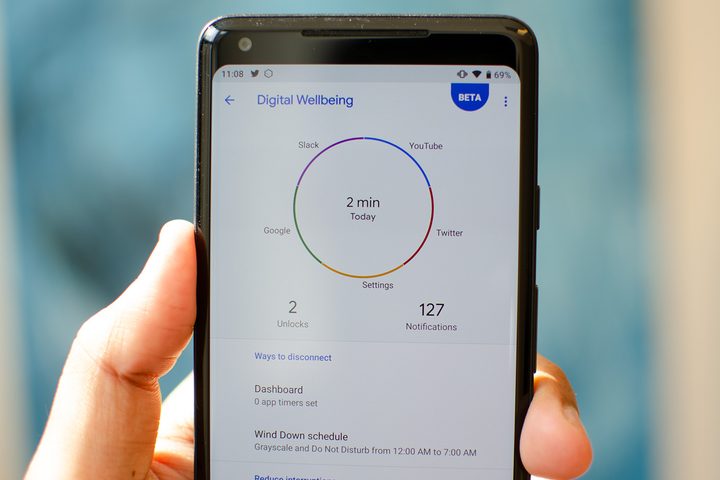
Focus Mode is accessed through Google’s Digital Wellbeing app, so you’ll need to know how to use Google’s time-monitoring wellness app as well. We’ve covered that in detail in our Digital Wellbeing guide, but in brief, you can quickly access Digital Wellbeing by opening your Settings app, then by tapping Digital Wellbeing & parental controls.
To make it easier to access Digital Wellbeing in the future, scroll down the main Digital Wellbeing menu and enable the option for Show icon in the app list. That way, Digital Wellbeing will show up in your app list, making it easier to find.
How to turn on Focus Mode


Once you’ve opened Digital Wellbeing and made it easy to access, turning on Focus Mode is extremely easy. Simply head to your Digital Wellbeing app — either through Settings > Digital Wellbeing & parental controls or through your app list — and then tap the Focus mode option underneath the Ways to disconnect submenu. Once you’ve opened it, tap the blue Turn on now button to start Focus Mode.
Adding and removing apps from Focus Mode
But turning it on won’t do anything if you don’t tell it what to ignore. Focus Mode works best when it’s blocking the apps that distract you the most, but it won’t block any apps by default. Instead, you’ll need to do that for it. To have Focus Mode block notifications from apps when it’s active, just tick the box next to the app name in the main Focus Mode menu. It’ll then appear under a Your distracting apps submenu. To remove an app, untick the box to allow its notifications to show through Focus Mode.
Making it easy to start Focus Mode


Opening the Digital Wellbeing app every time you want to quickly toggle Focus Mode on isn’t the fastest of processes. So instead of doing that every time, why not add a quick switch to your Quick Settings above the notification shade? To do so, drag down on your screen to open your notification shade, then drag down again to open your Quick Settings. Tap the pencil icon in the bottom left of the window, then scroll down the page until you find the Hold and drag to add tiles submenu. From there, find the Focus mode tile and drag it to the menu above to add it to your Quick Settings.
Now you’ve done that, you’ll be able to simply access your Quick Settings and tap the Focus mode icon to turn the tool on.


