

Netflix is one of the best streaming services on the planet, but even it can be annoying. If you're tired of Netflix's autoplay previews blaring at you or episodes that automatically keep playing when you're done watching, you'll be happy to know that there's a way to turn these features off.
With just a few clicks in your Netflix account settings, you can disable autoplay previews and stop the next episode from automatically starting.
No more scrambling to turn down the volume or quickly moving on from a title just so the preview doesn't play. You'll have full control over what plays and when. Plus, you can prevent episodes from endlessly auto-playing after you've dozed off, saving you bandwidth. It's easy to turn off. Here's how.
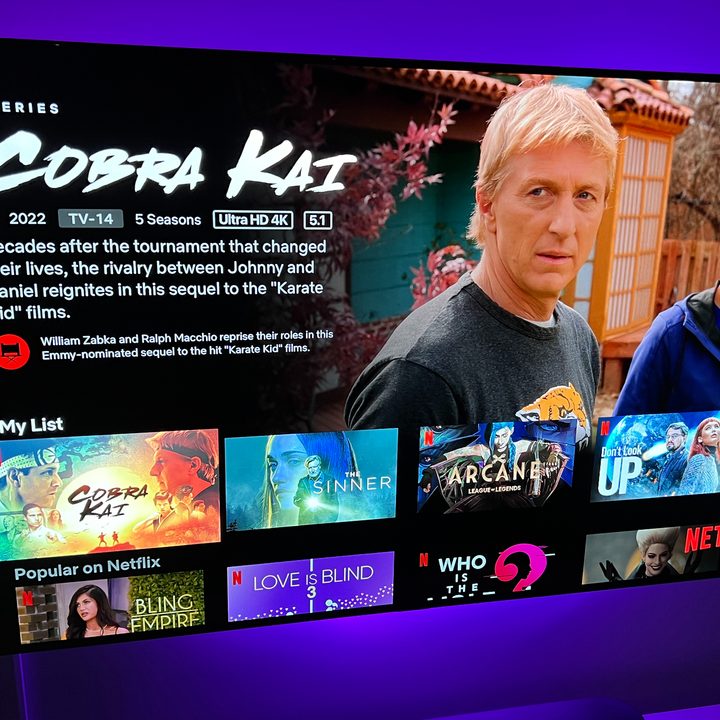
How to turn off Netflix's autoplay previews
Step 1: Right out of the gates, you’ll want to login to your Netflix account from a web browser.
Note: This process can also be done on your smartphone or tablet as well, but not using the Netflix app. Use your device's browser to access your account.
Step 2: On the pull-down menu on the right side of the page, select Account.
Once here, you'll find all kinds of information about your account, including all the profiles you have set up. You'll need to deactivate the autoplay for all profiles individually (I guess some people like the feature?). By default, your account is selected.
Scroll down, then select Edit Setting. On the next page, choose Playback Settings.

Step 3: Uncheck both boxes at the top, under Autoplay controls for you — there's a box for each playback setting, for previews and next episodes. If you uncheck the second box, Netflix will no longer autoplay previews of content that you happen to hover over. No more scrambling to turn the volume down, or quickly moving on from a title just so the preview doesn’t play. Unchecking the first will stop Netflix from automatically moving on to the next episode in a series you’re watching. While binge-watching is kind of the thing to do on Netflix, disabling this feature will actually require viewers to actively participate in said binge.

Step 4: Lastly, select Save to lock in your choice. Log out of your account.
As soon as you make the change to your profile on one device, it will take effect across all devices on which you’re logged into Netflix.

Netflix noted that there may be a delay before the setting changes take over, but an update can be forced by switching profiles, then switching back to reload your own profile with the updated settings.
And, if you decide that you miss the ways of autoplay, you can always head back into your settings and check a box or two.
The steps above work no matter what Netflix plan you have.


