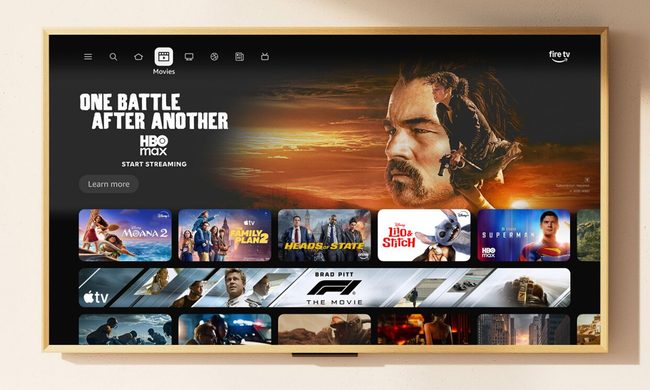
You’re hard pressed to find a “good” TV that’s not also a “smart” TV. In fact, I’m not really sure one exists. All of the best TVs come with smart features. Whether it’s Google, Amazon Fire, Tizen, Roku, or WebOS, most of the big brands ship their TVs with a smart operating system built in.
But there are a lot of people who, for one reason or another, prefer the idea of a dumb TV.
If you don’t know, a dumb TV is just what a lot of people call a TV that’s stripped of all the smart functions. No automatic connection to the internet. Nothing automatically logging you into your apps. No automatic software updates. No ads. Just the TV home page.
“Why is this appealing?” you might ask. Well, some people don’t want their information and viewing habits to be tracked through their TV, although more sensitive information than that is already tracked on your phone and probably elsewhere too. That’s a topic for another day.
What we’re here to do is go through the setup process for a dumb TV.
TVs this guide applies to
Our model today is the TCL QM6K, which natively runs Google TV.
But you can follow a very similar, if not the same, process to set up other TVs that run the Google operating system, like many Sony and Hisense models, as well as other TCL TVs.
How to setup Basic TV Mode on Google TV
Step 1: Power on your TV

Turn on the TV and begin the initial setup process.
Step 2: Select your language

Choose your preferred language from the on-screen options.
Step 3: Choose your country

Select your region or country to continue.
Step 4: Pick your setup path

You’ll see two choices:
Set Up Google TV (enables streaming apps, recommendations, and Google Assistant)
- Set Up Basic TV (only Live TV and External Devices, no internet functions)
- For a dumb TV setup, select Set Up Basic TV.
Step 5: Skip the Wi-Fi connection

On the next screen, the TV will prompt you to connect to a Wi-Fi network. Scroll to the bottom and choose Skip to avoid connecting.
Step 6: Pair your remote

Follow the prompts to pair your remote. Note that voice search features won’t be available in Basic TV mode.
Step 7: Explore the home screen
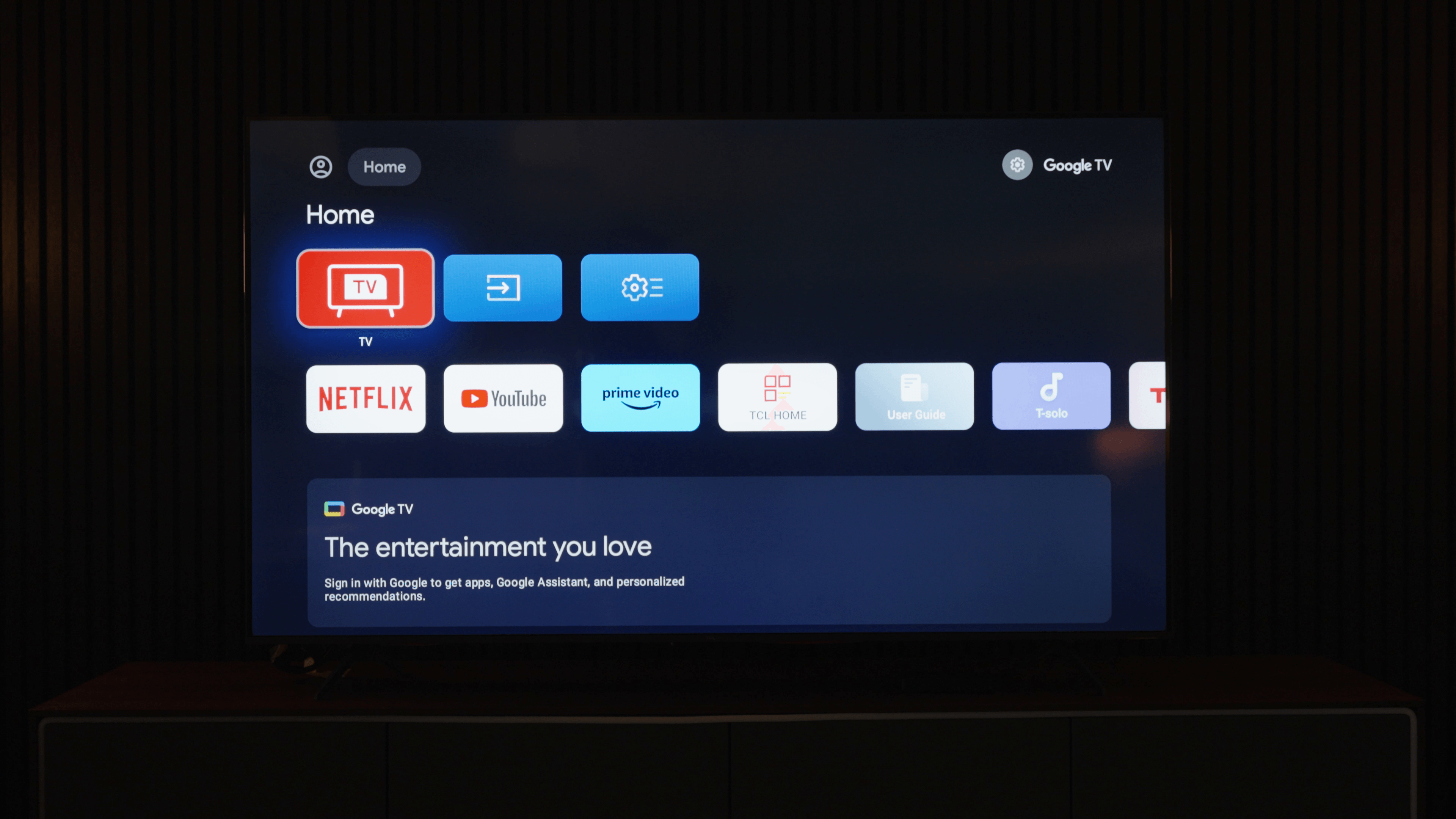
You’ll land on a simplified home screen with just your TV, inputs, and a few pre-installed apps (which won’t function without Wi-Fi).
Factory reset for existing TVs

If your TV is already set up as a smart TV and you’d like to convert it into a dumb TV instead, perform a factory reset:
- Open the All Settings menu.
- Navigate to System.
- Go to About.
- Select Reset, then Factory Reset.
- Confirm through the prompts to erase everything and start fresh.
Switching Back to Smart Features
Should you choose to come back to the year 2025 and live with the advancements technology has afforded us, you can turn on Wi-Fi, sign in to Google TV, and use all the smart functions.
But until then, this is basically a big monitor that relies on your external devices to play content.
So, you know, hook up your PlayStation 5, Apple TV 4K, or whatever devices you prefer that definitely don’t have any of your information.
Jokes aside, setting up a dumb TV is handy sometimes, especially if it’s at a rental property, storefront, or somewhere with a lot of different users.
At home, though, a big part of what you’re paying for in the TV is its operating system and picture processing. Yes, you can still get top-tier quality from external devices. And if it’s a high-end Blu-ray player, you’re getting better quality than streaming.
But you paid for the TV—let the TV do the work. That’s just my two cents.