
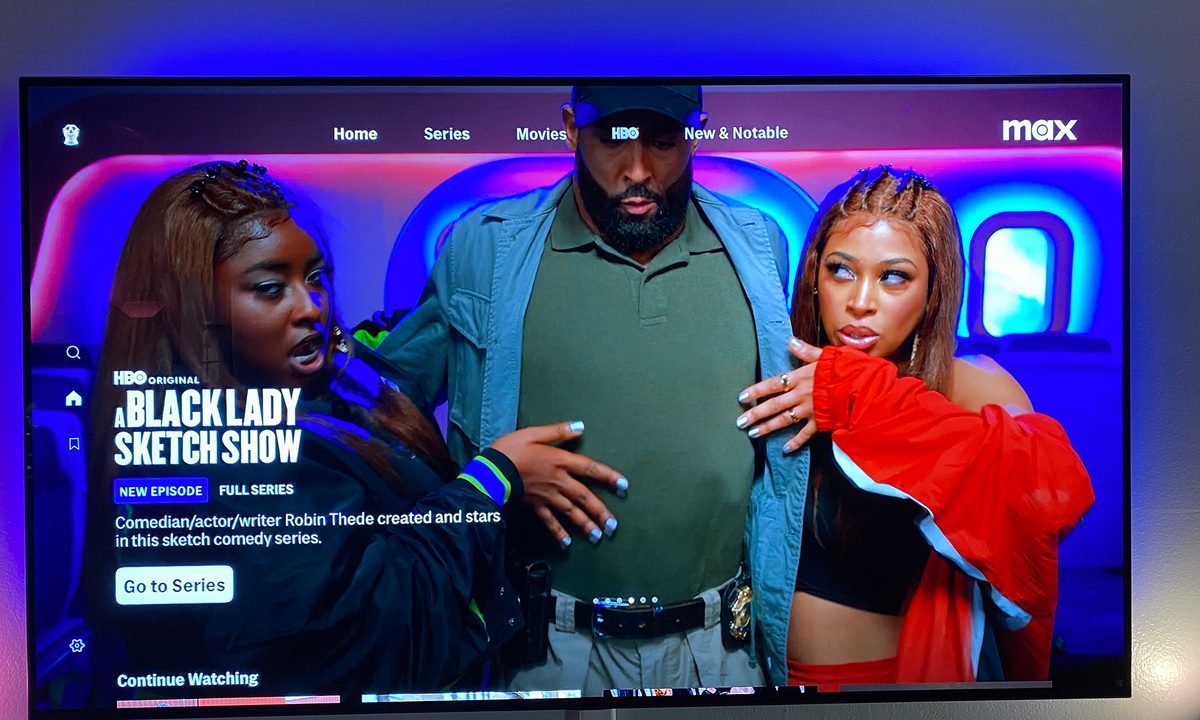
It’s been a busy few years for streaming services, and Max (formerly HBO Max) is no exception. After a big merger and a handful of revamps, the popular streaming service now offers more movies and TV shows than ever. Not only will you find programming from HBO but you’ll also find a handsome trove of Warner Bros. content, including titles from DC Universe, Cartoon Network, and Turner.
Available in several regions, the Max streaming service even offers closed captions and subtitles for a large part of its catalog. And whether you’re streaming Max on an iPhone, one of the best streaming devices around, or an an excellent TV, you’ll be able to enable and disable these visual companions on just about any device. Let's begin.
Closed captions versus subtitles
First, we need to establish the difference between closed captions and subtitles. Closed captions are typically provided the help individuals who are deaf or hard of hearing to experience what's happening on screen. They not only include what's being said/sung by those on screen, but also other information such as descriptions of sounds, the inclusion of music, and more.
Subtitles, on the other hand, offer text translations of audio dialogue, usually from one language to, often, a variety of other languages. In recent years they've also become increasingly used to aid viewers in following along with dialogue that can be too quiet or difficult to hear.
Adjust closed captions in Max
You can access Max on numerous platforms and devices including iOS and Android devices, Amazon Fire TV, Roku, Apple TV, Samsung smart TVs, mobile tablets, and the Max website. Find your device below, and follow the provided instructions to enable or disable closed captioning.
iOS and Android devices
Step 1: While watching a video on Max, tap the screen.
Step 2: Select the Audio & Subtitles button, located in the upper-right corner of the screen.

Step 3: Select to turn closed captions on or off. Select X to save your changes.
Max website
Step 1: While watching a video, hover your mouse over it.
Step 2: Select the Audio & Subtitles button, located in the bottom-right corner of the screen.
Step 3: Select the Captions button.

Step 4: Select either On or Off. Select X to save your changes.


Amazon Fire TV
Step 1: While a video is playing, press the Menu button on your remote or in the Fire TV app.
Step 2: Select Subtitles from the listed options. Then, select Off.
Roku
Step 1: While a video is playing, press the Star button on your remote.
Step 2: Go to Settings, then Closed Captioning.
Step 3: Select Off to turn captions off or select one of the On options.
On options include On Always for captions to always appear, On Replay for captions to only appear after pressing the replay button, and On Mute for captions to only appear when the volume is muted.
Apple TV
Step 1: While a video is playing, swipe down on the remote’s touch surface.
Step 2: Select Subtitles after swiping right.
Step 3: Select to turn the captions On or Off.

Samsung TVs
Step 1: When a video is playing, grab your remote and press the Down button.
Step 2: Several options should then pop up. Highlight the CC option. From there, you can decide whether to enable closed captioning or turn the function off.

LG TVs
Step 1: While watching a video, press the Select button on your remote.
Step 2: Move down and select the Audio & Subtitles option.
Step 3: Select Off and then press the back button to save your changes.
Xbox console
Step 1: While watching something, press the A button on your Xbox controller.
Step 2: Move down and select the Audio & Subtitles option from the settings menu.
Step 3: Toggle subtitles off and then press the B button to save your changes.

Customizing closed caption options
You can also change the way subtitles and captions look on Max. If you’re using an iPhone or iPad, open the Settings app, followed by Accessibility > Subtitles & Captioning > Style.
For Android devices, open Settings. Run a search for Caption, then select Caption style.
If you’re watching Max through the browser-based web player on a desktop PC or laptop, head to max.com, then click Settings > Subtitle Style.
You’ll also be able to change the way titles look on Max if you’re watching on a streaming device. For Amazon Fire TV devices, choose Settings > Device Preferences > Accessibility > Captions.
If you’re using a Roku streaming device (or Roku-powered smart TV), press the Home button on the Roku remote, then select Settings > Accessibility > Caption style.
For Apple TV users, go to Settings > Accessibility > Subtitles & Captioning > Style.


