Finally got your hands on an Apple Pencil? It’s a great tool, and with a series of new features in iPadOS 14, the stylus is more useful than ever. It’s also compatible with every iPad model out there: With the first-generation Apple Pencil being available for the iPad, iPad Mini, and last-generation iPad Air, and the second-generation Pencil offering compatibility with iPad Pros and latest-gen iPad Air.
Interested in getting the most out of your Apple Pencil? That’s why we’ve put together this guide. Here are all the Apple Pencil tips and tricks you need to get started with Apple’s stylus.
Pairing and charging the Apple Pencil
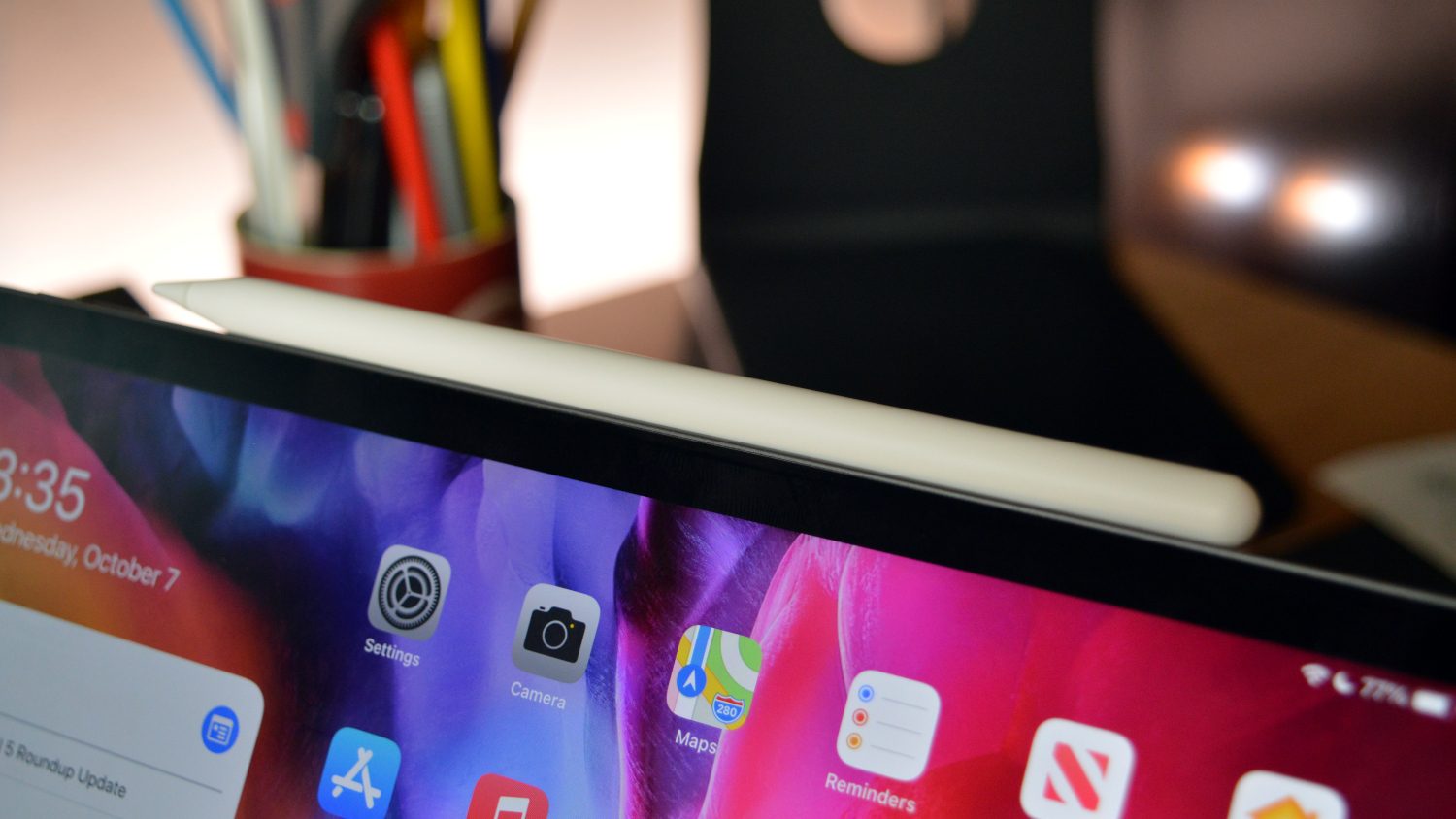

Pairing the Apple Pencil with your iPad is quite easy, though how you do so will depend on the model you have.
If you have the first-generation Apple Pencil, which is the completely circular model that works with the entry-level iPad and the iPad Mini, you’ll pair the Pencil by taking off the end cap of the Pencil and plugging it into your iPad’s Lightning port. If you have the second-generation Apple Pencil, which works with the iPad Pro and 2020 iPad Air, you’ll pair the device by magnetically attaching it to the right-hand edge of your iPad.
The way you pair the Apple Pencil also happens to be how you charge the device — by either plugging it into your iPad, or magnetically attaching it.
Changing tools

Changing tools with the Apple Pencil is very easy, and there are some shortcuts to help you do so. The most obvious way to change tools is simply to select the tool you want from the Apple Pencil tool set. The list of tools, in order, can be found below.
- Scribble tool
- Pen tool
- Highlighter tool
- Pencil tool
- Eraser tool
- Selector tool
- Ruler tool
If you’re drawing and want to change quickly to the eraser, you can do so by double-tapping your Pencil — as long as you have the second-generation model. Then, double-tap again to switch back to the tool you were using before.
Drawing straight lines

The Apple Pencil has a number of different modes, and one of them is perfect for those who want to draw a straight line. In the Pencil’s tool set, you’ll notice a ruler tool at the end. Tap on that, and a ruler will appear on the display — which you can move around and rotate to where you want it. Then, select the tool you want to draw with, and draw a line along the side of the ruler, and it should automatically straighten out.
Changing the double-tap function
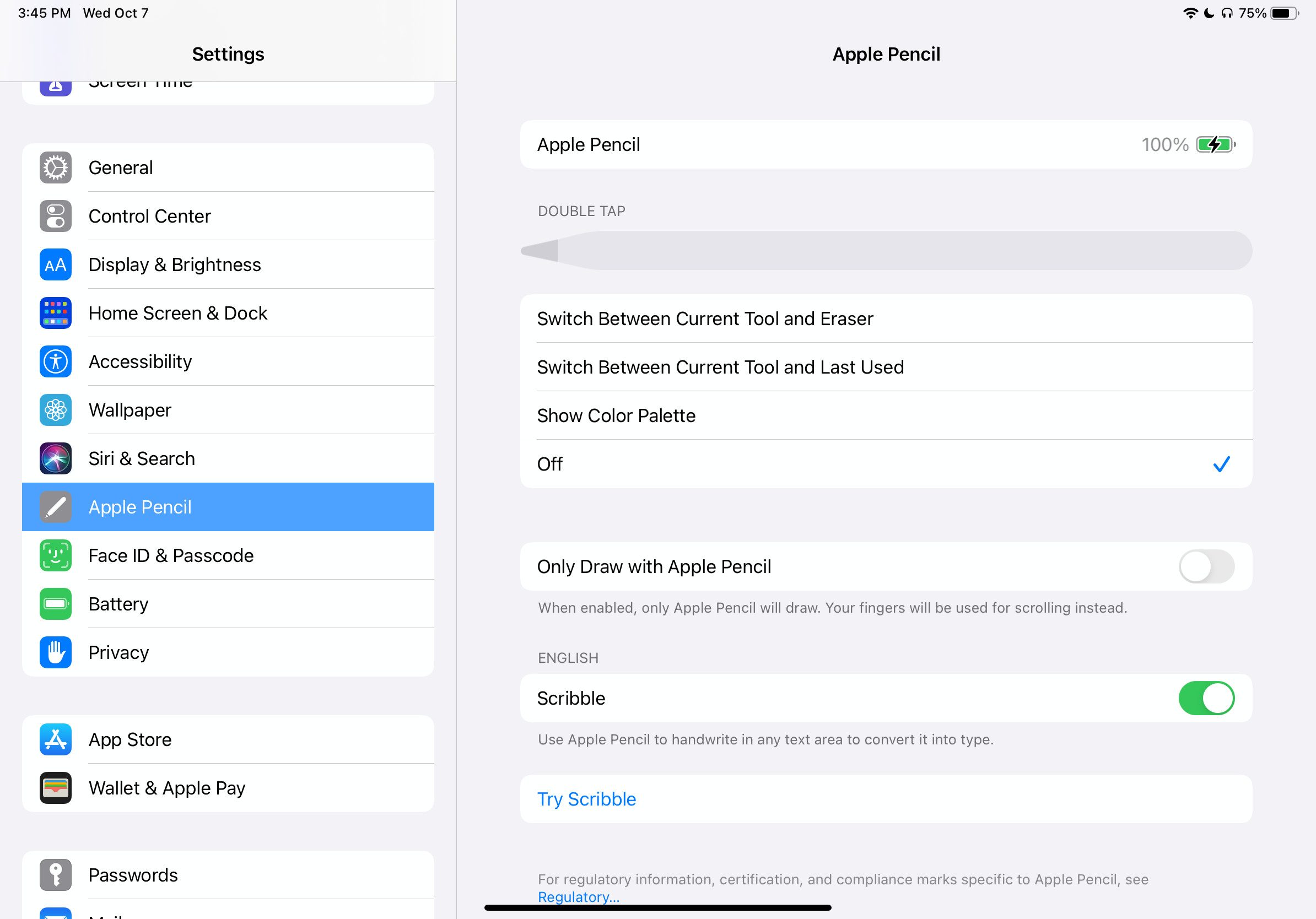
The second-gen Apple Pencil’s double-tap function can be changed, if you want it to do something other than activate the eraser. To do so, head to the Settings app, then scroll down to Apple Pencil. You’ll then be presented with the different options for the double-tap function, which include the following.
- Switch between the current tool and eraser
- Switch between the current tool and last used
- Show color palette
- Off
Shading with the Apple Pencil
The Apple Pencil is a pretty versatile tool, and it’s built to look and feel natural. Just like a normal pencil, you can use the Apple Pencil to shade, by simply tilting the Pencil. By doing that, you can color a wider surface than you otherwise would be able to by just writing.
Using Scribble

With iPadOS 14, Apple has introduced a number of new features that make the Apple Pencil even more useful — particularly if you aren’t inclined to use it as an artist’s tool. Perhaps the most obvious of those is Scribble, which essentially allows you to handwrite anywhere where you would otherwise type.
It’s a handy feature, and you don’t really have to do anything to activate it. Simply pick up your Pencil and start writing. In the Notes app, the Scribble tool is the first among the other tools. Scribble works in any text fields in iPadOS, including in Safari, in search boxes, and so on.
Tracing onto the iPad
You can actually trace onto the iPad too, as long as the paper you’re tracing from isn’t too thick. Simply place the paper you want to trace from onto the iPad, and with your Apple Pencil, trace over the drawing. It should then be digitally represented on your iPad. A nice melding of physical and digital worlds!
Drawing perfect shapes

Another new feature in iPadOS 14 is that the operating system now recognizes shapes as you draw them, and can convert your wobbly drawings into perfect shapes. To do this, simply draw the shape, and then at the end, keep your Pencil held down for a split second, and it will convert to a perfect shape. Nobody has to know.
Replacing the Apple Pencil’s tip
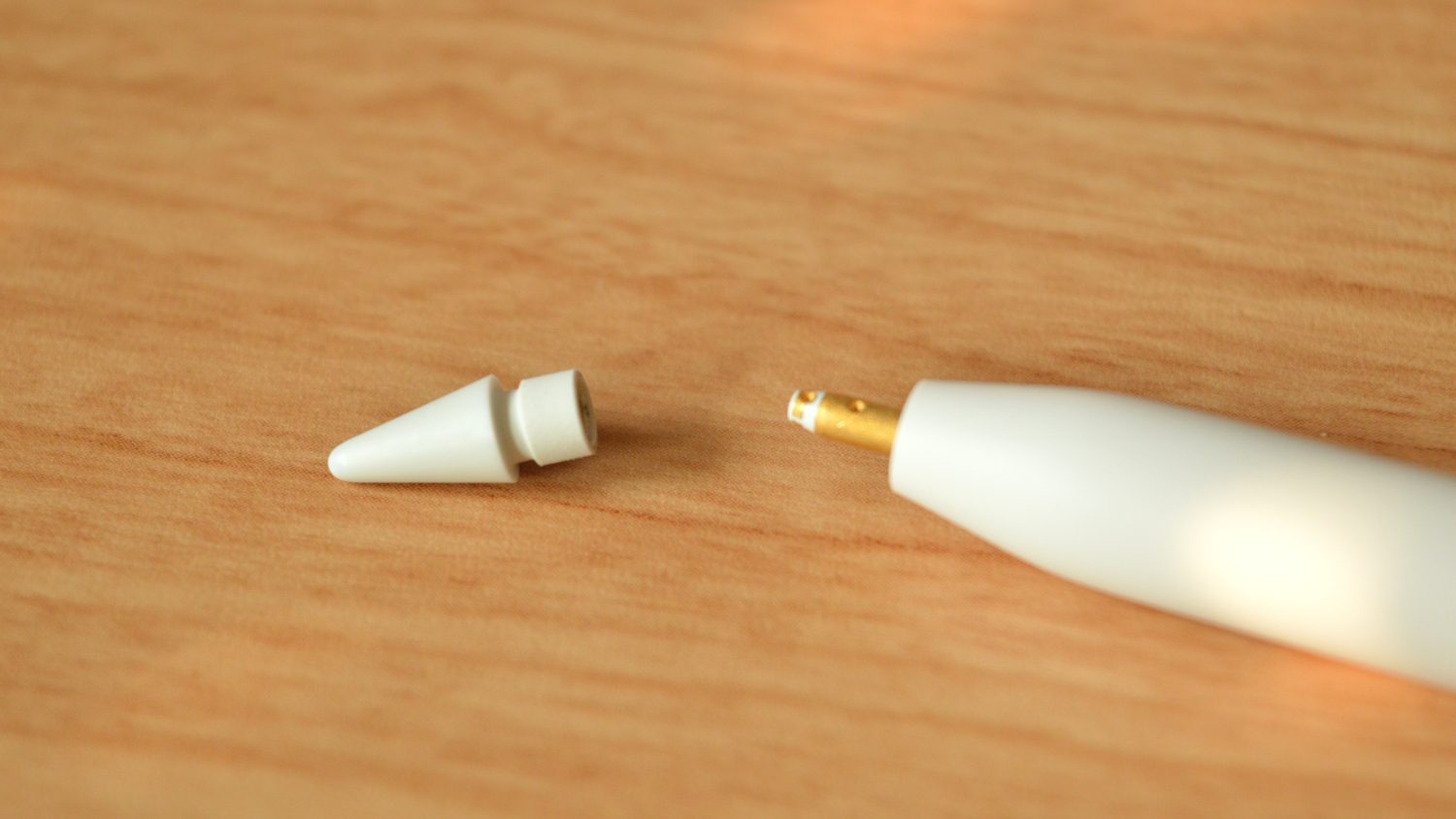
If you accidentally damage your Apple Pencil’s tip, or it gets worn down, you can actually replace it. The tip of the Apple Pencil can be removed by unscrewing it from the main body of the Pencil. You can buy four-packs of Apple Pencil tips for $19 from Apple, but there are also third-party tip replacements on Amazon for about half the price.