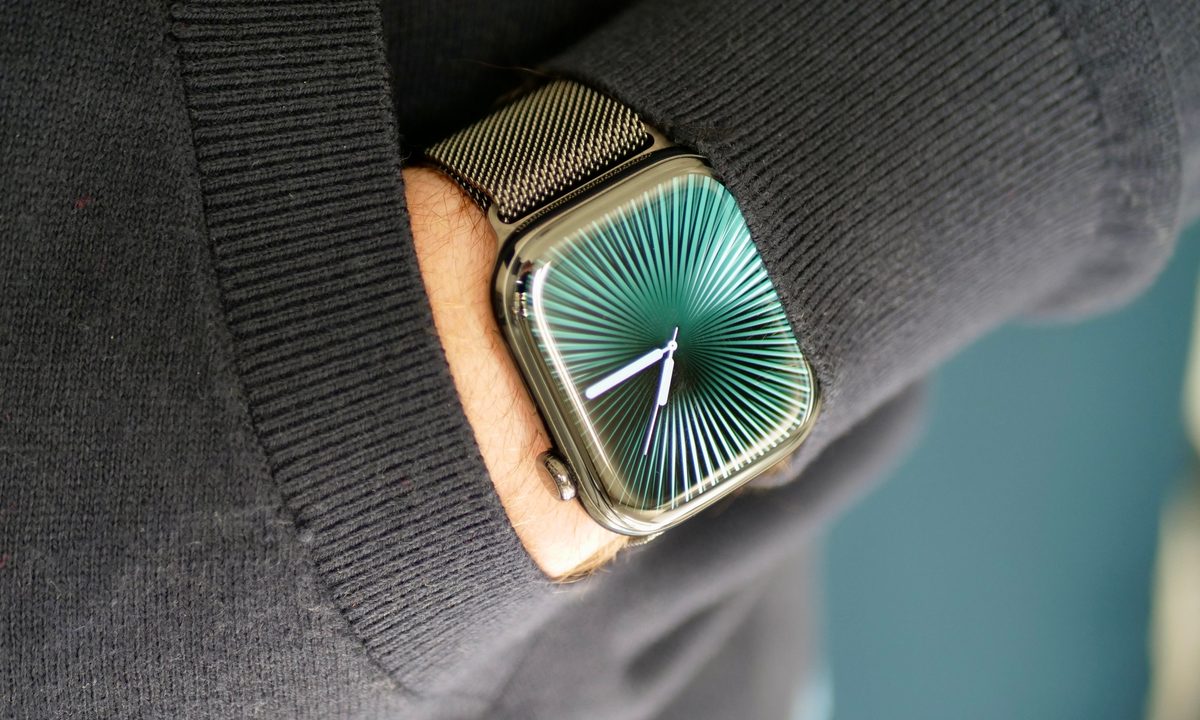
Out with the old, in with the new! A factory reset is necessary if you’re upgrading to the latest Apple Watch, such as the Apple Watch Series 10, or if you just want a fresh start.
But don't worry — it’s super easy! Follow these simple steps to wipe your Watch clean and prepare it for its next adventure.
Whether you're selling your watch, giving it away, or want to declutter, a factory reset removes all your data. No more worrying about your information falling into the wrong hands.
So get ready to reset, refresh, and start anew with your Apple Watch. Who knows what exciting journeys await? Just remember to back up first.
What is a factory reset?
Performing a factory reset on your Apple Watch means restoring it to its original settings, which takes the software back to when it was brand new. This process wipes all data and clears all personal settings, returning the device to its standard operational state.
Before proceeding with a factory reset, it is essential to back up your data. Failing to do so will result in the loss of all personal information.
If your Apple Watch is connected to your iPhone and backed up to iCloud, your iPhone should also automatically back up. However, if your backups are stored on a Mac, ensure the iPhone backup is encrypted to preserve your Apple Watch data. While your data is likely automatically backed up, performing a manual backup before executing a factory reset is wise.
How to factory reset an Apple Watch
Factory resetting your Apple Watch is straightforward and can be completed in just a few simple steps.
You have two options for factory resetting your Apple Watch: you can either unpair and reset it through the Watch app on your iPhone or reset it directly on the Watch itself without using your iPhone. If you choose to reset it directly on the Watch, keep in mind that you may need to disable the Activation Lock feature before selling or giving it away, so it can be set up with another person’s iCloud account. That process will be explained shortly.
The easiest method to perform a factory reset is by using the Watch app on the iPhone that your Apple Watch is paired with. This process involves unpairing the Watch from your iPhone, which will also erase all the data on the Watch.
Factory resetting your Apple Watch using the iPhone Watch app
Again, this is the easiest way to reset your Apple Watch.
Step 1: Open the Watch app on your iPhone. If you can’t find it, use the iPhone’s search feature.
Step 2: Once inside the Watch app, you should see your Watch listed. Choose General, then scroll down to find Reset.

Step 3: Select Erase Apple Watch content and settings. A warning will appear asking if you are sure you wish to unpair and reset the Watch, as this cannot be undone.
Wait for the Apple Watch to unpair and reset. This will take a few minutes as it deletes all the old data and reverts to factory settings.
If you don’t have access to the iPhone that is paired with your Apple Watch, you can reset directly on the watch.

Perform a factory reset by using your Apple Watch
If for some reason, you don't have your iPhone with you, you can certainly do a factory reset directly on your watch.
Step 1: Swipe through the apps in your app cloud on your Watch until you find Settings — it has an icon that looks like a gear. Open Settings, and then select General.

Step 2: Scroll down to the bottom of the list and then select Reset.
Step 3: Select Erase all content and settings. Here, you’ll see a message warning you that if you are not unpairing the Watch from an iPhone first, you may have to remove the Activation Lock before the Watch can be paired with another iCloud account. We’ll look at this later.

Step 4: Scroll down and select Erase all. The Apple Watch will then erase all your personal data and revert to factory settings.
Remove the Activation Lock from your Apple Watch
If you don’t have access to the iPhone your Apple Watch is paired with and must therefore reset the Apple Watch from the watch itself, you may need to disable the Activation Lock. This is used to link your Apple Watch to your iCloud account for security. It’s important to remove the Activation Lock if you’ll be selling or giving away your Watch so that it can be paired with a new iCloud account. To do it, follow these steps:
Step 1: Sign in to your iCloud account on iCloud.com.
Step 2: Click on your profile icon on the top right corner of the main iCloud page and select Manage Apple account.
Step 3: Select Devices and select Your Apple Watch.
Step 4: Select Remove from account.
Following these easy steps will allow you to quickly and easily restore your Apple Watch to factory settings, meaning you can sell it or give it away without problems, or just get it functioning like new again.