
Cyberpunk 2077’s launch has been quite rocky — due in part to its poor performance, particularly on consoles — so much so that a substantial amount of buyers have been inquiring about refunding the product across all platforms. While there has been a performance patch since the game’s release, it still doesn’t look or run amazingly on consoles. Players have found that on base level previous generation systems (PlayStation 4 and Xbox One), Cyberpunk 2077 takes the biggest hit from a technical standpoint.
However, with the PS4 version, you can alter a handful of settings to improve its quality. These settings won’t fundamentally change the way the game plays — and if you didn’t love it originally, altering these settings likely won’t change your mind — but, at the very least, they offer a noticeable improvement over what’s available by default. These are the best settings to change to improve Cyberpunk 2077’s PS4 performance.
See more
- How to make money fast in Cyberpunk 2077
- Best weapons in Cyberpunk 2077, and where to find them
- How to build a gaming PC for Cyberpunk 2077
The best settings to change to improve PS4 performance
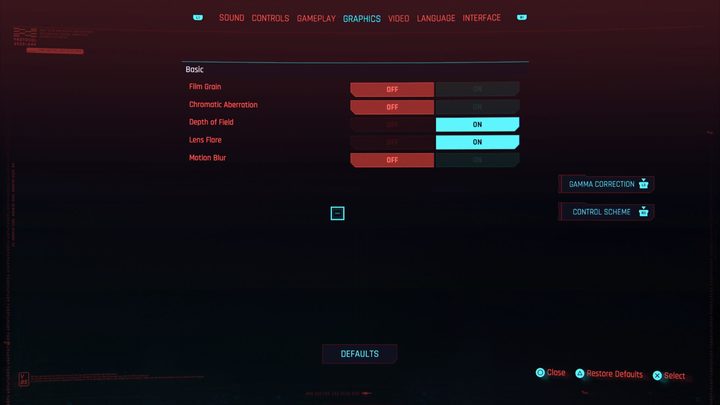
To alter the game’s visual settings, press the Options button on your DualShock (or DualSense if you’re on PS5) and jump into the Settings. Tab over to Graphics by pressing R1 and you’ll see a list of options you can change. Here are the recommended settings:
- Film Grain — off
- Chromatic Aberration — off
- Depth of Field — on
- Lens Flare — on
- Motion Blur — off
It can be tough to tell, but having the settings listed above will make the image look slightly sharper than it is by default. We also highly suggest tabbing over to Video and turning off HDR Mode completely. Doing so will give you a clearer image that would otherwise look dark and muddy.
Here’s a comparison showcasing the difference between default settings and adjusted settings.
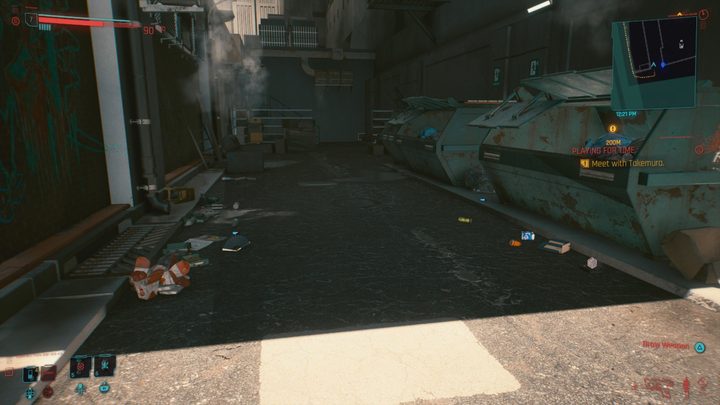
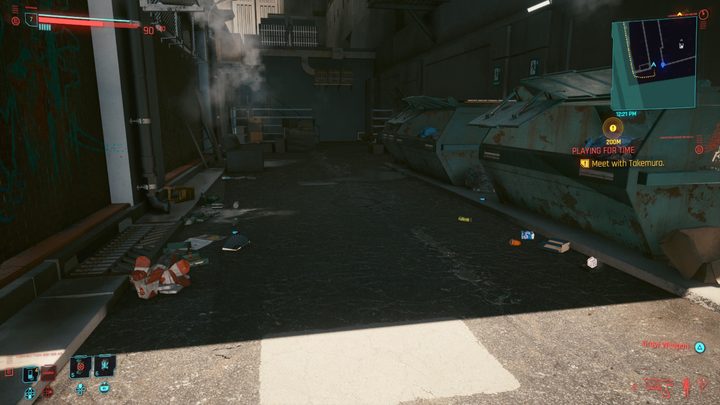
Again, it can be tough to tell, but the image on the bottom is slightly clearer. Look at the pipe on the left side of the screen. The top image is a bit more blurry and muddy.
Oddly enough, disabling HDR improves the visuals, which is counter to what you might think. For some reason, enabling HDR causes much darker-looking visuals to appear on screen, making it harder to read.
Changing these settings will only slightly impact your experience, but until CD Projekt RED issues out a major patch that addresses all of its visual shortcomings, you’ll have to make do with what you have. Keep in mind, the game runs best on PS5, slightly worse on a PS4 Pro, and even worse on a base PS4, so your mileage will vary depending on the machine you have. On consoles, you can only play the game at 60 frames per second if you’re on a PS5 or Xbox Series X, which does look way better than its last-gen counterparts.


