
Stadia, a cloud gaming service that streams games to web browsers and dedicated apps, opened its doors to the general public in April after a limited launch at the end of 2019. While PC and Android gamers could stream their favorites to compatible devices, iPhone and iPad owners were excluded from the Stadia cool club. Thankfully, that has now changed.
In December, Google introduced a Progressive Web Application for Safari. It doesn’t require you to download anything from the App Store but rather relies on HTML, Javascript, and so on to deliver an “app” within a browser environment. Essentially, it bypasses Apple’s restrictions on game-streaming services.
But don’t let the PWA aspect fool you: Stadia performs and plays like a native app and even supports Bluetooth controllers. Performance is extremely solid for an “experimental” feature, too, although the streaming quality depends on your internet connection.
In this guide, we’ll show you how to play Google Stadia in Safari on your iPhone and iPad. Keep in that it requires iOS 14.3 and iPadOS 14.3 or newer, and at least one game in your Stadia library; Stadia also works Google Chrome.
See more
A note on Stadia
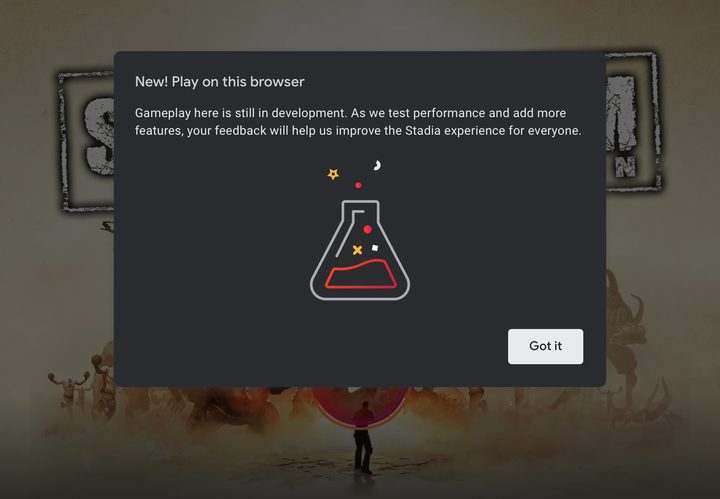
If you’re not familiar with the service, Google provides two plans: Free and paid.
Creating a Stadia account is free, but you generally must purchase the games. The exceptions are demos and two games anyone with Stadia account can play for free: Destiny 2 and Super Bomberman R Online, the latter of which is a Stadia exclusive. Stadia provides weekend-long trials, too.
Moreover, any game you purchase is streamed in 1080p. The lineup is rather slim as of right now, but you’ll find recent games like Cyberpunk 2077, Baldur’s Gate 3, Doom Eternal, Watch Dogs: Legion, and so on.
Meanwhile, Stadia Pro costs $10 per month. With this plan, Google upgrades the streaming quality to 4K for all games. The subscription also includes a library of “free” games you can add and play each month, but they become unavailable once you cancel your subscription.
When you create a new account, you can claim a free month of Stadia Pro to see what the subscription has to offer. This trial includes a collection of more than 30 games.
Pairing a Bluetooth controller
You can play Stadia on your iPhone or iPad using an Xbox, DualShock 4, Stadia, or compatible MFi controller via Bluetooth. While Google provides a stand-alone app to pair your controller, it’s easier just to use the iOS or iPadOS Settings app. Wired versions do not work at this time.
Note: Apple is currently working with Microsoft to add support for the Xbox Series X controller in a future update.
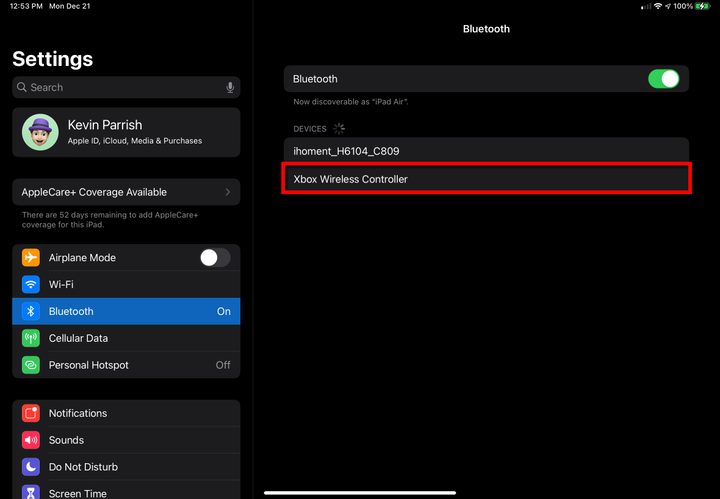
Step 1: Power on your Xbox, DualShock 4, Stadia, or compatible MFi controller.
Step 2: Put the controller into Bluetooth pairing mode by pressing and holding the Pairing button. An LED should flash on the device, indicating that it is now ready to pair.
Step 3: Open the Settings app and tap Bluetooth.
Step 4: Tap the Discovered Bluetooth Controller. In this example, we use an Xbox One controller.
After a few seconds, your controller should be paired with your iPhone or iPad.
Play Stadia in Safari or Chrome
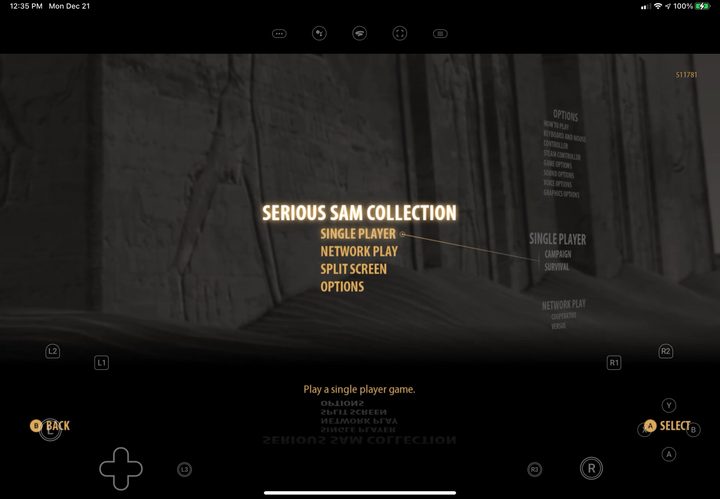
In Safari, you can play Stadia using on-screen touch controls, as shown above. However, the overlay doesn’t work within a browser tab. Instead, you must create a “web app” by adding a bookmark to the home screen.
Google Chrome does not support touch controls or the ability to add a bookmark to the home screen. That said, the following instructions apply to Safari.
Step 1: Open Safari, and go to stadia.google.com.
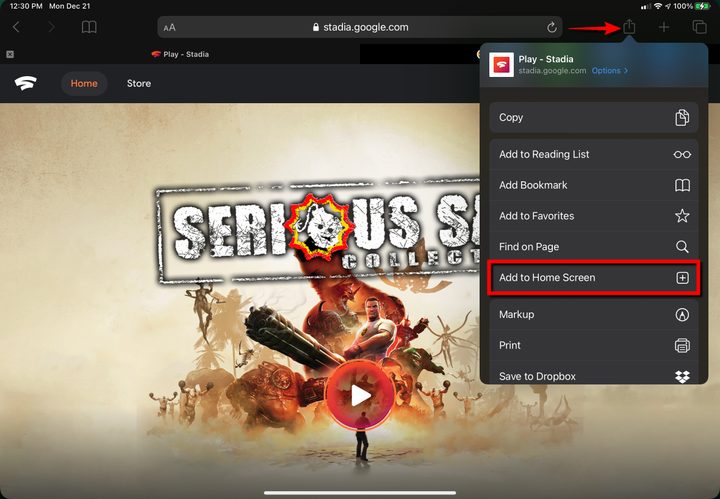
Step 2: Tap the Share button located in the upper-right corner. It resembles a box with an up arrow.
Step 3: Tap the Add to Home Screen option listed in the drop-down menu.
Step 4: Tap Add on the following menu.
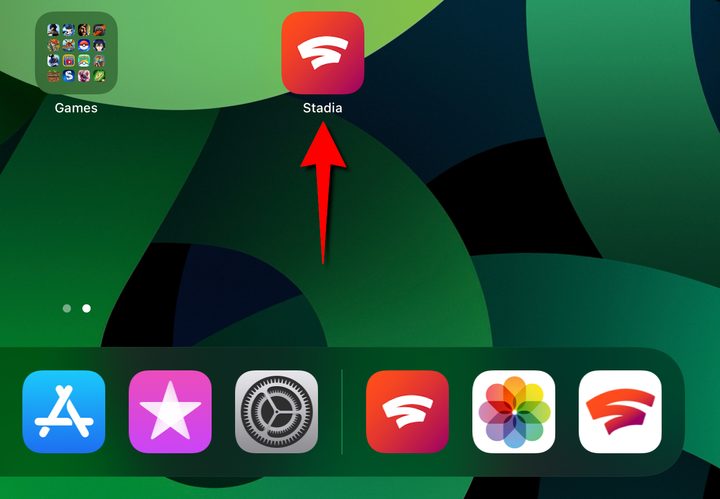
Step 5: Tap on the Stadia icon on your home screen to launch the streaming service. Note that its color scheme — a white logo against a red backdrop — is the exact opposite of the scheme used with Google’s App Store app (shown above on the right).
Step 6: Sign in to your Stadia account.
Step 7: Tap the red Play button on the game you want to stream.
If you paired a game controller, you don’t need to move on to the next step. If you’re opting for the touch controls, however, continue on.
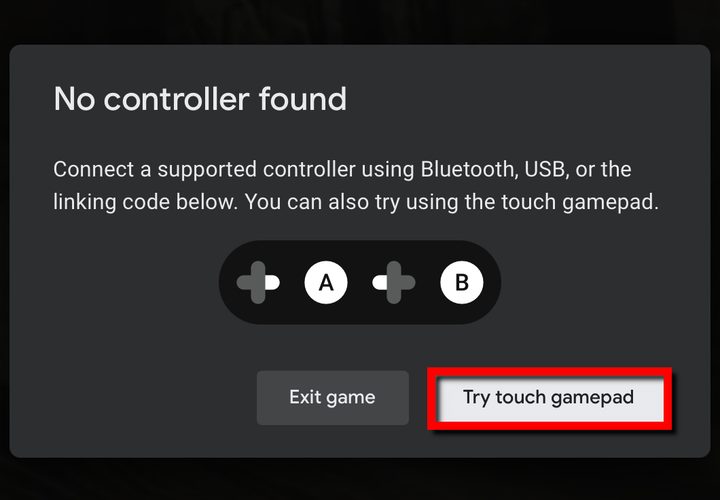
Step 8: A pop-up states that no controller was found. Tap the Try Touch Gamepad button. If you’d rather pair a controller (or fix a controller issue), tap Exit Game instead.
Step 9: Play the game using the on-screen touch controls.


