  1. Home
  2. Computing
  3. How tos

How to remove a picture background in Canva

Add as a preferred source on Google
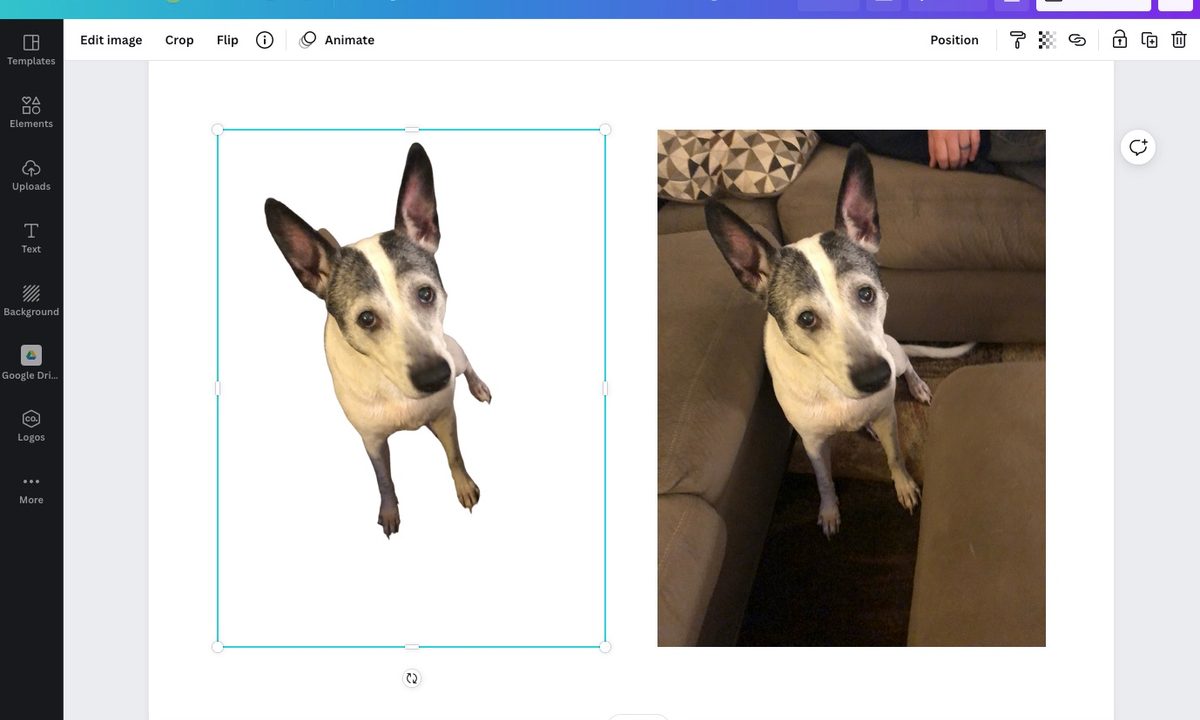
Pictures in Canva with one background removed.
Image used with permission by copyright holder

Most times, you want the subject of your photo to be the center of attention with no distracting background. You might have a photo bomber behind your subject or simply a background that you don’t need for your project.

With Canva Pro, you can remove the background of a picture. Then, use that important part that remains in your Canva project. We’ll show you just how to remove a background in Canva.

Recommended Videos

Difficulty

Easy

Duration

5 minutes

What You Need

  • Canva Pro account

Upload and add your picture to Canva

If you’ve already uploaded the picture you want to use, you can jump down to the next portion explaining how to remove the background in Canva.

But if you don’t have your image uploaded yet, you can add it easily.

Step 1: Open your project and select Uploads on the left side.

Step 2: Choose Upload Media or use the Three Dots to import an image from Google Drive, Dropbox, Facebook, or Instagram.

Upload media in Canva.
Image used with permission by copyright holder

Step 3: Select the image and click Open or follow the prompts per the location you choose.

Step 4: On the Images tab, pick the picture you want to insert or drag and drop it onto the canvas on the right.

Insert an image in Canva.
Image used with permission by copyright holder

Remove the picture background in Canva

With your image on your canvas, it’s super easy to remove the background.

Step 1: Select the picture and click Edit Image in the toolbar at the top.

Step 2: You’ll see the Edit Image options to the left. Pick Background Remover at the top.

Background Remover tool in Canva.
Image used with permission by copyright holder

Step 3: After a few moments, you’ll see your picture transformed to one without a background.

You can then make an adjustment if there’s more of the background you want to eliminate.

Image background removed in Canva.
Image used with permission by copyright holder

Step 4: Select Erase to remove additional portions of the image. Then, adjust the slider to set the brush size you want to use. Use your cursor to click or swipe through the other parts of the picture you want to remove.

To see the background again but dimmed, check the box for Show Original Image.

Use Erase to remove more of an image background.
Image used with permission by copyright holder

Step 5: If you accidentally erase something you want back, click Restore. Then use your cursor to bring back those portions of the picture as they were originally.

Use Restore to bring back part of an image background.
Image used with permission by copyright holder

Step 6: When you finish, click Done at the top to save your edits. If you change your mind, click Cancel instead.

Then, click Apply in the sidebar.

Apply to save your changes using the Background Remover.
Image used with permission by copyright holder

As mentioned, the Background Remover tool is available with Canva Pro. You can check out the Canva website for subscription options.


Sandy Writtenhouse
Sandy has been writing about technology since 2012. Her work has appeared on How-To Geek, Lifewire, MakeUseOf, iDownloadBlog…
Gemini Live can finally remember what you told it in past conversations
A quiet update brings chat history recall to Gemini Live, a feature text-based Gemini has had for over a year.
Home screen of Gemini Live with camera and screen sharing.

Talking to Gemini Live no longer means starting from a blank slate every time. Google has quietly extended memory access to Gemini's conversational mode, allowing it to recall details from past conversations when answering new questions.

What the update brings

Read more
macOS 27 Golden Gate: Everything we know about the new features landing on your Mac
Apple’s next Mac update is all about Siri AI and a cleaner Liquid Glass design
macOS 27 Golden Gate

Apple has officially unveiled macOS 27 Golden Gate, the next major version of macOS coming to supported Macs later this year. And while last year’s macOS Tahoe update was all about giving the Mac a fresh Liquid Glass redesign, Golden Gate looks more like Apple’s cleanup and Apple Intelligence update.

macOS Golden Gate is jam-packed with new features, including the redesigned Siri AI, a new standalone Siri app, Visual Intelligence on Mac, more capable Apple Intelligence features across core apps, performance improvements, and some much-needed design refinements. It is also a notable update, since Intel Macs are no longer part of the supported device list.

Read more
Google’s AI Overviews are blabbering about fictional monsters as if they’re real
A new report claims Google's AI Overviews described fan-fiction horror creatures from the SCP Foundation as documented fact in at least 20 cases.
Google Search AI Overview misidentifying May 6 2026 as May 20 2025.

Google's AI Overviews feature is reportedly presenting entries from the SCP Foundation, a popular fan fiction universe built around fake horror "anomalies," as though they describe real creatures and events. Futurism found at least 20 cases where the AI-generated summaries skipped any mention that the SCP entries are fiction.

Confusing made-up monsters as the real thing

Read more