
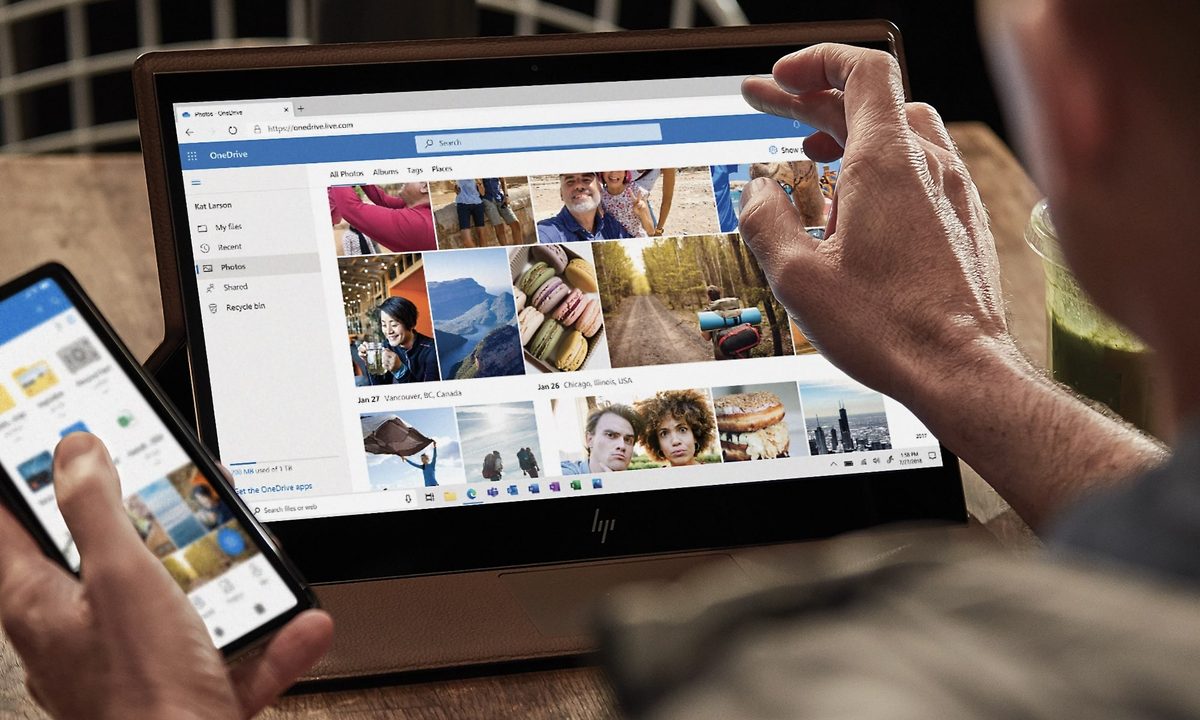
Cloud storage platforms are a great way to store and safeguard important files and folders, and Microsoft OneDrive is one of the best platforms for the job. Offering numerous ways to back up Windows and Microsoft 365 content, the OneDrive suite is available for Windows, macOS, Android, iOS, Kindle, and Xbox One, so you definitely won’t have to worry about compatibility.
If OneDrive sounds like a backup tool you’re interested in using, you might be curious as to how you’ll go about syncing files and folders to your OneDrive account. We’re going to give you the scoop on setting up the OneDrive platform, and how to start backing up your files and folders.
How to create a OneDrive account
If you haven’t done so already, you’re going to want to create a OneDrive account. You can do so by downloading the OneDrive desktop client for Windows 10 or 11, or macOS 10.4 or later.
Mobile apps are available for Android 6.0 or later, and iOS 15 or later, but you won’t be able to create a OneDrive account through these mobile interfaces.
Syncing files and folders using the OneDrive field via File Explorer
After you’ve signed in to your OneDrive account, your File Explorer will now showcase OneDrive — personal on the side alongside your other shortcuts, such as This PC. You will now be able to sync files and folders to that OneDrive account.
Step 1: Next, you'll copy and paste. For demonstration purposes, I will be syncing a file and a folder in my desktop to my OneDrive account.
If I drag and drop it in, it will remove the file or folder’s presence on my desktop. Simply copy and paste it in instead to avoid this scenario so you can have them available on both your desktop/hard drive and your Microsoft OneDrive account.

Step 2: Within File Explorer, click OneDrive — personal. It should show the file and folder we added to it from step 1.

Syncing specific files and folders
Now that we’ve added some files and folders to the OneDrive account, you can use the service’s settings to make sure everything is synchronized properly.
Step 1: Click Microsoft OneDrive in the taskbar. Click the Help & settings icon and then choose the Settings field.

Step 2: Click the Account tab and then select the Choose folders button.

Step 3: Click the files and folders you want synced to OneDrive. The folder and file I added to my OneDrive account from the previous section is shown as Work projects and Files not in a folder. Click OK.

Syncing all files and folders
Step 1: Click the Choose folders button within OneDrive’s Settings.
Step 2: Now select the Make all files available button. This will synchronize everything within your OneDrive folder to your Microsoft OneDrive account.

Why is my Microsoft OneDrive not syncing?
You need to be connected to the internet for Microsoft OneDrive to work. As it's a cloud service, it will need constant access to your Wi-Fi or hotspot to operate. One of the reasons OneDrive is not syncing properly could be because you've just started up your system. Wait until it finishes the signing-in process.
Hover over the Microsoft OneDrive icon to see its status (Signing in and Online). For older systems, it may take a while for OneDrive to connect to your Wi-Fi and sign in.
For more on OneDrive, check out our detailed breakdown of the cloud service and what it offers. If you're looking for information on the various ways to store files on OneDrive (such as using the platform's website interface instead of the Windows 10 application), then head over to our guide on that as well.
Alternatively, if you've yet to choose a cloud storage service, our best cloud storage services guide can help you pick one.


