
Asus has doubled down on producing small gaming laptops – literally. It introduced the ROG Flow X13 in 2021, a 360-degree convertible 2-in-1 with a fast CPU and discrete graphics. Then, it followed that up in 2022 with the ROG Flow Z13, a bona fide detachable tablet with an even faster CPU and the same GPU. These are among the fastest 2-in-1 laptops you can buy today, and they’re still light and portable.
The choice between them comes down primarily to whether you prefer the convertible 2-in-1 format or want a detachable tablet. There are performance differences to account for as well, but not as much in the gaming department. So, which of these two tiny gaming machines are for you?
Specs
| Asus ROG Flow X13 | Asus ROG Flow Z13 | |
| Dimensions | 11.77 inches by 8.74 inches by 0.62 inches | 11.89 inches by 8.03 inches by 0.47 inches |
| Weight | 2.87 pounds | 2.47 pounds |
| Processor | AMD Ryzen 9 5900HS AMD Ryzen 9 5980HS |
Intel Core i5-12500H Intel Core i7-12700H Intel Core i9-12900H |
| Graphics | Nvidia GeForce RTX 3050 Ti Up to Nvidia GeForce RTX 3080 via ROG XG Mobile |
Intel Iris Xe graphics Nvidia GeForce RTX 3050 Ti Nvidia GeForce RTX 3050 Ti Up to Nvidia GeForce RTX 3080 via ROG XG Mobile |
| RAM | 8GB DDR4 16GB DDR4 32GB DDR4 |
8GB DDR5 16GB DDR5 |
| Display | 13.4-inch 16:10 IPS WUXGA (1920 x 1200) 13.4-inch 16:10 IPS WQUXGA (3840 x 2400) |
13.4-inch 16:10 IPS WUXGA (1920 x ,200) 13.4-inch 16:10 IPS WQUXGA (3840 x 2400) |
| Storage | 1TB PCIe 3.0 SSD | 512GB PCIe 4.0 SSD 1TB PCIe 4.0 SSD |
| Touch | Yes | Yes |
| Ports | 1 x USB-A 3.2 Gen 2 2 x USB-C 3.2 Gen 2 1 x HDMI 2.0b 1 x 3.5mm audio jack 1 x ROG XG Mobile interface |
1 x USB-A 2.0 1 x USB-C 3.2 Gen 2 1 x USB-C with Thunderbolt 4 1 x 3.5mm audio jack 1 x microSD card reader 1 x ROG XG Mobile interface |
| Wireless | Wi-Fi 6 and Bluetooth 5.1 | Wi-Fi 6E and Bluetooth 5.2 |
| Webcam | 720p | 720p |
| Operating system | Windows 11 | Windows 11 |
| Battery | 62 watt-hours | 56 watt-hours |
| Price | Buy at Walmart | Buy at Best Buy |
| Rating | 3.5 stars out of 5 | 4 stars out of 5 |
Design

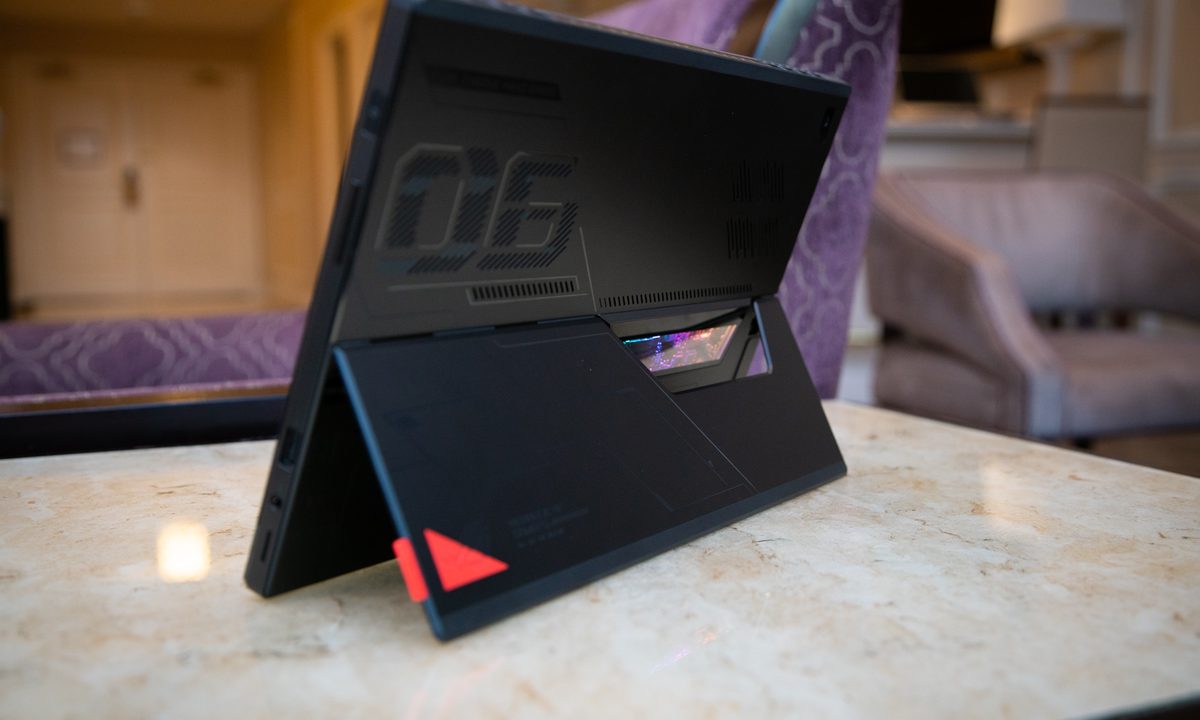
The ROG Flow X13 is a 360-degree convertible 2-in-1, meaning its display swivels all the way around from clamshell to tablet, with tent and media modes in between. That makes it better as a clamshell than the detachable tablet ROG Flow Z13, which isn’t as steady in a lap but makes for a much better tablet. Both have relatively small bezels, meaning they fit into smaller versions of their respective forms. The ROG Flow Z13 is notable for its kickstand that extends out from the center of the rear of the tablet, a lot like the Microsoft Surface Pro 8. You won’t find much to fault with their build qualities, with both machines exhibiting little flexing, bending, or twisting in their chassis.
Aesthetically, the ROG Flow Z13 has a more gamer-oriented aesthetic. It’s all-black and looks like every other slate from the front, but around the back, you’ll notice some gaming textures and a cutout that provides an RGB-lit view into the laptop’s interior. The ROG Flow X13 is all-black as well, with a textured lid and gamer keycaps being the elements that most give it away as a gaming laptop. Both 2-in-1s are great-looking laptops.
The keyboard on the ROG Flow X13 has excellent key size and spacing, and its switches have a lot of travel at 1.7mm. It was crisp and snappy in our testing and provided a precise typing experience. The ROG Flow Z13’s snap-on keyboard mimics the Surface Pro 8’s Signature Pro Type Cover, and that’s a good thing. It even sports the same 1.7mm of travel as the ROG Flow X13, giving it precise switches that are a joy for touch typists. Interestingly, the ROG Flow Z13’s keyboard has single-zone RGB lighting, while the ROG Flow X13’s keyboard has simple monochrome backlighting.
Both touchpads are smooth to the touch and precise, with support for Microsoft Precision touchpad drivers. They’re not the largest touchpads around, but they still provide comfortable Windows 11 multitouch gesture support. Both displays are touch-enabled, too.
Windows 11 Hello password-less support is provided by a fingerprint reader built into the power button on the ROG Flow X13. The ROG Flow Z13 has neither an infrared camera for facial recognition nor a fingerprint reader, so users are stuck typing in a password or PIN.
Connectivity is a mixed bag. The ROG Flow X13 has one USB-A 3.2 Gen 2 port, two USB-C 3.2 Gen 2 ports, a full-size HDMI 2.0b port, a 3.5mm audio jack, and the ROG XG Mobile interface. Because it uses an AMD chipset, it has no Thunderbolt 4 support.
The ROG Flow Z13 has a single USB-A 2.0 port, a USB-C 3.2 Gen 2 port, a USB-C with Thunderbolt 4, a 3.5mm audio jack, a microSD card reader (missing on the ROG Flow X13), and the XG Mobile interface. Thanks to the Intel 12th-gen chipset, the ROG Flow Z13 also has the faster Wi-Fi 6E and Bluetooth 5.2 compared to the older machine’s Wi-Fi 6 and Bluetooth 5.1.
Performance

The ROG Flow X13 is powered by an AMD eight-core/16-thread Ryzen 9 chip: either the Ryzen 9 5900HS, or the faster-clocked Ryzen 9 5980HS. That’s pitted against the 14-core (6 Performance and 8 Efficient) and 20-thread Intel 12th-gen Core i9-12900H. Both are incredibly powerful CPUs to pack into such tiny machines, and they both performed admirably. In our suite of benchmarks, the laptops were mostly equally matched, with the ROG Flow Z13 being much faster only in Geekbench 5.
That is, until we turned on the ROG Flow Z13’s Turbo mode, which pushed its results into a different class entirely. In Cinebench R23, for example, the two machines were close to the same scores without turning on the Z13’s Turbo mode, but when we flipped that switch, the tablet became significantly faster. We tested the ROG Flow X13 and ROG Flow Z13 using different versions of Handbrake, which we use as a benchmark by encoding a 420MB video as H.265. Normally, the two versions are within a few points of each other, and that’s a caveat for the results in the table. Most notable is the impact of the ROG Flow Z13’s Turbo mode, where the tablet finished the test in a speedy 87 seconds.
Both 2-in-1s are fast enough not only for extremely demanding productivity workflows, but they can also handle some creative tasks. The ROG Flow Z13 will pull ahead thanks to Turbo mode, however.
Turbo mode didn’t make much of a difference in gaming, and the laptops were similarly matched when configured with the Nvidia GeForce RTX 3050 Ti. Thanks to the CPU, the ROG Flow Z13 was faster in Civilization Vi, but they hit essentially the same framerates in Fortnite as 1080p and epic graphics. We changed our gaming benchmarks in between these two reviews and so don’t have any other comparisons, but it’s likely that with both using the Nvidia GeForce RTX 1050 Ti, they’ll hit similar framerates across a variety of titles.
There’s also the Asus ROG XG Mobile add-on to consider, which plugs into a proprietary port on either 2-in-1 and can equip up to an Nvidia GeForce RTX 3080. That means that if you’re okay with setting things up in one place, you can get incredibly fast gaming performance from these tiny machines. You might even be able to do some 4K gaming if you adjust the graphics settings. That’s impressive.
| Asus ROG Flow X13 (Ryzen 9 5900HS) |
Asus ROG Flow Z13 (Core i9-12900H) |
|
| Geekbench 5 (single / multi) |
1,415 / 7,592 | 1,784 / 9,387 |
| Handbrake (seconds) |
102 | 103 Turbo: 87 |
| Cinebench R23 (single / multi) |
1,441 / 9,559 | 1,548 / 9,664 Turbo: 1,906 / 13,400 |
| PCMark 10 Complete | 6,249 | 6,417 |
| 3DMark Time Spy | 4,503 | 4,612 Turbo: 4,777 |
| Civilization VI (1080p Ultra) |
65 | 74 |
| Fortnite (1080p Epic) |
47 | 46 |
Display

In terms of their general specifications, the 2-in-1s offer the same display options. You can choose between a 13.4-inch 16:10 IPS WUXGA (1920 x 1200) panel or one running at WQUXGA (3840 x 2400). In both cases, the WUXGA display (also known as Full HD+) has a fast 120Hz refresh rate while the WQUXGA screen (also known as UHD+ or 4K+) is stuck at a pedestrian 60Hz. The 120Hz option not only makes Windows 11 buttery smooth, but it gives more headroom in gaming — although neither laptop is fast enough to push modern titles at such a fast refresh rate.
The ROG Flow Z13’s display was much brighter than the ROG Flow X13’s, at over 500 nits compared to around 300 nits. Both had similar color gamuts and accuracy, and both enjoyed serviceable contrast ratios. These aren’t the best displays for demanding creators, but they’re more than good enough for office work and gaming. Thanks to its brightness, the ROG Flow Z13’s display pulls ahead.
Portability

As a tablet, the ROG Flow Z13 is naturally the smaller machine, although there’s not as big a difference as you might imagine. The two laptops are similar in width, with the ROG Flow X13 being almost an inch deeper. The ROG Flow Z13 is quite a bit thinner, however, at 0.47 inches versus 0.62 inches, and it’s lighter at 2.47 pounds versus 2.87 pounds. However, both machines are small enough to carry around without noticing them.
Thanks to a slightly larger battery and the efficiency of AMD’s Ryzen chips, the ROG Flow X13 (62 watt-hours) achieved longer battery life than the ROG Flow Z13 (56 watt-hours). It managed about an hour longer in our web browsing test that cycles through a series of popular and complex websites and about two hours longer in our video test that loops a local Full HD Avengers trailer.
Neither laptop will get you through a full day’s work, however. You’ll want to carry a charger if you’re out of the office.
| Asus ROG Flow X13 (Ryzen 9 5900HS) |
Asus ROG Flow Z13 (Core i9-12900H) |
|
| Web browsing | 5 hours 25 minutes | 4 hours 10 minutes |
| Video | 9 hours 7 minutes | 6 hours 54 minutes |
Equally matched, it all comes down to which design you prefer
The ROG Flow X13 is available in a special Best Buy configuration that costs $1500 (on sale right now for $1,200), including the AMD Ryzen 9 5900H, 16GB of RAM, a 1TB SSD, a Full HD+ display, and the Nvidia GeForce RTX 3050 Ti. Other configurations are hard to find online at the time of writing, but note that the ROG XG Mobile costs $1,500 by itself.
It’s also difficult to find different configurations of the ROG Flow Z13. The single configuration listed on the Asus website is $1,800 for a Core i7-12700H, 16GB of RAM, a 1TB SSD, Full HD+ display, and the RTX 3050 Ti.
Both of these 2-in-1s provide excellent productivity and creative performance, and solid entry-level gaming. They’re both built well, look great, and feature excellent input options. The biggest difference between them is their form factor — do you prefer a clamshell that can act as a passable tablet or a tablet that can act as a clamshell that’s a little wobbly on a lap? In the end, that’s what your decision will come down to.


