
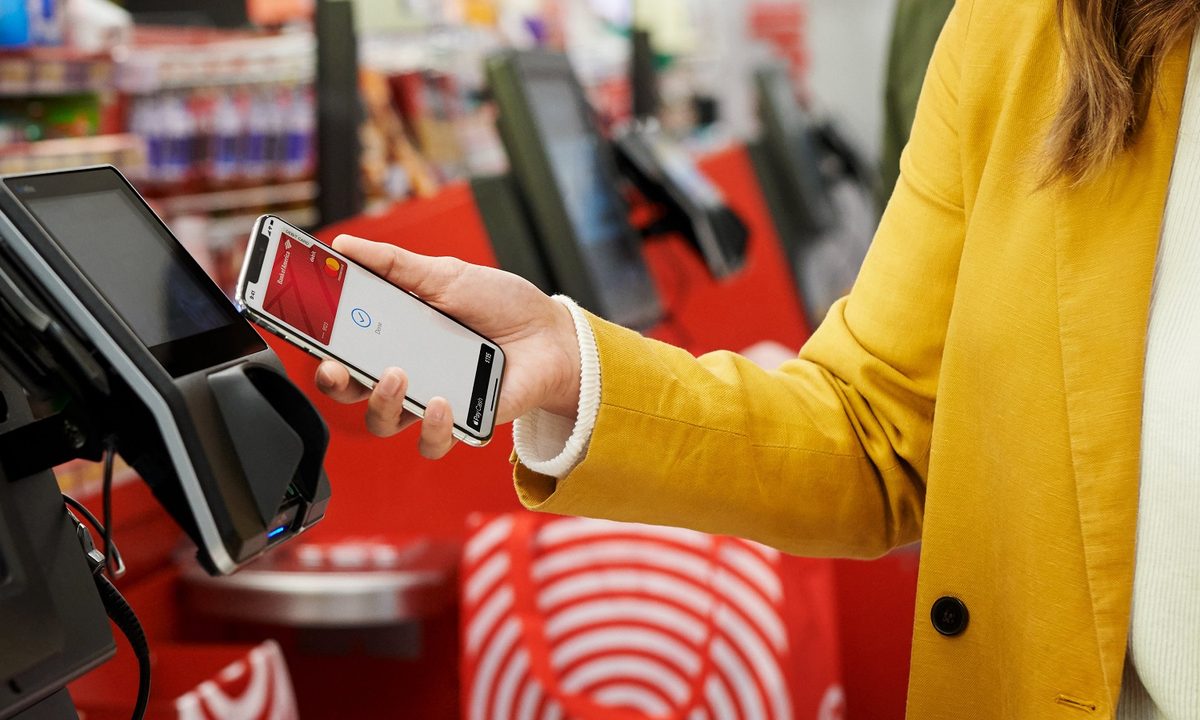
If you have several of the best gift cards, you know the pain of having your wallet stretched with more cards than you know what to do with. What's worse is that you can even forget you have a gift card for a place because of a long-buried card in your wallet or purse. The good news is that Apple Wallet can do the work for you and store your gift cards, loyalty cards, and even coupons all in the same spot.
While you likely already know that Apple's Wallet app works with Apple Pay for handling your payment cards, many folks don't realize that it's also capable of storing cards (including concert tickets). In most cases, you can add your favorite card or coupon to the Wallet app with only a couple of taps or clicks — and you can do it from any of your Apple devices that share the same iCloud account, whether that's your shiny new iPhone 15 Pro Max or an older iPad.

Enable Wallet sync in your iCloud settings
If you want to add gift cards or other items to your Apple Wallet using a Mac or iPad, you'll first need to ensure that your Wallet data is syncing between your devices via iCloud. Otherwise, any cards or coupons you add won't appear on your iPhone unless you add them directly from your iPhone. However, it's a good idea to toggle this on even if you only plan to add new Wallet items using your iPhone, since this also ensures all your coupons, gift cards, and rewards cards are backed up separately in iCloud.
This should normally be enabled by default, but here's how to check to make sure:
Step 1: Open the Settings app on your iPhone.
Step 2: Select your Name at the top of the screen.
Step 3: Select iCloud.
Step 4: Under Apps using iCloud, select Show all.
Step 5: Scroll down to Wallet and ensure that it's switched on.
Step 6: Repeat these steps in the respective Settings apps on your other Apple devices, such as your Mac or iPad, to ensure your Wallet is also syncing with iCloud on those devices.
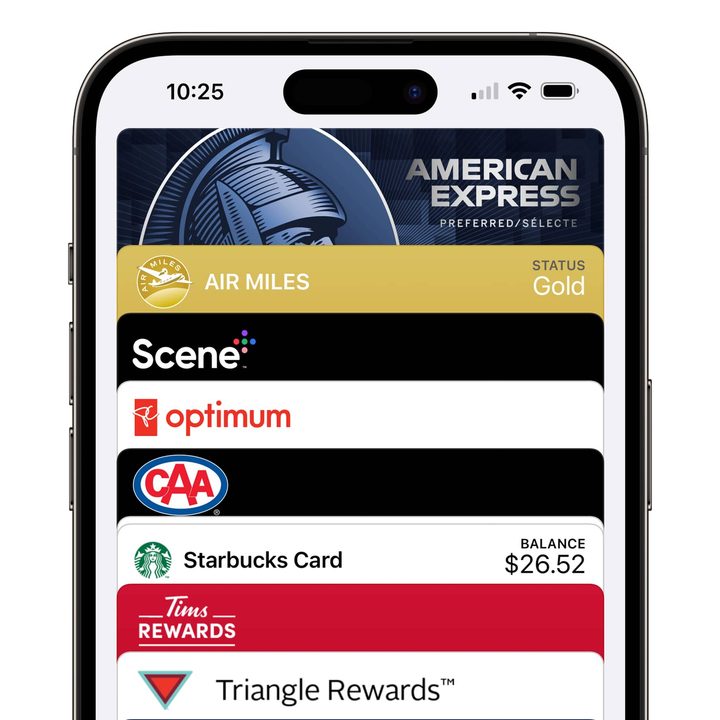
How to add a card to your Apple Wallet from an email or webpage
This is by far the easiest option and should be your first step whenever you have a gift card, coupon, or similar item that you want to add to your Wallet.
Step 1: Open the email or other communication where you received the card or coupon.

Step 2: Scroll through the message or certificate, and look for an option that says Add to Apple Wallet, with a distinctive logo.
Step 3: In most cases, if you're tapping a link from Safari or another app on your iPhone, iPad, or Mac, the item will be added directly to your Apple Wallet. However, if you're accessing the item from another computer, or if you're not already logged into your Apple account, you may be prompted to enter your Apple ID and password.
Step 4: If you're using an iPhone, the Wallet app will open up with your coupon, gift card, or reward card displayed. On an iPad or Mac, you'll get a pop-up window that shows the item has been added to Apple Wallet; it may take a few seconds before it syncs from there to your iPhone via iCloud.
Step 5: If you don’t see the Add to Apple Wallet logo, look for an option to scan a QR code. This is another way that some platforms allow you to quickly add the item to your digital wallet, and it even works from some printed coupons, too.
How to add a card to your Apple Wallet using a third-party app
Some gift card or coupon providers require you to use their apps to add a card to Wallet. If you don't see an Add to Apple Wallet button or QR code with the coupon or card itself, then you'll likely need to add it using that company's app. This typically has to be done with the brand's iPhone app, rather than from an iPad or Mac, but that can vary depending on how the company has set things up.
Step 1: Open the App Store on your iPhone.

Step 2: Search for the company or brand for which you're looking to add a coupon, gift card, or reward card.
When you think you've found the app you're looking for, be sure to check the developer name and other relevant information like the description and reviews. It's not uncommon for other developers to create third-party "deals" apps for popular brands and try to pass them off as the official ones.
Step 3: Confirm that the app you're looking at supports Apple Wallet by scrolling down to the bottom of the App Store page. You should see "Wallet" listed in the "Supports" section below the rest of the information such as languages, age rating, and copyright.

Step 4: Once you've confirmed that you have the correct app and that it supports Apple Wallet, select Get to download the app to your iPhone.
Step 5: Confirm that you want to download the app using Touch ID, Face ID, or your password.
Step 6: Once the app has finished downloading, select Open to load the app.
Step 7: Follow the instructions in the app to sign in to your customer account.

Step 8: Once you're signed in to your account, look for your rewards card, gift card, or coupon in the app. Many third-party apps provide a way to display your card or coupon directly in the app, where you'll often find an Add to Wallet button right alongside it. If it's not on the main screen, dig a bit deeper into the details or settings for that particular card and look for the option there.
You can also find a list of popular Wallet-compatible apps on the App Store in Apple's Apps for Wallet section. However, this isn't a comprehensive list of every app that supports Apple Wallet; it's merely a curated selection of featured apps from Apple's App Store editorial team. In other words, don't be discouraged if your favorite app isn't here — just search for it directly and check at the bottom of its App Store page to see if it supports Apple Wallet.


