Anti-aliasing is one of the most common graphics settings in PC games, but it’s rarely explained in a way that actually helps you decide what to use. At its core, anti-aliasing (AA) is a rendering technique that reduces jagged edges, known as aliasing, in digital images. These artifacts appear because screens use a grid of square pixels that cannot perfectly represent diagonal or curved lines.
Anti-aliasing smooths those edges by sampling and blending pixel colors along object boundaries. In simple terms, it makes scenes look cleaner and more natural.
Quick answer: What anti-aliasing should you use?
If you just want the best setting without the deep dive, here’s which option you should select:
- Best for most gamers: TAA
- Best image quality: DLAA or SSAA
- Best for low-end PCs: FXAA
- Playing at 4K: You may not need strong AA, but some is still useful
- Competitive games: Use low or no AA for maximum clarity and FPS
Why is anti-aliasing important?

Without anti-aliasing, edges in games can look rough and distracting, especially at lower resolutions. This is most noticeable in:
- Thin objects like wires and fences
- Diagonal lines and curved surfaces
- Distant geometry
As resolution increases, these artifacts become less visible, but they don’t disappear entirely.
How anti-aliasing works
Aliasing happens because a pixel grid cannot perfectly represent smooth edges. Anti-aliasing reduces this effect by sampling surrounding pixels and smoothing the transition between contrasting colors.

Different techniques approach this in different ways:
- Some apply post-processing filters after rendering (like FXAA)
- Others sample multiple points within each pixel (like MSAA and SSAA)
- Modern methods use data from previous frames to improve stability (like TAA)
Traditional techniques mainly target spatial aliasing, while newer ones also reduce temporal aliasing, such as shimmering and flickering in motion.
Types of anti-aliasing explained

Here’s how the most common techniques compare:
| Type | Quality | Performance Cost | Best for |
| FXAA | Low | Very low | Older or low-end PCs |
| TAA | High | Medium | Most modern games |
| MSAA | High | High | Older engines |
| SSAA | Very high | Very high | High-end GPUs |
| DLAA | Very high | Medium-high | RTX GPUs |
FXAA (Fast Approximate Anti-Aliasing)
FXAA is a post-processing method that detects high-contrast edges in the final image and smooths them quickly. It has minimal performance impact but can introduce noticeable blur.

Use it if: You need a fast, low-cost solution.
SMAA (Subpixel Morphological Anti-Aliasing)
SMAA is similar to FXAA but takes multiple samples along detected edges, resulting in cleaner image quality with a modest performance cost. It sits between FXAA and more demanding methods, though it’s less common today as TAA generally delivers better results.

Use it if: You want sharper results than FXAA without the performance hit of MSAA or SSAA.
TAA (Temporal Anti-Aliasing)
TAA uses data from previous frames along with motion vectors to smooth edges over time. It offers a strong balance between quality and performance and is widely used in modern games.

Use it if: You want the best all-around option.
MSAA (Multisample Anti-Aliasing)
MSAA samples multiple points within each pixel to improve edge quality, but it mainly affects geometry edges and not shader or texture aliasing. It is effective but demanding and less common in newer games.

Use it if: You’re playing older or well-optimized games.
SSAA (Supersample Anti-Aliasing)
SSAA renders the scene at a higher resolution and downsamples it to your display. This produces excellent image quality but comes with a heavy performance cost.

Use it if: You have a powerful GPU and want the best possible visuals.
DLAA (Deep Learning Anti-Aliasing)
DLAA uses the same deep learning model as Nvidia’s DLSS, but focuses purely on anti-aliasing instead of upscaling. It delivers very high image quality with less blur than TAA.
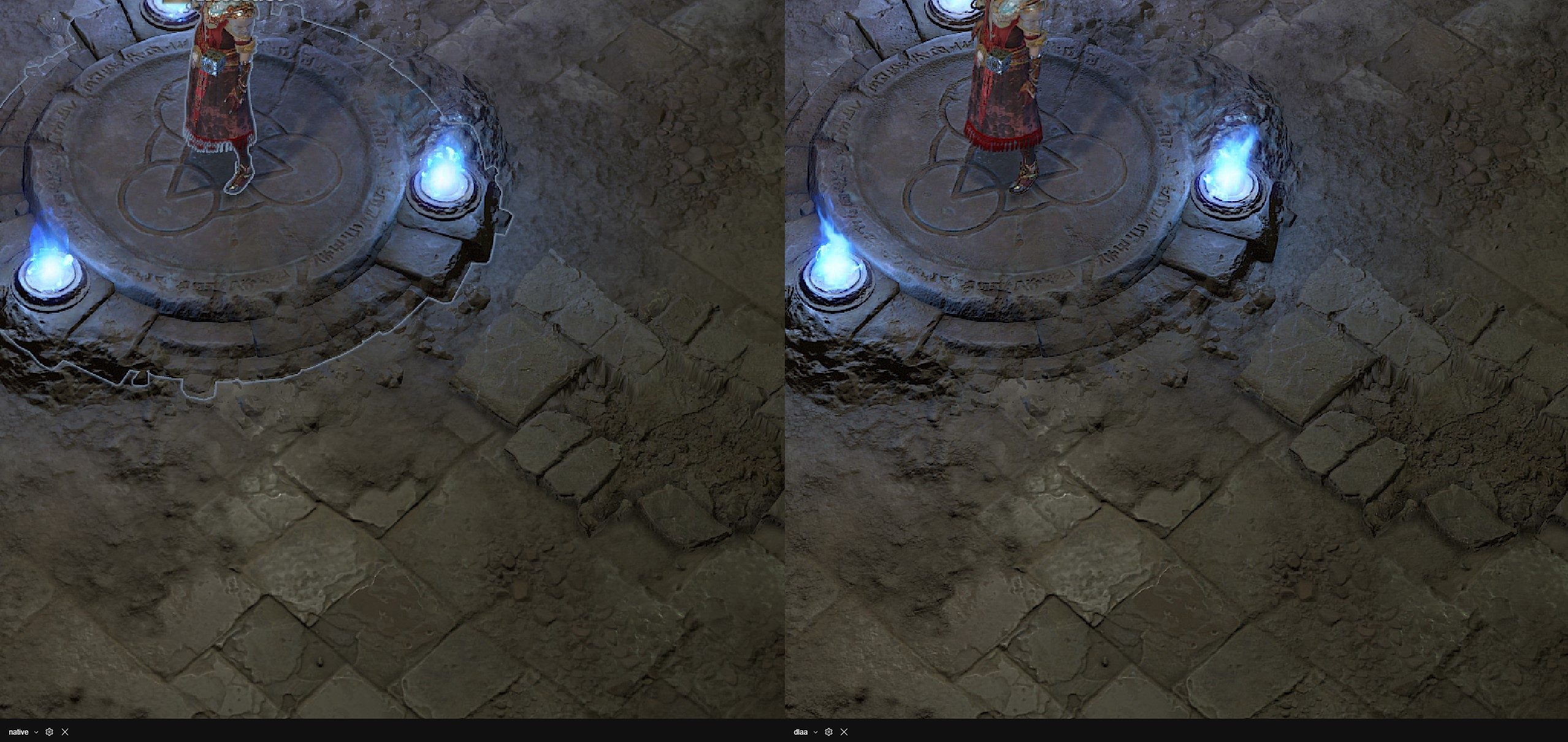
Use it if: You have an RTX GPU and prioritize clarity.
Modern anti-aliasing: DLSS, FSR, and XeSS
Modern rendering techniques have blurred the line between anti-aliasing and upscaling.
- DLSS (Nvidia) uses AI to reconstruct a higher-resolution image while reducing aliasing.
- FSR (AMD) uses spatial and temporal techniques for a similar effect.
- XeSS (Intel) combines AI and traditional methods.
These technologies improve performance while also reducing aliasing, making them a better choice than traditional AA in many cases.
Does anti-aliasing affect FPS?
Yes, and the impact depends on the technique used.
More sampling, higher internal resolution, or temporal processing increases GPU workload, which can reduce frame rates. If you need a quick performance boost, lowering anti-aliasing is often one of the easiest fixes.
- FXAA: Minimal performance cost
- TAA: Moderate impact
- MSAA/SSAA: High performance cost
Do you need anti-aliasing at 1080p, 1440p, and 4K?
Your resolution plays a big role in whether you need anti-aliasing or not:
- 1080p: Anti-aliasing is important, and the benefits are clearly visible
- 1440p: Still useful, but less critical
- 4K: Less necessary for edge smoothing, but still helps reduce shimmering and flickering in motion
Which anti-aliasing setting should you use?
Here’s a simple way to decide which anti-aliasing setting is best for you:
- For low-end PCs
- Use FXAA or turn AA off
- Prioritize performance
- For mid-range PCs
- Use TAA
- Balance visuals and frame rate
- For high-end PCs
- Use DLAA, DLSS, or SSAA
- Maximize image quality
- For competitive gaming
- Lower or disable AA for best performance
- Adjust based on the game and your preference
How to turn anti-aliasing on or off
You can adjust AA settings in-game or using your GPU manufacturer’s software.
In-game settings
- Open the game’s settings menu
- Go to Graphics or Video
- Find the anti-aliasing option
- Select your preferred method
Nvidia Control Panel
- Open Nvidia Control Panel
- Go to Manage 3D settings
- Adjust anti-aliasing globally or per game
AMD Adrenalin
- Open AMD Adrenalin
- Go to Gaming settings
- Adjust anti-aliasing preferences
Anti-aliasing directly affects how clean your games look, but it also impacts performance. Choosing the right setting helps you avoid unnecessary blur, reduce visual distractions, and get smoother gameplay. Understanding how AA works makes it easier to balance image quality and frame rate based on your hardware.
Anti-aliasing is evolving quickly with AI-driven techniques like DLSS and DLAA. Traditional methods such as MSAA and SSAA are becoming less common as newer approaches deliver better results with lower performance costs. For most gamers, the best approach is simple: use the option that gives you the cleanest image without sacrificing the performance you need.
FAQ
Does anti-aliasing reduce FPS?
Yes. Advanced techniques require more GPU processing, which can lower frame rates.
Is anti-aliasing needed at 4K?
Not always. Higher resolutions reduce jagged edges, but AA can still help with shimmering in motion.
Is DLSS better than anti-aliasing?
DLSS combines upscaling and anti-aliasing, often delivering better performance and comparable or improved image quality.