  1. Home
  2. Computing
  3. How tos

How to add GIFs to Google Slides

Add as a preferred source on Google
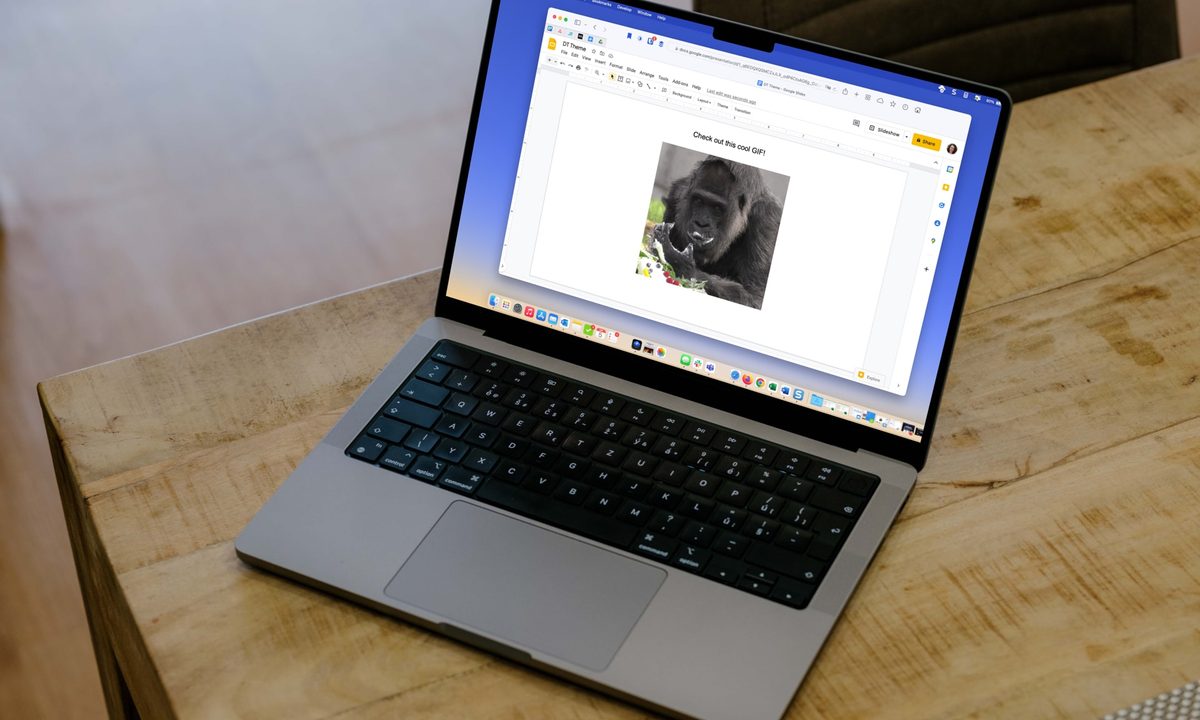
GIF in Google Slides on a MacBook on a table.
Digital Trends

Sharing GIFs in text messages, on social media, and even in Slack gives you a fun way to communicate or just say something uniquely. But those moving pictures aren’t limited to chats and posts. You can add a GIF to your presentation in Google Slides too.

Maybe you’re creating a slideshow for your class or your family where you want to include something upbeat and amusing. You might even have a GIF of your own you want to share with your company or for your product or service. Here’s how to insert a GIF into Google Slides.

Recommended Videos

Difficulty

Easy

Duration

5 minutes

What You Need

  • Web browser

  • Google account

Upload a GIF to Google Slides

If you have a GIF saved to your device, you can upload it to Google Slides like any other image.

Step 1: Visit Google Slides, open your presentation, and select a spot on the slide where you want the GIF.

Step 2: Select Insert > Image from the menu and choose Upload from computer.

Upload From Computer in the Insert, Image menu.
Image used with permission by copyright holder

Step 3: Locate the GIF in the window that displays, select it, and pick Upload.

Browse window to locate and insert a GIF.
Image used with permission by copyright holder

Step 4: You’ll then see your GIF display on your slide in the location you selected. You can then drag to move it, drag a corner or edge to resize it, or select it and use the Format options button in the toolbar.

GIF uploaded to Google Slides.
Image used with permission by copyright holder

Add a GIF from Google Drive or Photos

You might have a GIF saved to Google Drive or Google Photos that you’d like to use. This is just as easy as uploading a GIF from your computer.

Step 1: Choose the spot on the slide where you want the GIF.

Step 2: Select Insert > Image from the menu and pick Drive or Photos.

Drive and Photos in the Insert, Image menu.
Image used with permission by copyright holder

Step 3: When the sidebar opens on the right, navigate to the GIF location in Drive or Photos.

You can use the tabs at the top to go to Recent, My Drive, and Starred in Google Drive or Photos and Albums in Google Photos. Both locations also offer a Search box at the top to find your GIF quickly.

Drive and Photos in the sidebar.
Google

Step 4: Select the GIF and choose Insert at the bottom of the sidebar.

GIF selected for Insert from Google Drive.
Image used with permission by copyright holder

Step 5: When your GIF appears on the slide, you can move, resize, or format it like any other image in Google Slides.

GIF inserted from Drive in Google Slides.
Image used with permission by copyright holder

Insert a GIF with a URL

One other handy option for adding a GIF to Google Slides is with its URL. If you find a GIF on a website like Giphy, Imgur, or a similar site, you can copy and use the link for it to insert it on your slide.

Step 1: Choose the spot on the slide where you want the GIF.

Step 2: Select Insert > Image from the menu and pick By URL.

By URL in the Insert, Image menu.
Image used with permission by copyright holder

Step 3: Paste or enter the link into the box that appears and pick Insert.

Google Slides window to enter the GIF URL.
Image used with permission by copyright holder

Step 4: You should see a preview of the GIF next. Choose Insert to place it on your slide.

GIF preview to Insert in Google Slides.
Image used with permission by copyright holder

Step 5: Like the methods above, you can then select the GIF to move, resize, or format it.

Including a GIF on one of your Google Slides might be just the image you need to make your presentation stand out.

Now that you know how to insert a GIF into Google Slides, look at how to make a GIF on your Android device or on your iPhone.

Sandy Writtenhouse
Sandy has been writing about technology since 2012. Her work has appeared on How-To Geek, Lifewire, MakeUseOf, iDownloadBlog…
Gemini Live can finally remember what you told it in past conversations
A quiet update brings chat history recall to Gemini Live, a feature text-based Gemini has had for over a year.
Home screen of Gemini Live with camera and screen sharing.

Talking to Gemini Live no longer means starting from a blank slate every time. Google has quietly extended memory access to Gemini's conversational mode, allowing it to recall details from past conversations when answering new questions.

What the update brings

Read more
macOS 27 Golden Gate: Everything we know about the new features landing on your Mac
Apple’s next Mac update is all about Siri AI and a cleaner Liquid Glass design
macOS 27 Golden Gate

Apple has officially unveiled macOS 27 Golden Gate, the next major version of macOS coming to supported Macs later this year. And while last year’s macOS Tahoe update was all about giving the Mac a fresh Liquid Glass redesign, Golden Gate looks more like Apple’s cleanup and Apple Intelligence update.

macOS Golden Gate is jam-packed with new features, including the redesigned Siri AI, a new standalone Siri app, Visual Intelligence on Mac, more capable Apple Intelligence features across core apps, performance improvements, and some much-needed design refinements. It is also a notable update, since Intel Macs are no longer part of the supported device list.

Read more
Google’s AI Overviews are blabbering about fictional monsters as if they’re real
A new report claims Google's AI Overviews described fan-fiction horror creatures from the SCP Foundation as documented fact in at least 20 cases.
Google Search AI Overview misidentifying May 6 2026 as May 20 2025.

Google's AI Overviews feature is reportedly presenting entries from the SCP Foundation, a popular fan fiction universe built around fake horror "anomalies," as though they describe real creatures and events. Futurism found at least 20 cases where the AI-generated summaries skipped any mention that the SCP entries are fiction.

Confusing made-up monsters as the real thing

Read more