
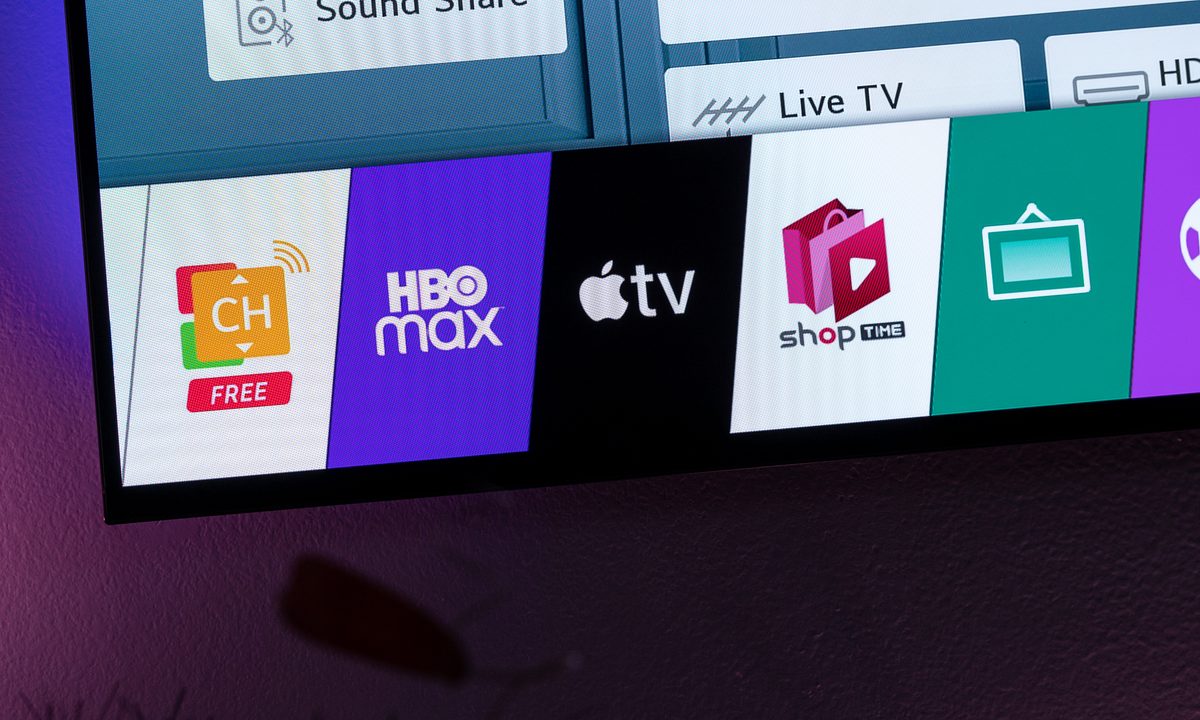
LG TVs rely on the webOS platform to handle settings and apps. When first setting up an LG smart TV, you’ll notice that a few third-party apps have already been pre-installed on webOS (past candidates have included Netflix, Vudu, and YouTube, among others). You can also choose to visit the LG Content Store, where you can download a variety of other apps to make sure you get your preferred streaming services.
But if you’ve used these apps before, you know they have to be periodically updated so developers can fix bugs, update security, and add new features or support for new formats. All that’s important – so how do apps update on your LG TV? Should you be checking your LG apps for updates since you first downloaded them? Here’s everything you need to know about how to update apps on your LG smart TV.
Further reading on LG TVs
- How to connect an iPhone to an LG smart TV
- How to update software on an LG smart TV
- How to delete apps on an LG smart TV
How to update apps on a newer LG TV
This applies to TVs with newer versions of webOS purchased within the last couple of years or so. Typically, newer webOS platforms have more square-shaped app icons in the menu at the bottom of the screen.
Step 1: Make sure your LG TV is connected to the internet and you are signed into your LG account if necessary. You can find your connection status in the Network section of the webOS settings. LG TVs usually won’t let you access the Content Store or other areas without an internet connection.

Step 2: Make sure that your LG TV is updated. For modern webOS TVs, app updates are bundled with the webOS updates themselves, so updating the whole platform also updates the apps. If you turn on automatic updates, then app updates will be pushed as they become available.
We have a full guide on how to update your LG TV here, as well as how to turn on automatic updates. You can find these options in the Support section of your LG TV. After an update, you’ll want to turn the TV completely off and back on again to complete the process.
Step 3: That’s it! As long as automatic updates are turned on where available, your TV should now make sure that all its apps are updated, too. Just remember to update your internet connection if your router or password ever change.
How to update apps on an older LG TV
These steps are an option for older versions of webOS, like webOS 3.0. They tend to have slimmer apps and a different overall design to the platform. For these versions, you also have the option to visit an app manually and check for an individual update. Here’s what to do:
Step 1: Turn on your LG TV and open your menu by pressing the Home or Recents button. This varies a little depending on the LG remote you have.
Step 2: Connect your LG TV to your Wi-Fi if necessary. When it’s connected, use your remote pointer to select the LG Content Store.
Step 3: Select the My page icon at the top of the screen. If you don't see this option, choose Apps and go to My apps instead.

Step 4: Select Update all at the top of the My Page section. Or, you can choose an individual app here and then select Update. If you do not see an Update option, only a gray Install option, the app has probably already been updated automatically. This page will also show the date of the last update, so you’ll have a good idea of how recent this version of the app is.
Step 5: If you want to update an app you didn’t install but is still on your webOS, use the search function to search for the app by name. Then select it and select Update.

Troubleshooting app updates on your LG TV
Double-check that your TV is connected to the right Wi-Fi and manually push through a webOS update if it’s available.
Make sure that your LG TV is set to your region. Otherwise, you may not be able to access apps or the Content Store. In the General section of Settings, look for the Location section to set your region.
If an app isn’t responsive at all, try deleting it and then installing it again to see if you can download the most recent version.
Look up your app on LG’s website to see if there are specific circumstances affecting its operation. Sometimes a brand will end support for its app on certain versions of webOS.
If nothing is working, try a factory reset of your TV. You can go to the General section of Settings, where you should find an option to Reset to initial settings. This will revert any changes you made.



