
The more you use Apple’s macOS operating system, the more you come across amazing little tools and features that you’ve somehow never heard of, yet which can totally blow your mind. I’ve been using Macs for over a decade, yet I just stumbled upon a killer feature I never knew existed — and I absolutely love it.
That feature is called Quick Actions, and you’ll need macOS Mojave or later to give it a try. The name is pretty self-explanatory — they’re a collection of lightweight tools and tweaks that can save you oodles of time. The reason I never knew about them, though, is they’re hidden away in the right-click menu. I use keyboard shortcuts all the time, so rarely open this menu. But Quick Actions are worth breaking your habits for.
What are Quick Actions?
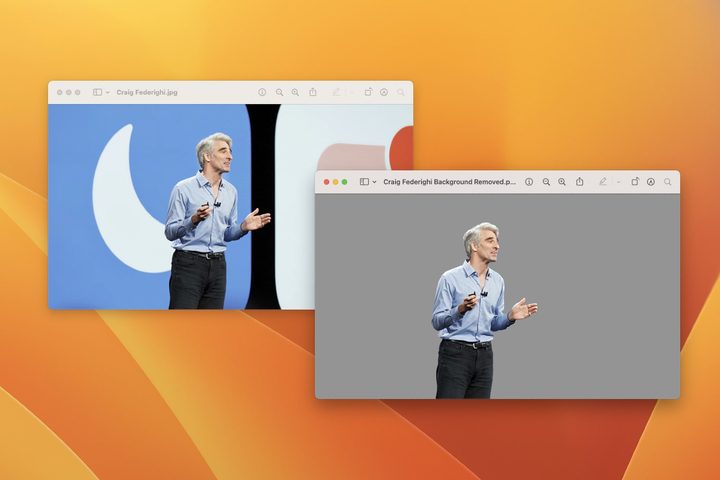
The Quick Actions you see depend on the type of file you’re working with. Right-click a picture, for example, and you’ll see options to convert it to a different image type, remove its background, transform it to a PDF, and more. Right-click a video and you can rotate it or trim it down.
The beauty of Quick Actions is they are (as the name suggests), super quick and easy and don’t even require you to open an app to carry them out. Instead of using Adobe Photoshop’s AI tool to remove a background, just use a Quick Action to get it done in seconds.
Advanced controls

On the face of it, Quick Actions are fast and simple. But they can also be much more advanced if you want them to be. In fact, they can let you perform incredibly complex operations with just a few clicks.
That’s thanks to their integration with Apple’s Shortcuts app. Sure, you could invoke a shortcut by barking out orders to Siri on your Mac, but what if you’re working in a crowded coffee shop or nestled in a silent library? Instead of causing a ruckus, you can add that handy shortcut to the Quick Actions menu.
All you need to do is open the Shortcuts app, then drag your chosen shortcut onto the Quick Actions item in the left-hand sidebar. Now right-click any file and go to Quick Actions > Customize, then enable your shortcut. From now on, that shortcut will appear in your right-click menu, ready to be used in a snap.
Similarly, Apple’s long-forgotten Automator app — the precursor to Shortcuts — lets you create and save Quick Actions, giving you another option if Shortcuts isn’t quite your style.
A brilliant timesaver
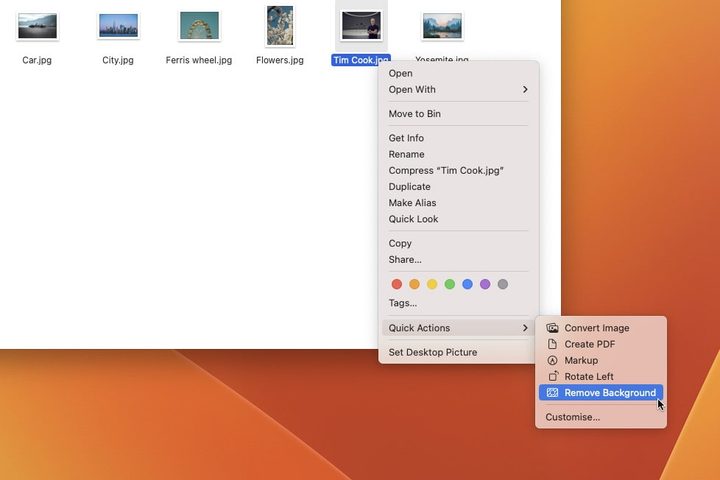
The Quick Actions menu is one of those little things that can go completely unnoticed in everyday use, yet once you know they’re there, you can’t get enough of them. So far, I’ve found the image conversion and background removal actions to be the handiest of the bunch — no need for expensive software or third-party websites anymore.
I only wish you could add a keyboard shortcut to a Quick Action, as I haven’t been able to find a way yet. And yeah, I know this is a petty complaint — getting to my Quick Actions in three clicks is a lot easier than opening an app and performing the task manually. But it would be nice to do it in just a keystroke.
Still, the Quick Actions menu is a brilliant built-in feature that more people really should know about, one of the best apps for Mac power users. Go ahead and give it a try. You won’t regret it.


