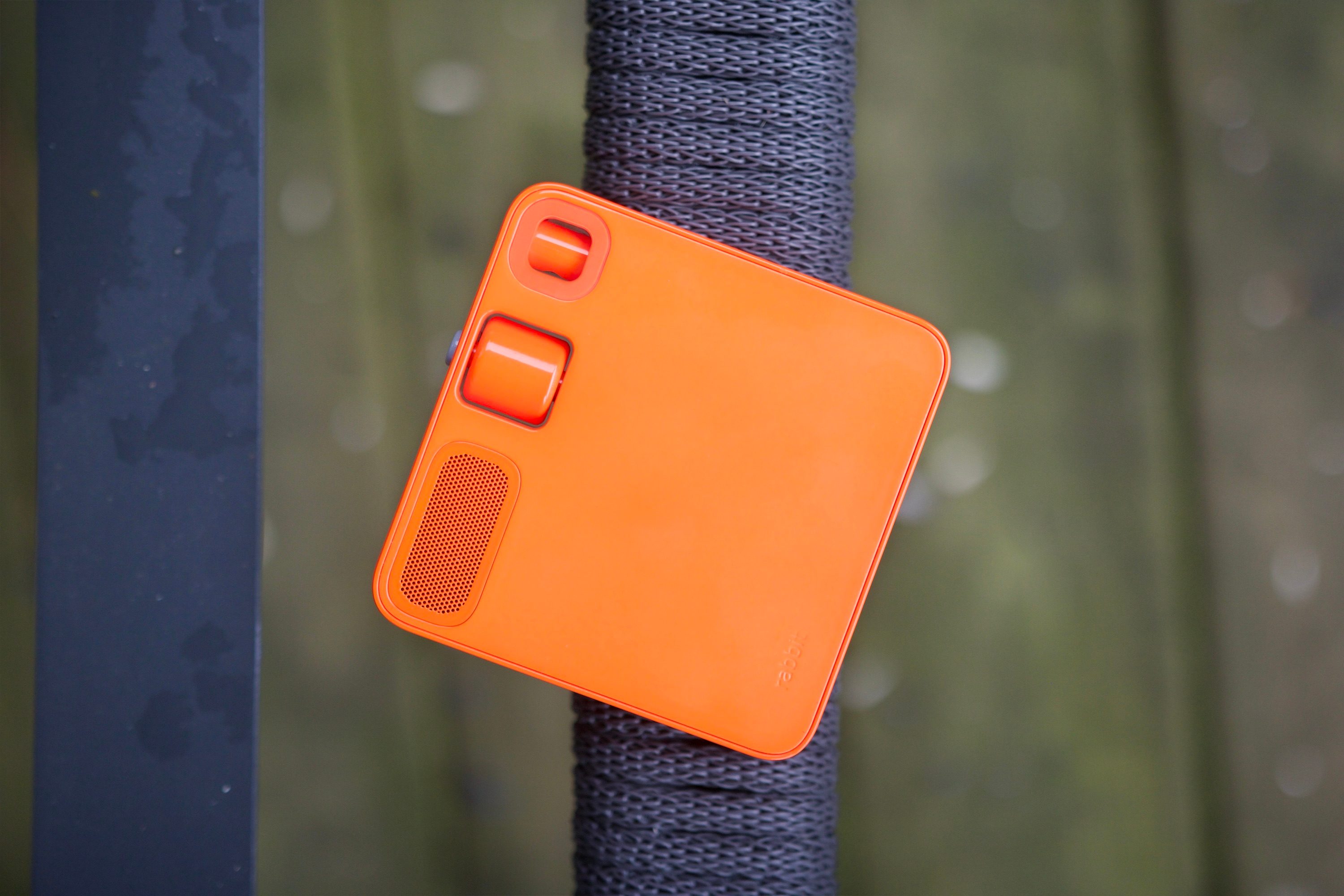
This past January, a company called Rabbit took CES 2024 by storm. Rabbit used CES to announce its new gadget — the Rabbit R1 — and it was immediately captivating. With a retro design, bright orange paint job, and adorable rabbit logo, it was hard not to get excited about the R1 … even if it wasn’t immediately clear what it was supposed to do.
I’ve now spent the past four days living with the Rabbit R1. While I love its design, unapologetically orange color, and the bouncing rabbit on its display, almost everything else about the R1 has been, to put it nicely, a mess.
What the Rabbit R1 is supposed to do
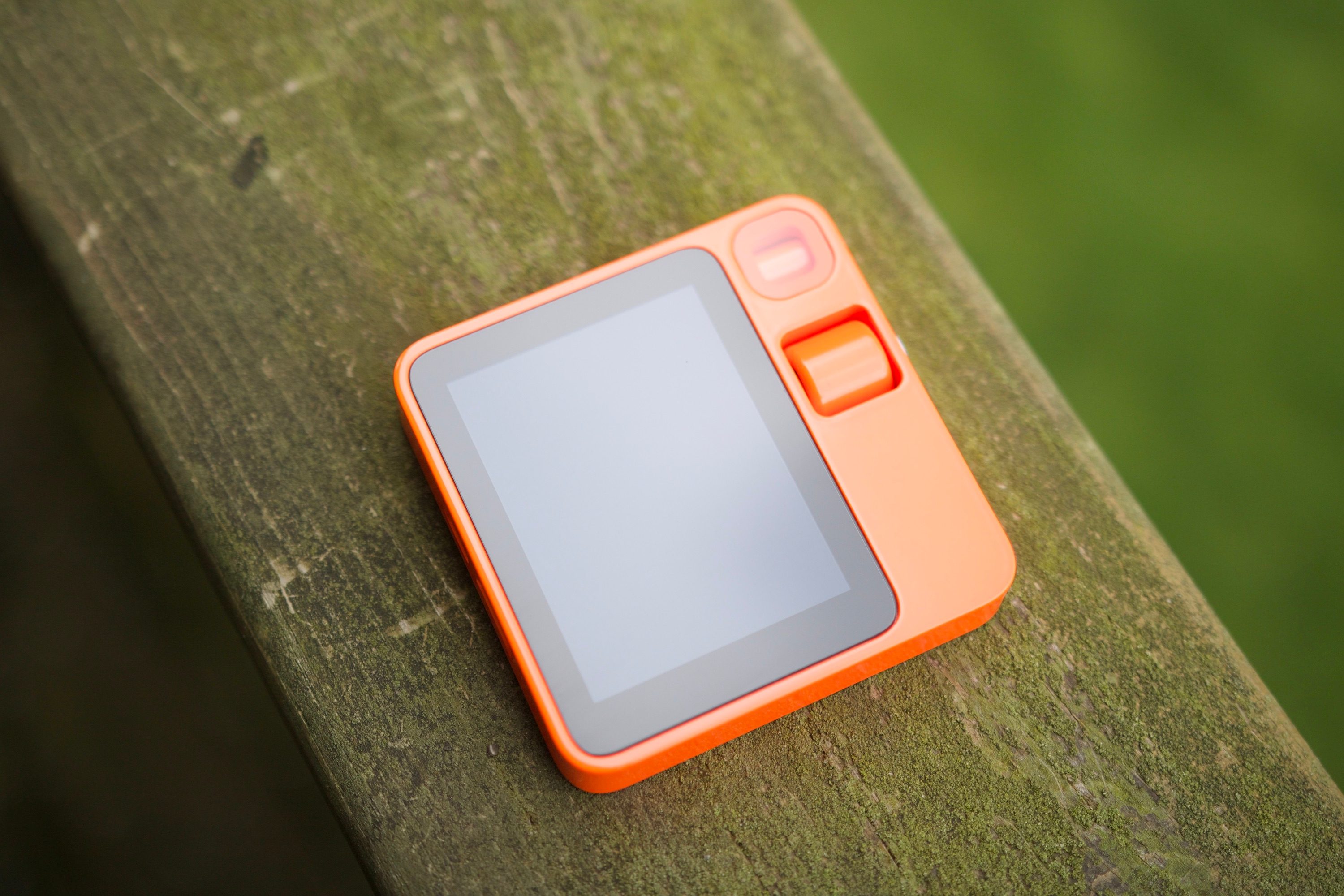
The Rabbit R1 is not a smartphone, and it’s not attempting to replace your smartphone (despite the original press release suggesting that it would). Instead, the best way to think about the Rabbit R1 is as a companion device to your phone.
The pitch behind the Rabbit R1 is for it to be “the simplest computer” at your disposal. You press the button on the side of the Rabbit R1, ask a question/give it a command, and that’s the extent of how you get things done. There aren’t any apps to juggle, confusing menus to navigate through, etc. You hold down a button, talk, and the Rabbit R1 handles it.
The Rabbit R1 is supposed to be “the simplest computer” at your disposal.
The idea is that you can ask the Rabbit R1 just about anything. What’s the stock price of Apple? Who played the lead role in Oppenheimer? What’s the weather like today? What’s a 25% tip for a $65 bill? Any random questions that come to you throughout the day, the Rabbit R1 is supposed to handle.
Where the Rabbit R1 gets really exciting (at least in theory) is its “Connections” feature. In short, you can connect your logins to various apps/services to your Rabbit account, allowing the R1 to do things in these apps on your behalf. Again, all this is done using just your voice. From ordering food on DoorDash to calling an Uber to playing a Spotify playlist, Rabbit wants the R1 to do it all in a faster, simpler way than what’s possible on your phone.
The Rabbit R1 works well … until it doesn’t
That’s all what the Rabbit R1 is supposed to do. In practice, at least during my first four days with the gadget, it’s been a slightly different experience.
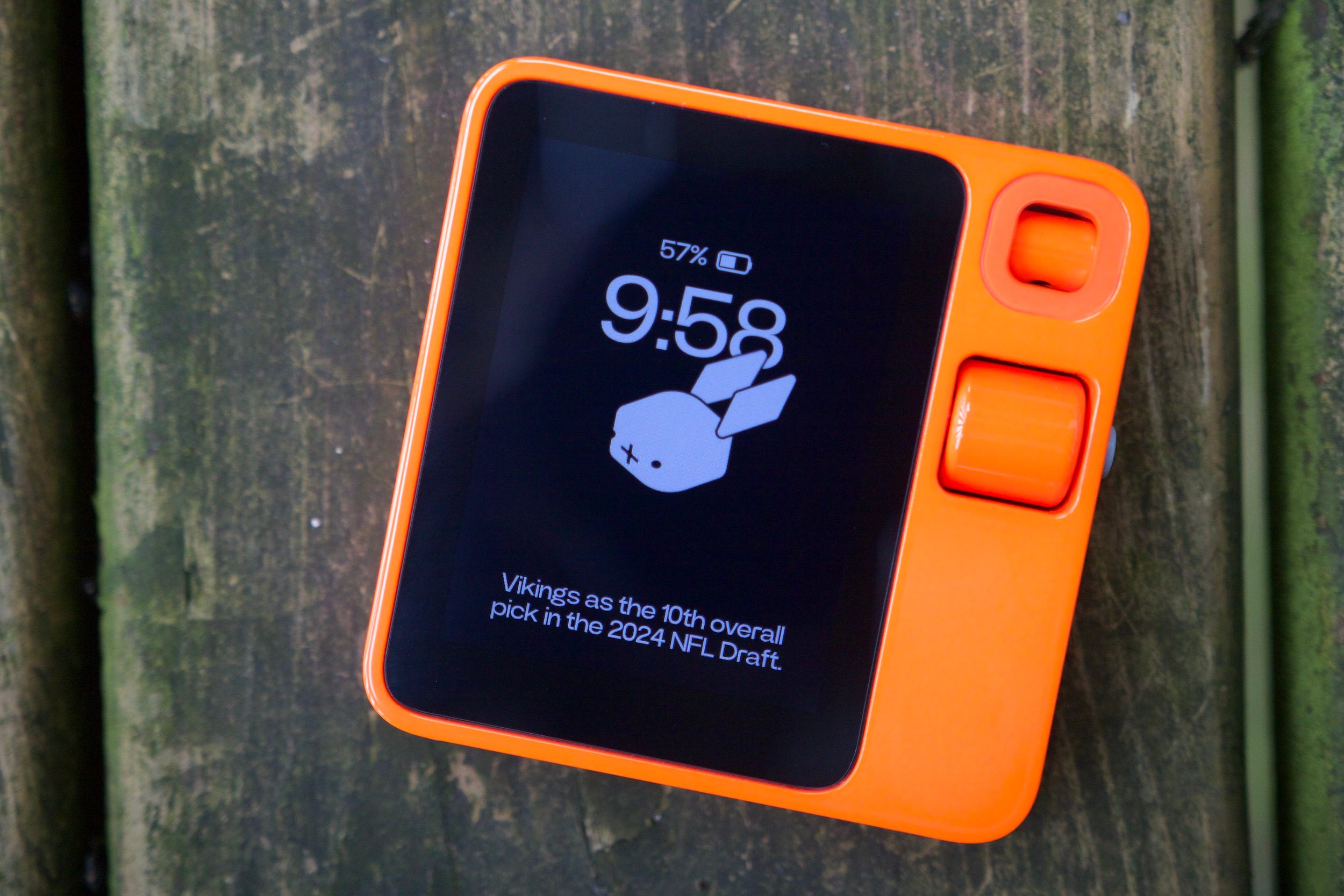
For basic questions — things I would normally perform a Google Search for on my phone — the Rabbit R1 can be quite helpful. When asked if J.J. McCarthy was picked in the NFL Draft, the R1 correctly (and quickly) told me that McCarthy was selected by the Minnesota Vikings as the 10th overall pick. It even provided context that the Vikings traded with the Jets for that selection.
When I asked the R1 when Fallout 5 is coming out, it told me there’s no clear release date. It then went the extra step of telling me that Fallout 5 isn’t expected to be released until after Elder Scrolls VI, plus the rumored release date of the next Elder Scrolls title — coming to the conclusion that we likely won’t see Fallout 5 until the 2030s. I ultimately would have arrived at the same answer using my phone, but having everything explained in clear and simple terms — all without any scrolling through search results or ad-ridden websites — was pretty convenient.
Questions like this are where the Rabbit R1 is at its best — but only sometimes. One night, I asked the R1 who won the most recent Super Bowl. It told me the winner of the 2023 Super Bowl. I asked the same question again just a second later, and it correctly told me the 2024 winner. Similarly, when asked, “When is the NFL Draft?” the R1 gave me the dates of the 2022 Draft. I asked the exact same question again and was told the dates of the 2023 Draft. I’ve noticed that this inconsistency happens a lot with the Rabbit R1, with no apparent rhyme or reason for it.
And that’s just the tip of the iceberg of the R1’s issues. Asking it about the weather — one of the most basic questions for any computer — often returns hilariously bad results.
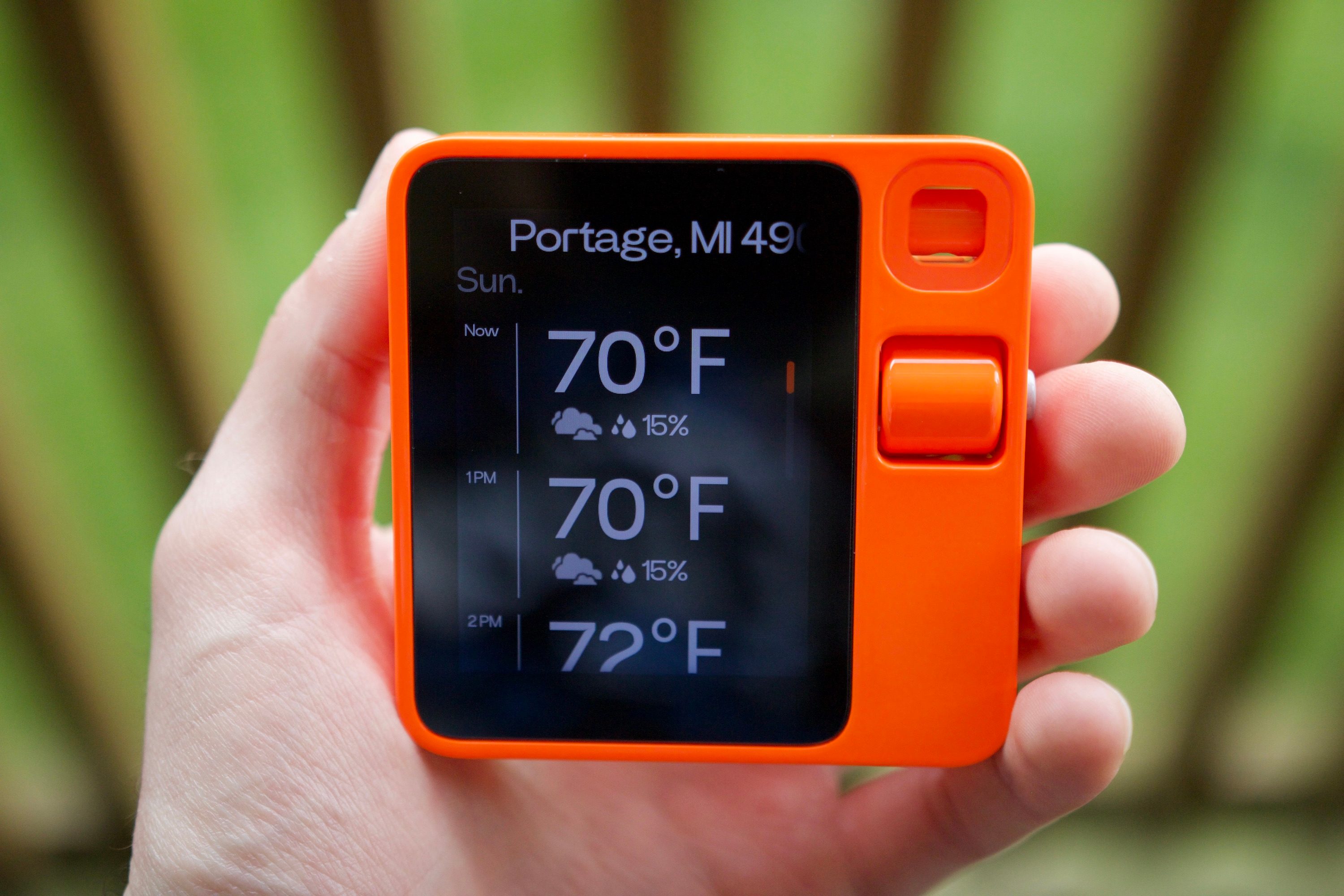
When I first got the Rabbit R1 and asked about the weather, it correctly told me the weather for my city in Michigan. Later that afternoon, it would show me the forecast for Edmonds, Washington. It eventually sorted itself out and remembered I lived in Michigan … until the next day, when it started giving me the forecast for Houston. The worst part? There’s no way to manually set your location on the R1 — you have to hope its GPS is working, and it often isn’t.
Similarly, the R1 outright refuses to show me the weather for anything other than the current day. No matter how many times I ask about the weather “tomorrow” or any day in the future, the display shows me the forecast for today. The biggest bug happened on Thursday, April 25. I asked the R1 to show me the weather for the next day. The speaker told me the weather for April 27, while the screen showed the forecast for the 25th. Thank you, AI. Very good.
Oh, and the time you see on the R1 in all of these pictures? It’s showing me the time for Pacific Time even though I live in an area that’s in Eastern Time — and there’s no way to change it.
So many missing features
Even more frustrating than the Rabbit R1 fumbling its current functionality is the long list of missing features from the device. There’s so much the R1 simply cannot do right now, and it’s a bit mind-boggling. Here’s a list of some of the biggest missing features:
- Alarms
- Timers
- Calendar
- Contacts
- Reminders
- GPS navigation
- Text messaging
- Live sports scores
- Smart home controls
- Take pictures/record videos
Rabbit is planning to add many of these things this summer and later on throughout the year, but that doesn’t make their absence today any less disappointing. This is supposed to be a simpler companion to my phone, yet the R1 often tells me to use my phone when asking it to do the most basic of tasks. So why should I bother with it in the first place?
My journey with the R1 continues
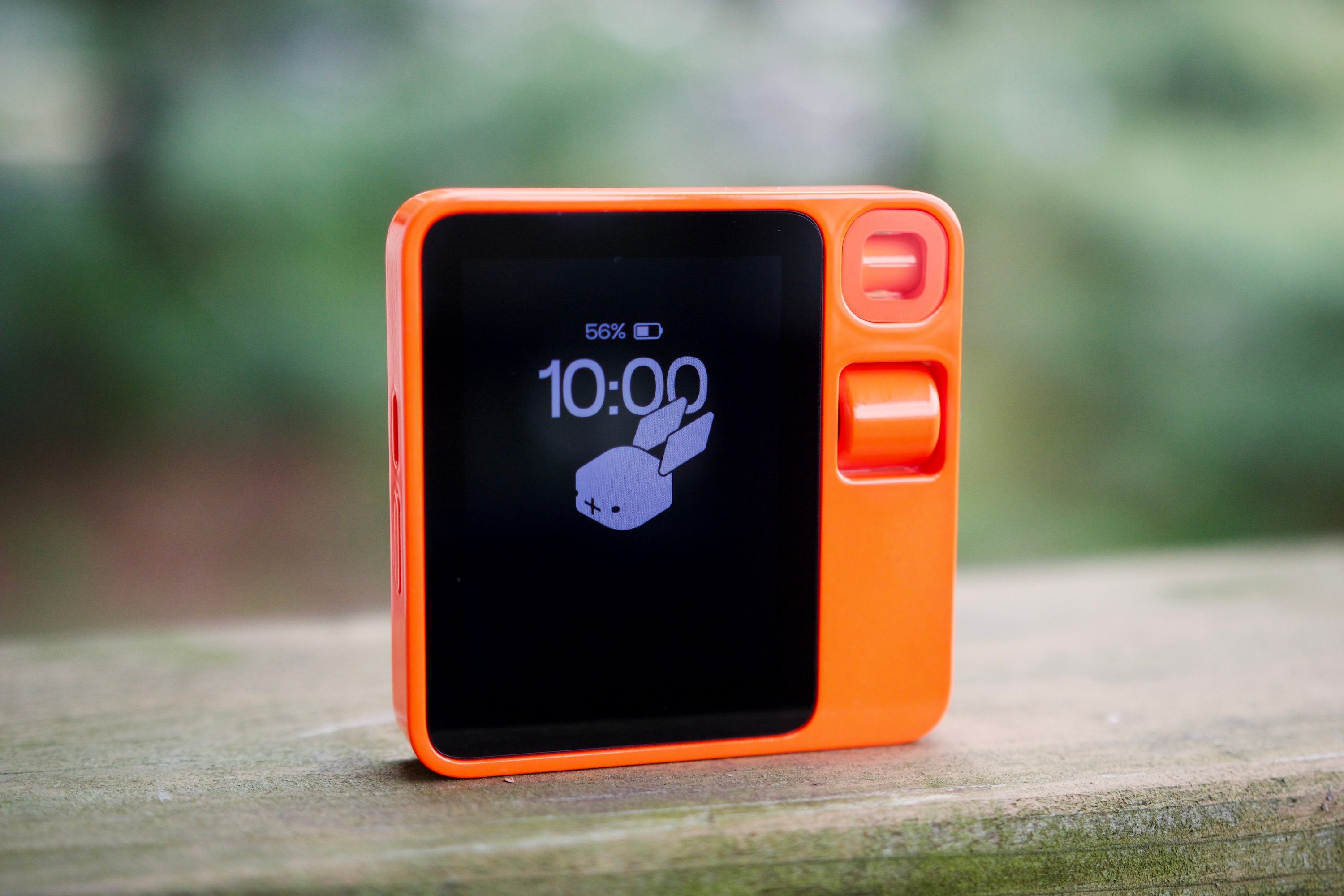
This is not a full review of the Rabbit R1. At the time of publication, I have only had the device for four days, and there’s a lot I still need to do — such as testing the R1’s battery life, connecting my DoorDash and Spotify accounts, and further exploring its Vision mode (where you can point the R1’s camera at anything and ask it to provide information about what it sees).
But I strongly believe first impressions matter, and in the case of the Rabbit R1, it doesn’t make a good one. It has its moments of being a great search engine device, but for all the examples I can provide of accurate and convenient answers, I have just as many examples of the R1 completely fumbling what I asked of it. And that’s not to mention everything it’s outright incapable of right now. The Rabbit R1 is supposed to be a simpler and more convenient way of getting stuff done compared to using my phone, but almost every time I try to use the R1 for something, I get frustrated by its half-baked design and I reach for my phone instead.
I’m going to stop writing now so I can continue using the Rabbit R1, and I’ll report back soon with my final thoughts in a proper review. But if the last four days are indicative of how the rest of my time with the Rabbit R1 is going to go, I’m buckling myself in for a bumpy ride.