How many passwords do you have? Is it 20 or more like 200? Let’s be honest, if you have more than a dozen passwords then you probably can’t remember them all, and luckily, you don’t have to.
You can make life a little easier by learning what a password manager is and what it can do for you. We’ll explain how a password manager works, what it does, and whether it’s safe to use.
What is a password manager?
With the number of passwords we all have to handle these days, a password manager eases the burden. It’s more secure than a pen and paper, more reliable than your memory, and a good way to organize your passwords for quick access.
In basic terms, a password manager is a secure digital tool that you can use to add, store, maintain, and access usernames and passwords for things like apps, software, online services, device sign-ins, and other logins.
You’ll find both free and paid password managers, although the free options normally have limited features and/or offer a paid upgrade to access all of the tools.
How does a password manager work?
When you set up your password manager, you’ll be asked to create a master password that you’ll use to open the tool. Some password managers allow you to use biometrics in addition to or instead of the master password. This lets you to open it with a fingerprint, for example.
You can then start adding usernames and passwords for your accounts, which are then encrypted for security. When you’re ready to log in to an account with a saved password, simply open the tool and grab the credentials.
Most password managers provide you with simple copy-and-paste actions so that you don’t have to manually enter your username and password. Still others provide autofill, which allows you to automatically input your username and password directly from the tool and is common on most mobile devices.
For instance, if you’re prompted for your login credentials in an app, you may see an option to use your password manager. Then, simply open it, choose the correct account, and you’ll see your username and password automatically pop into the correct spots.
What does a password manager do?
While different password managers have their own sets of unique features, you can count on the basics. This includes the ability to add, edit, and delete passwords and usernames for new and existing logins.
Many password managers offer the option to generate passwords for you, which is a terrific feature. Coming up with your own unique and secure password can be a struggle. But with the built-in feature to do so, you can generate random passwords and then save them to the corresponding accounts right within the password manager.
Along with usernames and passwords, you can store other sensitive data like payment details or health information, add helpful notes, and organize accounts and logins using folders or tags.
What are the most common password managers?
You’ll find computer software, mobile apps, and browser extensions for managing passwords as well as built-in password management tools on specific devices and in web browsers.
As examples, Android, Google, and Chrome users can use the Google Password Manager while iPhone, iPad, and Mac users can use iCloud Keychain. These types of free tools allow you to access your passwords using the same master account on various devices, making them convenient.
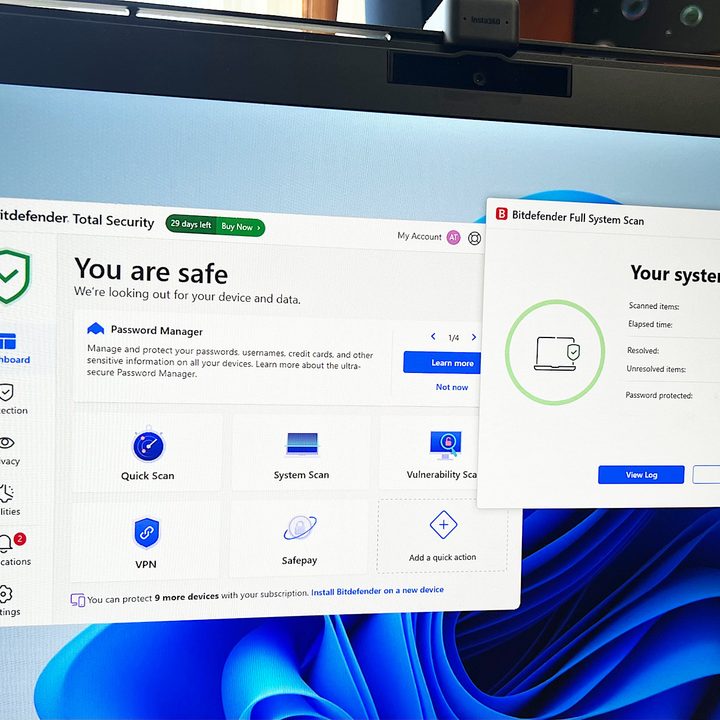
If you use antivirus software on your device, you may also be able to take advantage of its password feature. For instance, McAfee, Norton, and Bitdefender each offer a handy password management tool.
You’ll also find third-party companies that offer free and paid password managers to work across multiple platforms like 1Password, Bitwarden, and Dashlane. With these tools, you can install the application on both your computer and mobile device for easy access anywhere.
Are password managers safe?
Many would agree that using a password manager is probably safer than not using one. Jotting down your password on a piece of paper or inside a note-taking application doesn’t provide the security you need. And, if you should lose the paper or note, you don’t have a way to recover your password.
Any password manager you check out should lead with the type of security they use, and this is something you should review before delving into the details of the features.
Most like 1Password and Bitwarden use AES-256 encryption, which is the standard today and considered “military-grade encryption.” However, others like NordPass use the XChaCha20 encryption algorithm, which is thought to be the “future of encryption.” Encryption encodes data, making it unreadable and unusable, thus protecting it from prying eyes.
Another safety feature you’ll find in most password managers is that when you finish using it or if it offers a timeout selection, it’ll close automatically. To reopen it, even on your mobile device, you’ll need to reenter your master password or biometric.
What is the best password manager?
The best password manager is the one that offers top-notch security, the features you want, availability on whichever device(s) you need, and a price you can afford. As you’ve guessed, it’s subjective because not everyone wants or needs the same things.
So, to help you get started, take a look at our list of the best password managers for complete details, features, pricing, and other information to make your decision.