  1. Home
  2. Phones
  3. Mobile
  4. How tos

How to change app icon colors in iOS 18

Add as a preferred source on Google
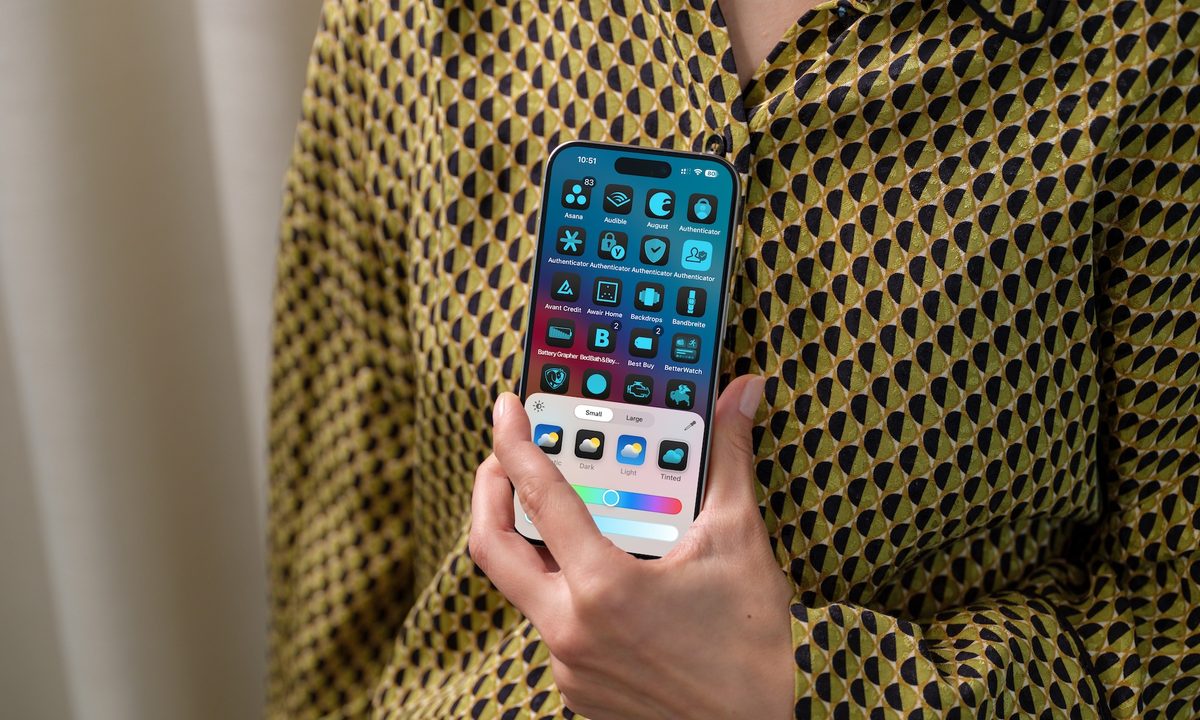
Person holding an iPhone showing new home screen customization tools on iOS 18.
Bryan M. Wolfe / Digital Trends

Apple has released iOS 18 to the masses, with the biggest feature of the update being Apple Intelligence. But the update also includes new customization tools, such as the long-awaited ability to change the appearance of icons on the home screen.

Recommended Videos

Difficulty

Easy

Duration

5 minutes

What You Need

  • Your iPhone

  • iOS 18

Home screen customization isn't entirely new to the iPhone, though iOS 18 builds upon it in pretty exciting ways — including the ability to change the color of your app icons. It adds a level of personalization not previously available on the iPhone, and it's a lot of fun to play with. Here's how it works.

How to change app icon colors in iOS 18

There are two ways you can adjust the appearance of icons in iOS 18. First, you can enable the icons to automatically adjust their appearance based on the time of day. Additionally, you can add colorful tints to the icons to match your style or mood.

Step 1: To enter Edit mode in iOS 18, press and hold on an empty area on your iPhone home screen until the icons begin to jiggle.

Step 2: Next, choose the Edit icon from the top-left corner.

Step 3: Choose Customize from the Edit menu.

Customization tools in iOS 18 on an iPhone 15.
Bryan M. Wolfe / Digital Trends

Step 4: To adjust the colors of the icons to match the time of day, tap Automatic.

Step 5: You can also select Dark so the icons are dark all the time, or Light so they remain lightly colored 24/7.

Customization of iPhone home screen on iOS 18.
Bryan M. Wolfe / Digital Trends

Step 6: There's also a Tinted option located next to Automatic, Dark, and Light. Tap on it to adjust the tint color for your app icons. You can use a slider to select the specific color and another one to adjust the intensity of the tint.

iOS 18 customization tools - changing the icon colors.
Bryan M. Wolfe / Digital Trends

Step 7: You can also use the eyedropper icon to adjust the colors of your iPhone icons to match a color on the existing background.

iOS 18 customization tools, changing icon color based on background.
Bryan M. Wolfe / Digital Trends

Step 8: One additional way to customize your iPhone home screen in iOS 18 is by making the icons larger. You can do this by once again going into the new edit mode. From here, toggle Large. As you can see, by doing so the icons on the home screen get larger and the words beneath them are removed. Select Small to return the icons to their regular size.

Changing iPhone icon size on iOS 18.
Bryan M. Wolfe / Digital Trends

And that's it! iOS 18's app icon customization tools may not be as exhaustive as what you'll find on an Android phone, but it does add another fun element to home screen customization. And now, you know how it works.

Bryan M. Wolfe
Former Mobile and A/V Freelancer
Bryan M. Wolfe has over a decade of experience as a technology writer. He writes about mobile.
Apple wants you to verify your identity before you get Education discount on products
Apple moving the US Education Store off the honor system also seems about making a globally consistent verification infrastructure that could eventually support more aggressive Education Store expansion.
Computer, Electronics, Laptop

Getting an Apple Education discount in the United States used to be as simple as claiming you’re a student or a teacher; it didn’t need a formal verification. That era is officially over. 

Starting May 8, 2026, Apple now requires formal identity verification for all Education Store purchases in the US, ending the informal honor system that was in place for years (via MacRumors). 

Read more
Whoop’s response to Fitbit Air and Google Health is real doctors, not just an AI chatbot.
In the race to own your health data, Google chose an AI, and Whoop chose a doctor. That single decision may define which fitness tracker serious health users reach for in 2026 and beyond.
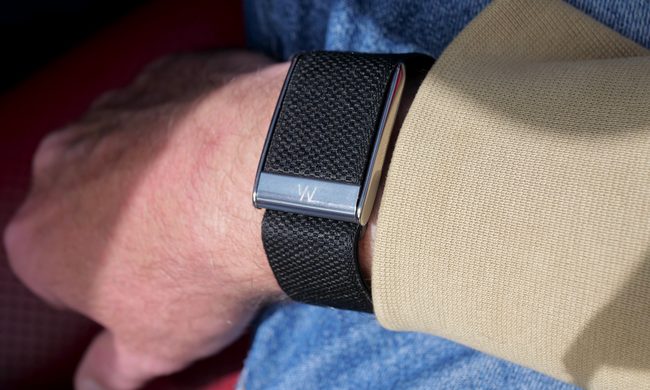
A person wearing the Whoop 5.0.

Recently, Google launched the Fitbit Air as a direct rival to the Whoop screenless fitness band, rebranded the Fitbit app to Google Health, and released a Gemini-powered AI coach. Exactly one day later, Whoop has responded with on-demand video consultations with licensed clinicians for US users. 

The contrast is hard to ignore. While Google is betting on AI as your general health advisor, Whoop is doubling down on real, licensed doctors, and making the case that they can serve its fitness-focused users considerably better (via CNBC).

Read more
Apple leak prophesizes a Spatial iPhone with a holographic 3D screen. It’s about time!
Samsung is reportedly building the holographic display, with a tentative 2030 target.
Apple-spatial-iphone-concept-image

Holograms on your iPhone sound like science fiction. But according to a fresh leak, Apple may actually be working on it. A leaker on X known as "Schrödinger" claims Apple is developing a "Spatial iPhone" with a holographic display, reportedly being built by Samsung.

The display is codenamed "MH1" (Mobile Holographic 1), and the details being floated are quite wild. You should take all of this with appropriate skepticism, though, as none of it is officially confirmed.

Read more