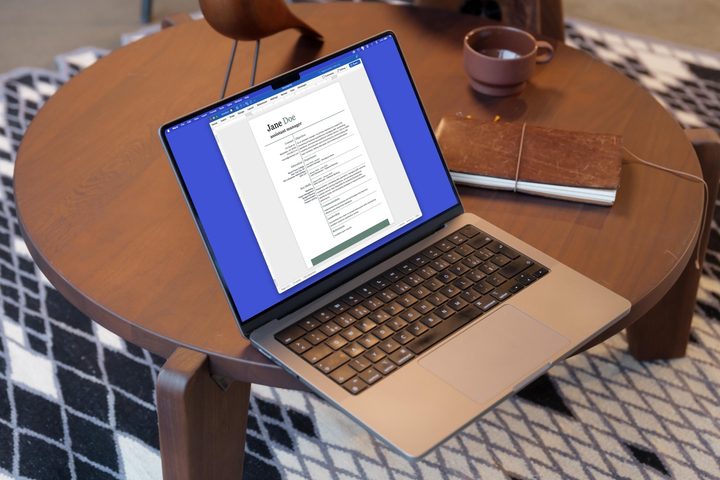
Whether you’re just entering the workforce or need a resume refresh, you’re probably considering using Microsoft Word for the task. We’ll walk you through options for making a resume in Word, from using helpful templates to creating a resume from scratch.
Use a built-in Word resume template
If you’ve just downloaded Microsoft Word and want the quickest and easiest way to make a resume, start with one of Microsoft’s templates. You can look for one directly in Word and choose from a large collection of options.
Open Word, select File > New, and pop “resume” into the Search box. You can then browse the templates with resumes for specific jobs and industries along with those for any type of position.
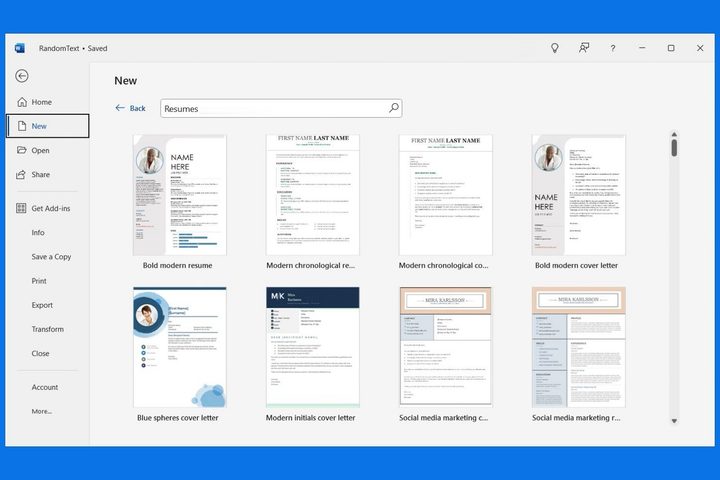
Choose a template to see a description and pick Create to use the resume.
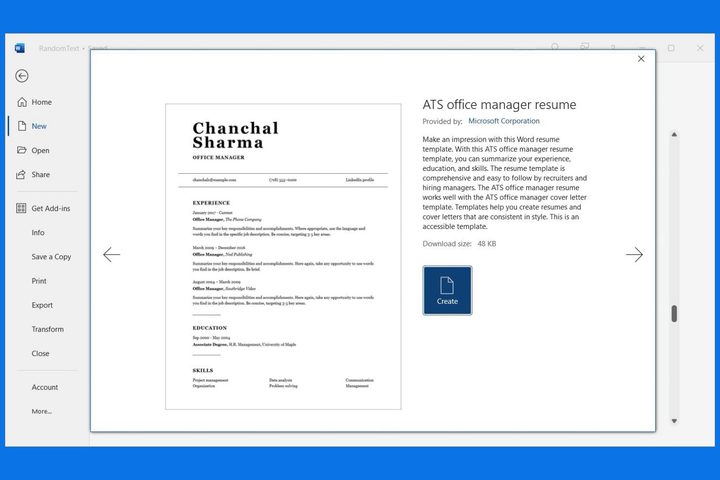
The Microsoft resume templates come with placeholders that you can simply swap out for your own details. This is handy if you like the appearance of all elements in the template. Of course, if you’re not fond of the color scheme or font styles, you can change those types of items.
Remember to go to File > Save As to save a copy of your resume.
Use a Word resume template on the web
Maybe you don’t have Microsoft Word on your computer yet but need your resume in that format. You can use Word on the web for free with a Microsoft account and take advantage of resume templates.
Visit the Microsoft Create website and explore the resume templates. If you see one you like, select it to open it directly in Word for the web.

Alternatively, select Create from scratch and choose Resumes, flyers, brochures. When Word opens, use the Designer sidebar on the right to browse through and choose a resume template.

Then, swap out the placeholders for your own details and customize the resume as you like.
Use a third-party Word resume template
If you like the template idea but don’t care for any of the Microsoft options, you can check out third-party templates for your resume. Here are just a few of the top options and samples of resume templates they offer for free.
Resume Genius
With Resume Genius, you can pick from over a dozen custom Word templates to download. From simple to professional to aesthetically pleasing to visually appealing, you’re sure to find at least one resume template you like.

Hloom
Hloom offers over 15 resume and CV templates for free and even more if you don’t mind paying. Be sure to select Free on the left below License if you want to narrow down the no-charge options. As a bonus, you’ll also see a tab for cover letters if you’re in the market for one of those too.

Template.net
One more place to check out for Word resume templates is Template.net. You’ll find a large variety of attractive options specific to position or resume style. Like with Hloom, select Free beneath License on the left, and be sure to take a look at the cover letter collection too.
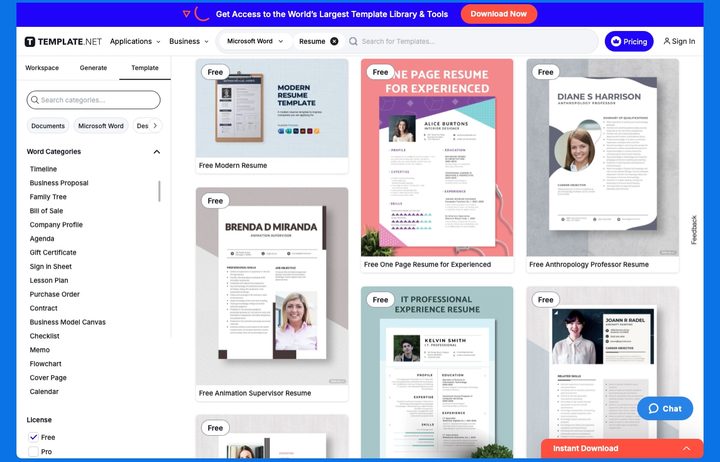
After you download a resume template from one of the above sites, simply customize it with your own details.
Create a Word resume from scratch
Maybe you’d prefer to simply create your resume from scratch; this is always an option if you have the time. Consider reviewing the above templates and samples for the information you should include and ideas for formatting.
To get started, add the following details to your resume:
Full name and current position: Place your name and position at the top. If you don’t have a current position, you can certainly omit it.
Objective (optional): Provide a brief description of your goal to potential employers beneath your name and position. This is an optional inclusion — if you add one, try to keep it short and sweet with one to two meaningful sentences.
Contact details: Include at least your email address and phone number. If you have an up-to-date website or LinkedIn profile, you can add these as well. Make sure these details are kept together in a specific location so they’re simple to find.
Work experience: List your work experience in chronological order with the most recent first. Start with your position, then move onto the employer, month, and year you worked there, and your duties. You should include your duties and responsibilities in a list format making them easy to review.
Education: List your educational history in chronological order with the most recent first. Start with the degree, then add the school with the month and year you attended.
Skills, awards, and more: Use a list format to add your skills, awards, certifications, volunteer work, and any other details you feel important to the position or company.
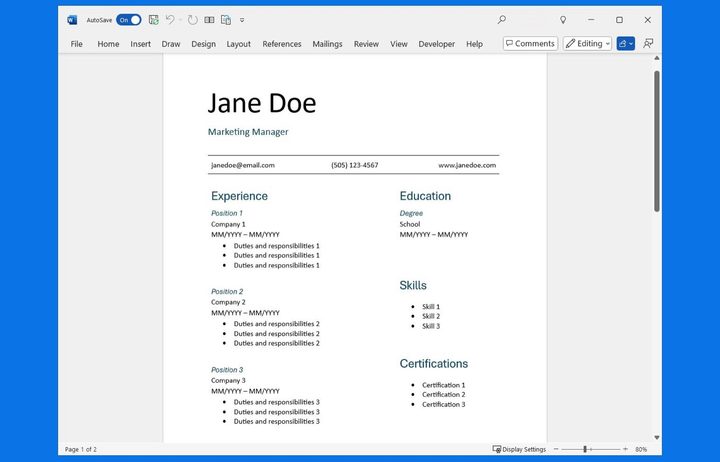
Here are several tips when formatting your resume in Word:
- Use a heading or larger font for your full name at the top.
- Add headings for the Experience, Educations, and Skills sections.
- If you decide to use color, keep it to just one or two complementary colors.
- Try to use the same font style throughout, taking advantage of font sizes, headings, or bold formatting for more prominent details.
- Use a font that’s easy to read like a 12-point Arial, Calibri, Georgia, or Times New Roman for the main body text. You might also consider which font style works better for reading on the web versus on a printed piece.
- If your resume spills over onto the first few lines of a new page, use Microsoft Word’s double spacing tool to adjust line and paragraph spacing.
- If you include a headshot, make sure it’s a professional one.
- Consider using a table to structure your resume, as shown above.
Finally, be sure to keep the appearance and content of your resume consistent.
FAQs
Is it OK to make a resume in Word?
Absolutely! This is exactly the type of document you should create in a word processing application like Microsoft Word. If you prefer, you can also use a web application like Google Docs to make a resume or downloadable software like LibreOffice Writer.
Once your resume is complete, you can save it as a PDF or other requested format in most word processing applications for submission to the potential employer or hiring manager.
How far back should a resume go?
Most experts recommend 10 to 15 years is appropriate for a resume. Keep in mind that you should include relevant work experience for that time period. For example, if you’re a nurse who worked at a fast-food chain for two months 12 years ago, you can likely exclude that job.
How many pages should a resume be?
The standard for a resume is one to two pages. However, this can depend on the length of your experience and education in relation to the position for which you’re applying. For instance, someone who’s been in the workforce for 20 years might require two pages, but a recent college graduate would probably only need one page.