  1. Home
  2. Phones
  3. Mobile
  4. How tos

How to use Apple Intelligence Writing Tools on your iPhone

Add as a preferred source on Google
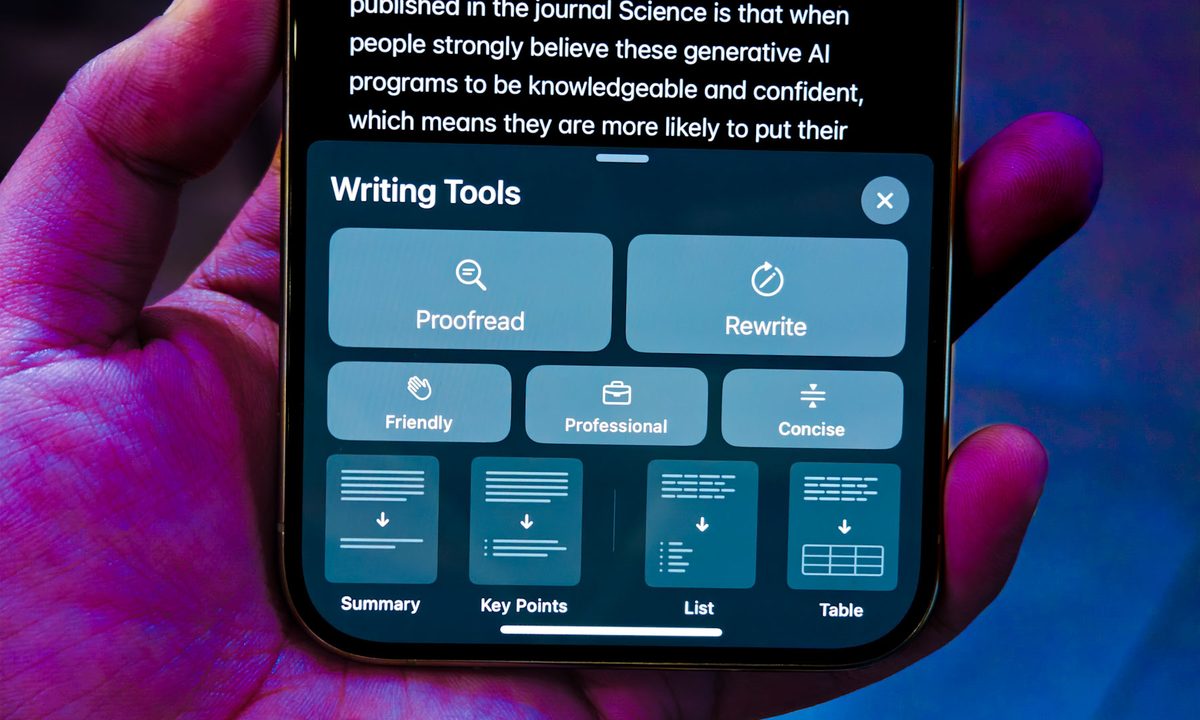
Writing Tools on iPhone 15 Pro.
Nadeem Sarwar / Digital Trends

Apple has finally joined the AI game with Apple Intelligence features in iOS 18.1, which are now available to everyone with a compatible phone. You can finally start using all of these cool new AI features, such as Writing Tools, smarter Siri, Clean Up in Photos, and more.

Recommended Videos

Difficulty

Easy

Duration

5 minutes

What You Need

  • A compatible iPhone

  • iOS 18.1

The Writing Tools are one of the main features of iOS 18's Apple Intelligence, but how do you access them after turning on Apple Intelligence? It’s actually pretty easy.

How to proofread text with Writing Tools on iPhone

Say you just wrote something and need a quick spelling and grammar check, but no one else is available to give it a look at the moment. Proofread is one of the Writing Tools available, and it’s accessible at any time on your iPhone.

Step 1: While you write, select the text that you want to refine.

Step 2: Select Writing tools from the pop-up menu. If it isn’t showing, select the arrow button (>) to reveal more options.

Step 3: Select Proofread.

Step 4: Apple Intelligence then checks the text for any grammatical and spelling errors. Any changes will have a glowing underline.

Step 5: From there, you can View changes and explanation for the change, Discard a change (Use original), or Switch between the updated and original versions of the text.

Step 6: If you don’t want these changes, just select Revert. If you do want the changes, then tap Done.

View changes, view explanations, view original, select Revert to change back or Done to save.
Digital Trends

How to rewrite text with Writing Tools on iPhone

Perhaps you just wrote down a lot of text and want to rewrite it so that everything reads just right. Apple Intelligence can do that for you too.

Step 1: While you write, select the text that you want to refine.

Step 2: Select Writing tools from the menu.

Step 3: There are two options you can go with here: Rewrite or Rewrite with a particular tone (Friendly, Professional, or Concise).

Select text, select Writing Tools, select Rewrite.
Digital Trends

Step 4: Select the option you want.

Step 5: Apple Intelligence rewrites your text based on your selection.

Step 6: If you don’t like it and want to try again, select Retry. Or you can switch between the updated and original versions by selecting Original.

Step 7: Select Done when you are satisfied.

Choose one of three tones to rewrite your text into with Apple Intelligence.
Digital Trends

How to summarize and organize text with Writing Tools on iPhone

Have a lot of text and just want an easily digestible summary of key points? Apple Intelligence can do that too.

Step 1: Select the text you want to refine.

Step 2: Select Writing tools.

Step 3: Select Summarize for a summary of the text.

Step 4: Select Key points to get a summary of just the key points.

Step 5: Select List to organize the text into a list format.

Step 6: Select Table to organize the text into a table.

Step 7: Once you view your summarized text, there are more options you can take with the summary.

Step 8: Select Copy to copy the summary.

Step 9: Select Replace to replace the original text with the summarized text. This is not available if the source text is not editable.

Step 10: Select Share to share the summary.

Christine Romero-Chan
Christine Romero-Chan has been writing about technology, specifically Apple, for over a decade. She graduated from California…
Apple wants you to verify your identity before you get Education discount on products
Apple moving the US Education Store off the honor system also seems about making a globally consistent verification infrastructure that could eventually support more aggressive Education Store expansion.
Computer, Electronics, Laptop

Getting an Apple Education discount in the United States used to be as simple as claiming you’re a student or a teacher; it didn’t need a formal verification. That era is officially over. 

Starting May 8, 2026, Apple now requires formal identity verification for all Education Store purchases in the US, ending the informal honor system that was in place for years (via MacRumors). 

Read more
Whoop’s response to Fitbit Air and Google Health is real doctors, not just an AI chatbot.
In the race to own your health data, Google chose an AI, and Whoop chose a doctor. That single decision may define which fitness tracker serious health users reach for in 2026 and beyond.
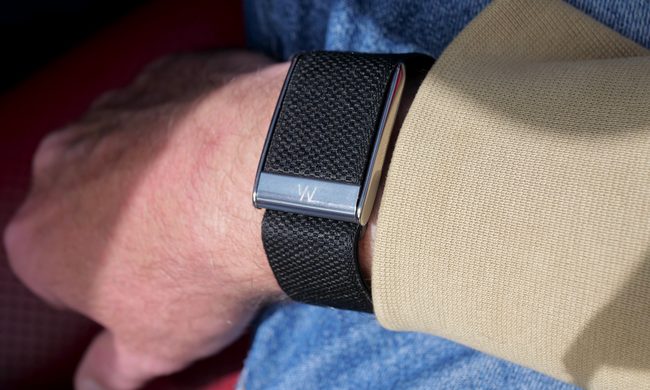
A person wearing the Whoop 5.0.

Recently, Google launched the Fitbit Air as a direct rival to the Whoop screenless fitness band, rebranded the Fitbit app to Google Health, and released a Gemini-powered AI coach. Exactly one day later, Whoop has responded with on-demand video consultations with licensed clinicians for US users. 

The contrast is hard to ignore. While Google is betting on AI as your general health advisor, Whoop is doubling down on real, licensed doctors, and making the case that they can serve its fitness-focused users considerably better (via CNBC).

Read more
Apple leak prophesizes a Spatial iPhone with a holographic 3D screen. It’s about time!
Samsung is reportedly building the holographic display, with a tentative 2030 target.
Apple-spatial-iphone-concept-image

Holograms on your iPhone sound like science fiction. But according to a fresh leak, Apple may actually be working on it. A leaker on X known as "Schrödinger" claims Apple is developing a "Spatial iPhone" with a holographic display, reportedly being built by Samsung.

The display is codenamed "MH1" (Mobile Holographic 1), and the details being floated are quite wild. You should take all of this with appropriate skepticism, though, as none of it is officially confirmed.

Read more