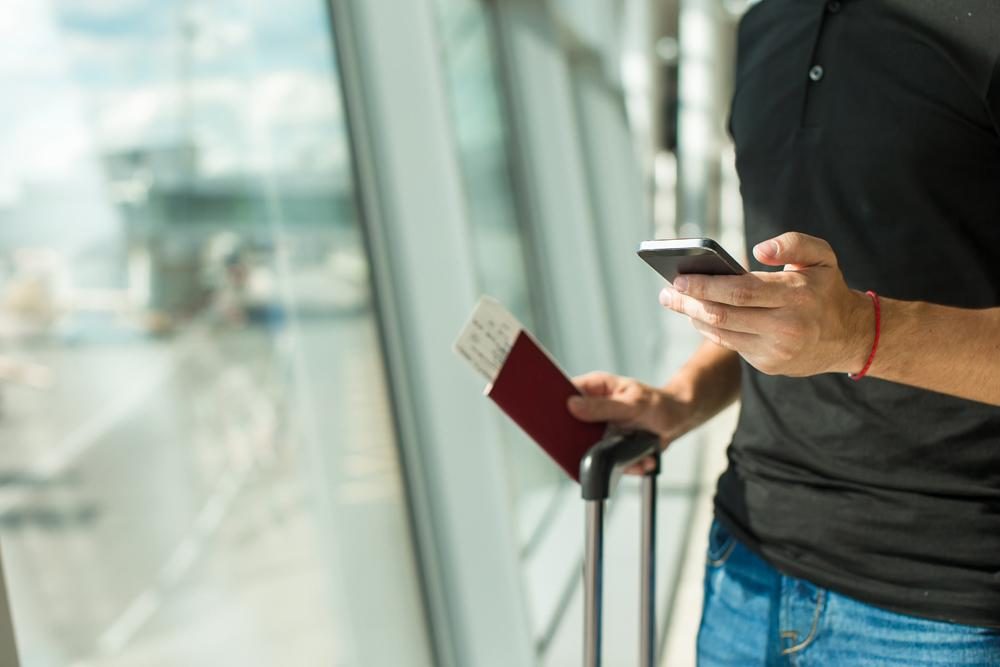
You've got your flight coming up tomorrow and you know your boarding pass is one of the most important things you'll be taking on the trip. You know all of the information by heart. You're boarding a Delta airplane at 4:00 PM. But, if you lose your boarding pass, you could be in big trouble. The good news is that you can add that Delta boarding pass to your Apple Wallet on your iPhone or Apple Watch. Or a United boarding pass, or whatever boarding pass you need to get where you want to go. Here's everything you need to know.
If you have an iPhone or Apple Watch with Apple Wallet installed, you can easily present your digital boarding pass without having to fumble through your bag. Here’s everything you need to know about adding your boarding pass to Apple Wallet.
How to add a boarding pass to Apple Wallet
After checking in online with Safari or Chrome (or whatever web browser you use), the airline can email your boarding pass. Apple Mail users can have the pass automatically added to their Apple Wallet, or you can manually add it if necessary.
Step 1: Tap Add to Apple Wallet on your boarding pass, ticket, or other pass in the app, email, notification, or whatever form of communication you received it in.

Step 2: Follow the on-screen instructions and tap Add in the upper right corner if needed.
If you are unable to add your boarding pass, ticket, or other pass to the Wallet app, reach out to the issuer to confirm compatibility with the Wallet app. Adding a pass to the Wallet app on your iPhone also adds it to the Wallet app on your paired Apple Watch.

How to use a boarding pass in Apple Wallet
Once you've added a boarding pass to Apple Wallet, you'll want to know how to use it! Here's what you should keep in mind:
Step 1: Open your pass from within the Wallet app. You can find and open the Wallet app, or double-press the side button on your iPhone. If you have an older iPhone with a Home button, double-press that.
Step 2: If you only see one card after opening the Wallet app (your default payment card), tap that card to see all of your cards and passes.
Step 3: Tap on your boarding pass, then present your iPhone to the contactless reader or attendant.

How to remove a boarding pass in Apple Wallet
You can easily remove old and expired passes, such as resort passes, boarding passes, rewards cards, and event tickets from the Wallet app on your iPhone or Apple Watch.
Step 1: On your iPhone, tap on the Wallet app. Next, tap the pass that you want to remove.
Step 2: Choose the More button with three dots, then tap Pass Details.
Step 3: Finally, tap Remove Pass, then confirm.
Once you have saved your mobile boarding pass into Apple Wallet, simply open the app and present it to airline staff to be tapped or scanned by the contactless reader. Remember to save each boarding pass individually for flight check-in and delete old passes to avoid confusion. It's also a good idea to have a paper copy of your itinerary as backup.