It doesn’t matter if you have one of the best gaming desktops if you can’t get around it quickly. There’s a list of Windows shortcuts I use on my gaming PC on nearly a daily basis, and they might help you get around your gaming rig like a true power user.
I’m focusing on shortcuts that are helpful while playing games, so make sure to read our roundup of five helpful Windows shortcuts for getting around your machine in general.
Toggle and quickly close windows

Alt + Tab is a staple for any PC user, not just gamers. If you don’t know, this shortcut allows you to toggle between windows and bring the selected one to the foreground. In games, it’s useful for quickly switching out of a full-screen application, especially if you need to check Discord or pull up game tools in your browser.
Beyond the shortcut itself, you can hold Alt to keep the windows up and continually press Tab to cycle between them. If you want to close a window from this view, you can hit Delete, as well. Simple as it may be, Alt + Tab should be the best friend of every PC gamer.
Force a game into full screen (or a window)
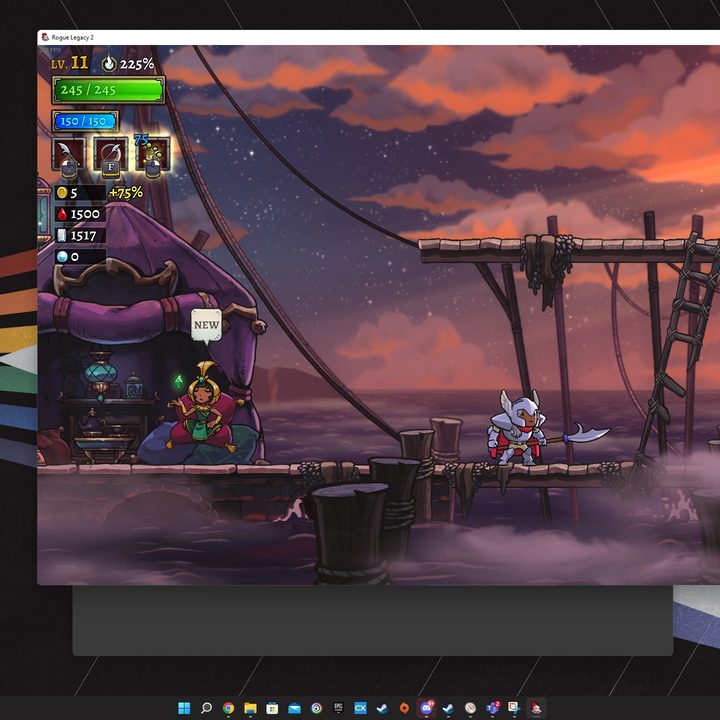
This is another simple one that I use all the time: Alt + Enter. This shortcut will force a window to enter full-screen or vice versa. It’s fine for navigation or if you’re playing a game that doesn’t have an option for window mode, but I mainly use it to fix problems that can come up with exclusive full-screen mode and bizarre window placements.
I’ve encountered these issues dozens of times, most recently in Destiny 2. Destiny 2 doesn’t play nicely when you use Alt + Tab while you’re running in full-screen mode, so I run it in borderless mode instead. The problem is that the graphics settings will occasionally reset after an update, causing my window to freak out when I Alt + Tab or launch in a small corner on my monitor. Alt + Enter is a lifesaver in these cases.
Move a window between monitors

Multi-monitor setups are prone to issues, especially for PC gaming. One of the more frustrating issues is when a game launches on a display you don’t want it to, and you don’t have an option in-game to choose which display you want. Windows Key + Shift + Left or Right arrow will move your window to another screen in the direction you choose.
That’s all you need to do with multiple monitors in most cases. Sometimes games won’t switch if they’re in full-screen mode, though. In those cases, I use Alt + Enter first to window the game before trying to move it to another display. This shortcut is particularly useful when your cursor is locked to the game window, which happens quite a bit.
Force-quit a game

Games freeze sometimes, and there’s no recourse but to close the app. To force any app to quit, including games, use Alt + F4. I actually use a program called SuperF4, which is an even more powerful version of Alt + F4 (and one of the first apps you should install on a new gaming PC).
If your game is frozen but you have control over your PC otherwise, you may be able to save it. Alt + Tab out of the game and open Resource Monitor (Windows + S, search for Resource Monitor). Switch to the CPU tab and find your game. Right-click, select Analyze wait chain and attempt to end the lowest process in the chain.
It’s possible your game will quit entirely, or it won’t recover. But this could save your game without forcing it to quit.
Reset your graphics driver

Screen going blank? Games rendering with weird colors? There are a slew of graphical issues and bugs you may encounter with PC games, and they become even more frustrating if you’ve forced a game to quit or switched out of the active window. Sometimes, there’s an issue with your graphics card driver.
Ctrl + Windows + Shift + B will reset your graphics card drivers. This command actually resets several things on your PC, and you’ll hear a small beep and see your screen go dark for a brief moment. This isn’t a Windows shortcut I use all the time, but it’s useful to have in your back pocket just in case.
Instantly take a proper screenshot

You may be familiar with using Print Screen to take a screenshot (or Alt + Print Screen for a specific window). The problem is that this command doesn’t give you control over where the screenshot is stored or what it’s capturing, which is particularly troublesome with Print Screen on its own (it’ll capture your whole display, including if you have multiple monitors).
Enter the Snipping Tool, which is the best way to take a screenshot on PC. Windows + Shift + S will automatically pull up the Snipping Tool so you can take a screenshot of what you want and save it where you want. This is one I use all the time, even with Nvidia GeForce Experience installed.
Record the last 30 seconds of gameplay

Finally, you can use one of the best features on Xbox Series X on Windows: Recording your last 30 seconds of gameplay. You’ll need to turn on the feature through Xbox Game Bar, which you can access with Windows + G. Click the Capture tab, and then turn on Record last 30 seconds. From there on, you can use Windows + Alt + G to record your last 30 seconds of gameplay to clip your Elden Ring boss kills or trick shots in Apex Legends.
You can do this through GeForce Experience and Radeon Software, both of which give you more options for the quality of your recording. I typically only need to capture a short clip, though, and I’m not too worried about how it looks, so the Xbox Game Bar version is a simple solution that works with any system.