
Everything in this world has gone digital, and that includes homework (if you have kids). If your children are young, you’re probably not giving them laptops or free rein of the family computer yet. You’re also probably not always able to monitor their screen activity, either.
That’s where parental control software comes in handy. Such software helps keep your kids safe from the dark web, and there are usually free options available for all operating systems. Keep reading to find out more.
Built-in OS features
Giving your kids technology designed for their age group is an excellent first step toward keeping them safe online. When they have access to more general computing devices, you can leverage parental control features built right into the operating system. The parental controls for both Windows and macOS provide a convenient and acceptable means for restricting web access and chat functionality, and give parents the ability to view detailed logs and monitor email exchanges.
Microsoft Family Safety
For Windows, you need to sign up for a Family Safety account. You can then add a specific child account (or more than one) to your family account that your kids can use.
This approach may be a little complicated, but it comes with a variety of benefits. You get activity reports, and you can have content filters for apps, games, and websites.
You can also set screen time limits for apps, games, and devices for your child. There are some real-world safety features, including the ability to track your kids’ location via the Microsoft Family Safety app (on iPhones and Android phones).
MacOS built-in parental controls

Apple’s macOS touts more than a few options for parental controls. In the latest version of macOS, Ventura, you can set up restrictions for things like movies, apps, web content, and privacy using the Screen time section of your Mac’s System settings. The parental controls in macOS also allow you to set limits on a child’s gaming habits, such as whether or not they can have private messaging and whether or not they’re allowed to play multiplayer games.
You can also restrict things like in-app purchases on iOS and iPadOS devices and require a password to even make a purchase.
Adjusting these parental control settings can be done by either logging into a child’s specific Mac account or by using Family Sharing, which is a feature that, among other things, allows you to add your family members to a group and then manage their accounts’ parental control settings remotely from your own account.
Apps and extensions
Windows and macOS offer a decent selection of parental controls, but they can’t do it all by default. In the same vein, parental controls can be a challenge to set up on child-focused mobile devices. Here are some downloadable programs that may be more suited to your particular goals.
Qustodio (Windows/macOS/iOS/Android)
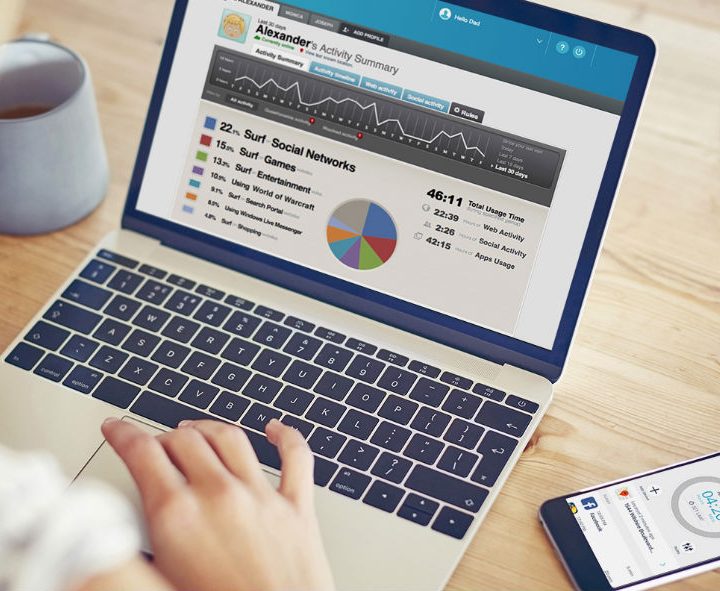
Qustodio has a very intuitive, easy-to-use interface that allows you to sign up for the free version of its software in moments. You can manage everything from the dashboard, including your settings and viewing your child’s activity. The free version of Qustodio includes monitoring and filtering features such as safe search and web filtering, emailed activity reports, and the ability to set screen time limits.
Compatibility options are impressive since the software supports Kindle, Chromebooks, Windows, macOS, Android, and iOS. However, many features (like application controls, location tracking, etc.) are behind paywalls. You can also only use the free version on a single device, which limits its usefulness. Qustodio has a great set of features; we wish more of them were available for free.
KidLogger (Windows, macOS, Android, and Linux)
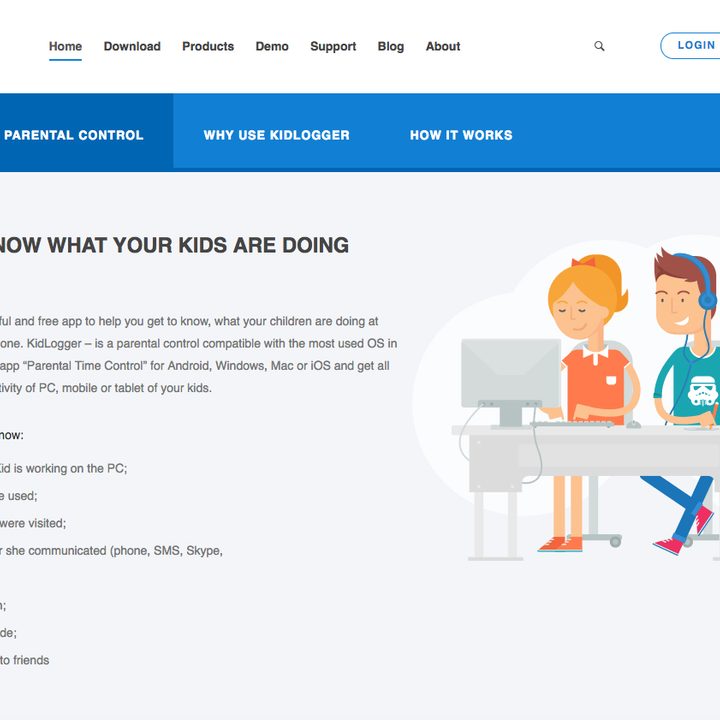
KidLogger is an excellent option if you’d prefer to be covert. Instead of blocking sites, KidLogger automatically tracks keystrokes, web history, and program use (and can automatically take a screenshot of your kid’s screen). When installed on a smartphone, the app automatically logs any SMS messages by number and contact name.
The free version of KidLogger is OK, but the premium versions add some oomph, though some of the features are downright invasive. If you want to monitor your child’s phone conversations and record WhatsApp messages, KidLogger Professional can do that. The app is available for Windows, macOS, Android, and Linux. Like Qustodio, a free account comes with limitations. Free KidLogger accounts limit you to monitoring for five devices and a log history of only nine days. Premium versions of the service will get you longer log histories, additional devices that can be monitored, and increasingly invasive monitoring features.
FoxFilter (Google Chrome/Firefox/Edge add-on)
FoxFilter provides users with a score of blocking filters based solely on individual keywords and sites. The add-on’s sensitivity settings can be tweaked to scan body content, title, and URL. Users can also set notification and alert preferences detailing the type of content underlying each blocked site.
A quick way to implement parental control is by managing your preferences, which means you can block entire categories of websites with ease. If you’re new to using parental control software, we recommend relying on the software’s default list of warning words.
You may be unintentionally blocking all websites by overusing keywords or using the wrong ones. Fortunately, help is just a quick email away for FoxFilter users. If you’re having trouble, reach out to Inspired Effect for support.
What’s next?
Parental control is a concept that goes beyond limiting your child’s computer privileges. Nowadays, you must block certain sites from their cell phones. With new technology, you’re likely finding yourself looking for ways to add security to your kids’ phones and even gaming consoles.
As a parent, it’s your responsibility to keep your children safe from online dangers, and it’s also essential to keep your tech safe. The right antivirus software and password managers will keep your devices safe from harm and your passwords protected.


