Most modern laptops use a USB-C port for charging, offering a convenient, compact, and high-wattage method to charge your laptop and charge it faster than most traditional designs. The actual speed it chargers depends on the charger you use, the USB-C cable, and the charging port on your laptop. They all need to support USB Power Delivery, but there are a few different generations of that technology that have vastly different specifications and capabilities
You don’t even need one of the best laptops to charge using USB-C. Most modern laptops have the option. That’s great, too, because USB-C is reversible, handles data and charging simultaneously, and can even let you output to a display while charging your laptop from the same USB-C cable. Here’s how to do it.
How to charge your laptop with USB-C
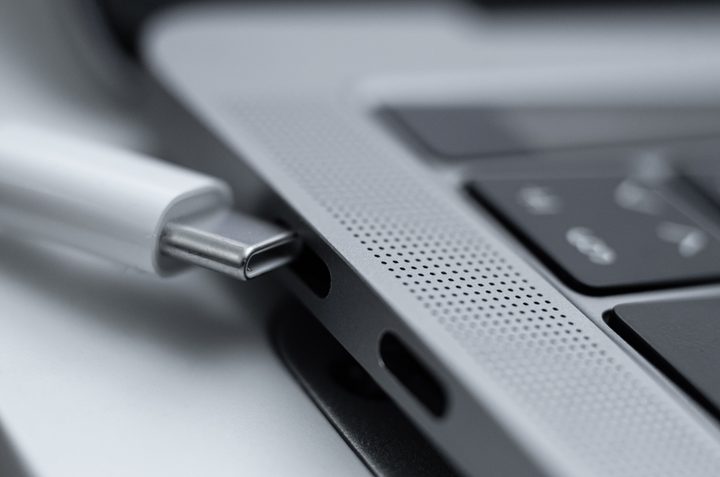
The latest generations of USB-C connection can handle far higher wattage than the earlier generations, making them a great solution for charging your laptop — if it supports USB-C charging. You can find out if yours does by checking the manual, or the manufacturer’s website. If your laptop’s included charger has a USB-C connection, though, that’s the biggest clue!
To charge your laptop with a USB-C charger, just plug it in. However, you can’t just use the same charger you have for your phone. Those tend to be low wattage — even the fast charging ones — and laptops are bigger, more powerful devices, so need a more powerful charger in order to charge in a reasonable time. If you’re interested in buying a USB-C charger to use with your laptop, you’ll want at least a 45W charger, though 65W and even 100W chargers will charge it faster.
Will any port work with any charger?
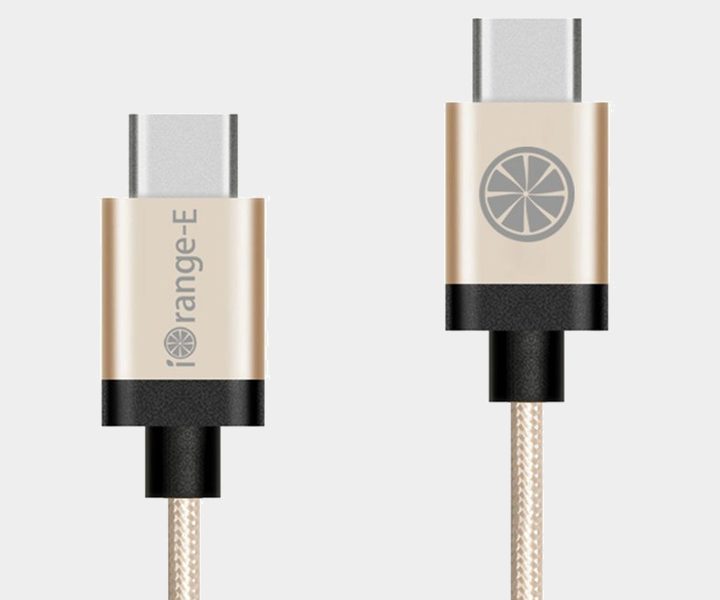
Although USB-C is a reversible, and somewhat universal connection in that it’s compatible with any other USB-C connection — including USB4 and Thunderbolt 3 and 4 (and Thunderbolt 5 in the future) — not all USB-C ports and not all USB-C chargers are created equally. Laptops with multiple USB-C ports will tend to have one that is designed for charging. Plug your USB-C power cable into that port to charge your laptop.
Some devices specifically don’t allow the use of third-party chargers in order to guarantee the right power delivery. That’s not the case for most, though, and a suitable USB-C charger or even a power bank will also work as a laptop charger. You can also use charging hubs and docking stations that include USB-C charging, though they are just as focused on giving you access to a wider range of ports and connection options.
While we haven’t personally heard of any damage from using a USB-C charger other than the one that came with your laptop, there’s always a slim risk when plugging a laptop into an unknown power source. Faulty cables can also be a problem. Microsoft says that you can charge a Surface device with a USB-C port, but it’s highly recommended that you use the Surface charger that came with the laptop.
In short, it’s a good idea to buy cables and chargers from reputable sources and think twice about using that cable you found laying on the ground in a conference room. Don’t try charging laptops over USB-C in the wrong ports, or if they aren’t designed for it, either.
You will also want to watch your USB-C power mode. You can find it in your laptop settings, usually in the power/battery section. Here, you may find that you can switch Type-C’s output, choosing whether to receive power or send power. If your USB-C laptop charger isn’t working when by all rights it should be, check your settings to make sure it is set to receive power.
What wattage are USB-C cables?
There are a few different types of USB-C connections your charger and laptop can have, and they each have support for different USB Power Delivery technologies, with various maximum wattages. Here’s a breakdown of the different types of USB-C connections and what their wattage range can be:
| USB-C generation | Wattage support |
| USB-C 3.2 Gen 2×2 | Minimum 4.5W, Maximum 100W |
| USB4 | Minimum 7.5W, Maximum 240W |
| Thunderbolt 3 | Minimum 15W, Maximum 100W |
| Thunderbolt 4 | Minimum 15W, Maximum 240W |
The specific supported wattage of each USB-C cable, charger, and supporting device, varies. You’ll need to look at their specifications before buying to confirm, but depending on the connection in question, they should fall within these ranges.
However, Thunderbolt 4 certification also demands that at least one port on any device supporting Thunderbolt 4 supports 100W charging, so you can rest assured you should have at least that on any device that supports Thunderbolt 4.
Frequently asked questions
Do all USB-C ports allow charging?
Although USB-C is often the go-to standard for charging, not all USB-C ports can charge your laptop. Laptops designed for USB-C charging tend to have one port that’s designated for charging, while the others are reserved for data.
Can I charge my laptop via USB-C?
If your laptop supports USB-C charging, then you can. If it doesn’t, you can’t. Check the manual or the manufacturer’s website to find out if your laptop supports it. You might also need to use one specific port: find that one and use it exclusively for charging. The others may not support it.
Is USB-C charging better?
Charging your laptop over USB-C isn’t inherently better than using a bespoke power brick and cable, but it is a lot more streamlined. It lets you have one cable type that you can swap out if it dies, and you can often use a single charger for multiple devices. USB-C is also reversible, durable, and offers high-speed data transfer and video transmission, too.
Can USB-C let you charge your laptop without a charger?
Yes, and no. You still need a charger of some kind to provide power for your laptop. However, as long as your laptop comes with a USB-C port that was specifically designed to supply charging support, then you can charge it without a regular charger. However, as we mentioned above, not all laptops offer USB-C ports that you can utilize in order to charge your device.
In most cases you’ll want to use a USB-C charger plugged into a wall, but some power sockets support USB-C or USB-A charging, and there are power banks and portable generators that can deliver power at various wattages without the need for a separate charger. You can even charge your laptop from some external, USB-C monitors while you output video to them at the same time. In any of those cases, you just need a compatible USB-C cable.
Does USB-C charge your laptop faster?
Not necessarily, but depending on the power of your laptop’s stock charger, it can. The latest generations of USB-C chargers and some USB-C charging laptops can support USB Power Delivery up to and in excess of 100W. Technically, the specification can handle up to 240W — although you won’t find any 240W USB-C chargers commercially available just yet. There are some models that offer 140W from the likes of Apple and Anker, while there are promises of a 160W chargers being bundled with some laptops launching in 2024.