There’s nothing more cursed for a PC gamer than having your WASD keyboard layout swapped with the arrow keys. Well, there are more cursed things, but this one is definitely up there.
If you’re new to PC gaming, the W, A, S, and D keys on a QWERTY keyboard are often used as directional commands. That setup makes it easier to control movement with one hand while using your mouse with the other. Some games and keyboards also support alternate modes that let you swap WASD with the arrow keys.
That’s handy when you mean to use it. It’s annoying when you trigger it by accident and suddenly start bouncing around a document every time you try to type. The good news is that this is usually easy to fix. Here’s how to switch WASD and the arrow keys back, plus what to try if the usual shortcut doesn’t work.
Difficulty
Duration
What You Need
-
Working keyboard

How to switch WASD and arrow keys back
Step 1: If you can, unplug your keyboard and plug it back in again. Try a different USB port if one is available. This can reset alternate keyboard modes and get the WASD keys working normally again.
Step 2: Look for the Fn key on your keyboard. Not every keyboard has one, but many gaming keyboards and compact keyboards do. It’s usually near the lower-left corner of the keyboard.
To unswap WASD, press Fn + W once. On many keyboards, this shortcut toggles WASD and arrow key behavior on or off.

Step 3: If Fn + W doesn’t work, your keyboard may use a different shortcut. Try these combinations one at a time:
Fn + Esc
Fn + Left Arrow
Fn + Windows key
Fn + Z
Fn + A
Shortcut behavior varies by keyboard brand, layout, and firmware, so don’t worry if only one of these works or none of them do.
Step 4: Check whether your keyboard has a hardware reset shortcut. Some gaming and mechanical keyboards include a reset command that restores the default layout. This is usually listed in the keyboard’s manual or on the manufacturer’s support page.
Be careful with this option if you use custom lighting, macros, or profiles. A reset may clear those settings.
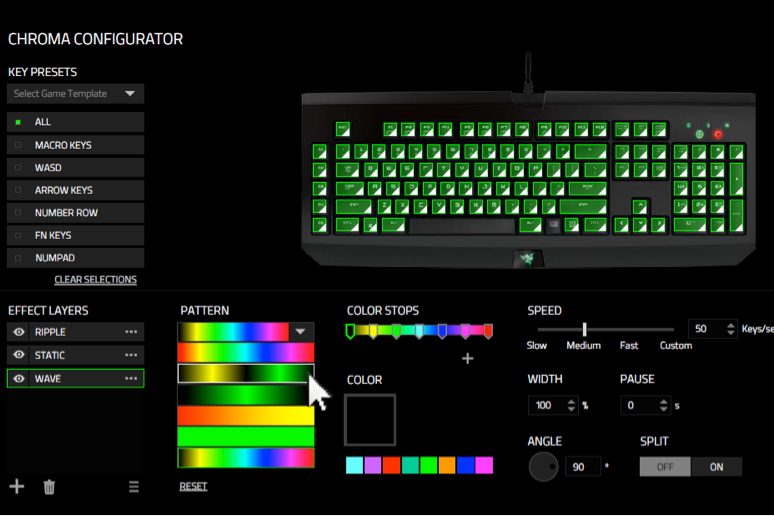
Step 5: Review your gaming keyboard profiles. If you use software such as Razer Synapse, Corsair iCUE, Logitech G Hub, or similar keyboard software, you may have accidentally switched to a profile that remaps WASD or the arrow keys.
Open your keyboard software and check the active profile. If a profile includes custom key mapping, switch back to the default profile or disable the remap.
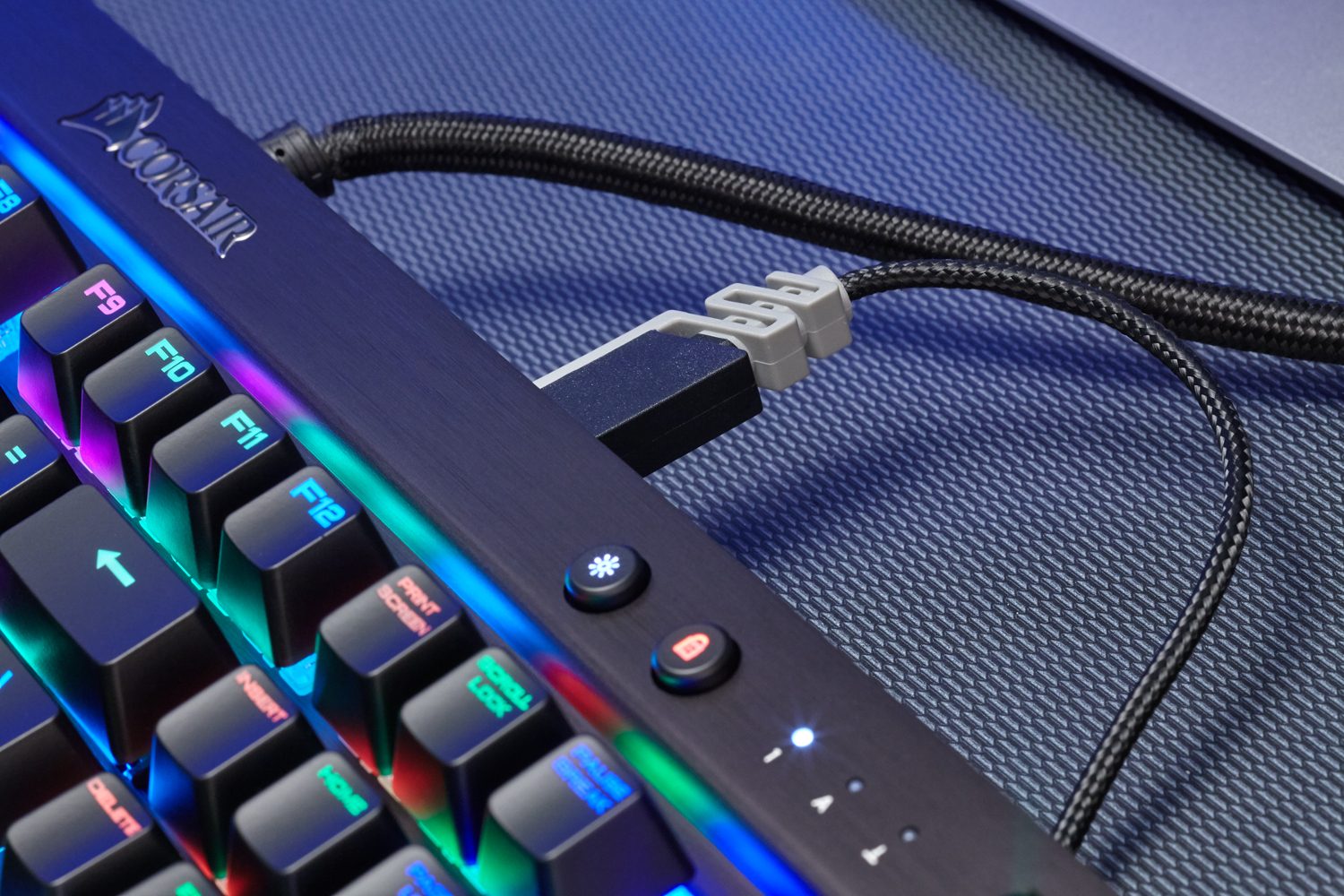
Step 6: Check your game and app settings. Some games, browser tools, or keyboard utilities can apply their own control layouts. Look for keyboard, controls, input, or accessibility settings, then switch the layout back to default.
If this only happens in one game or app, the keyboard probably isn’t the problem. The setting is likely inside that program.
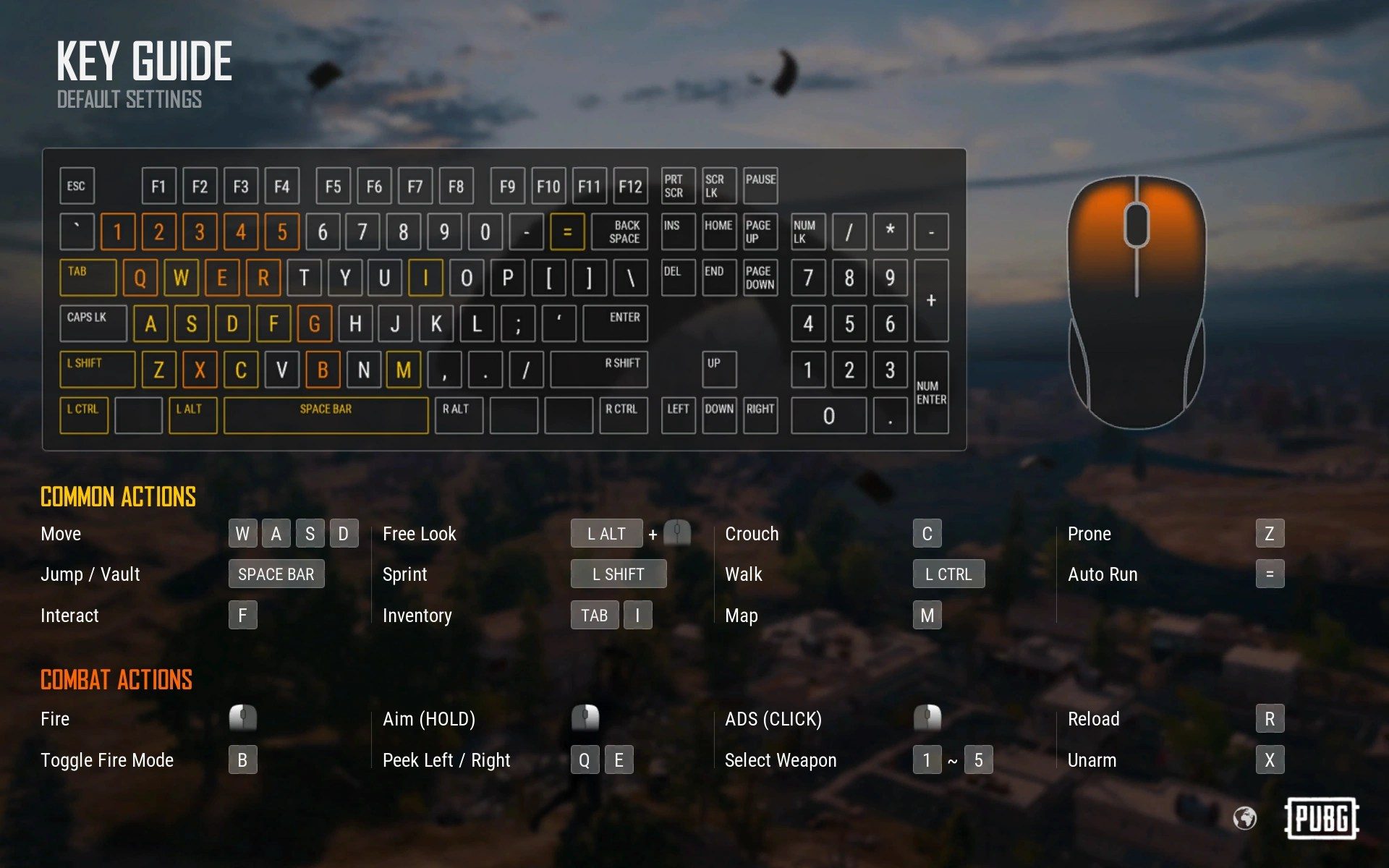
What if the Fn shortcuts don’t work?
If the shortcut fixes don’t work, you still have a few options.
First, test the keyboard in another app. Open Notepad, a browser search field, or another simple text box and press W, A, S, and D. If the keys behave normally there, the issue is probably tied to one game, app, or keyboard profile.
Next, try your keyboard’s companion software if it has one. Look for sections such as key assignment, macros, onboard profiles, game mode, or hardware lighting/profile storage. Disable any profile that swaps directional keys, then save the default layout to the keyboard if the software offers that option.
You can also remap the keys manually. Many gaming keyboards include built-in remapping tools, but Windows users can also use an app such as SharpKeys to change key behavior. This should be a last resort, since manual remapping can create new problems if the original issue was only a temporary keyboard mode.
If you need a temporary workaround, use the Windows on-screen keyboard to confirm what the system is receiving. This can help you tell whether the keyboard itself is sending the wrong input or whether a game or app is interpreting the keys differently.
How do the arrow keys get swapped?
Many times, people accidentally trigger an alternate mode with specific keys that cause swapping. The Fn shortcuts we mentioned above may have been pressed without knowledge, especially if you recently moved your keyboard or carried it to a different location (or have a cat).
The swap may also happen when a keyboard is plugged into a USB port it’s not used to, like moving from USB 2.0 to USB 3.0. And, as we mentioned above, some profiles and programs may enable alternate keyboard setups, so switching to them can cause problems.
Why is this an option?
Gamers often prefer using WASD as directional keys because it’s more comfortable than using the arrow keys while also using a mouse, and keeps their fingers in proximity to other important keys they may need for different options. Keyboards, especially gaming keyboards, are designed with the expectation that the WASD keys may be used in this way.
How do I keep this from happening again?
Keep an eye on the shortcuts we mentioned, and note if the Fn key has been accidentally used. Check if your keyboard has switched to a different profile (often shown by indicator lights), and if necessary disable that profile or know how to quickly switch back. Disable any software settings that automatically swap the WASD keys, too.
You should be pointed in the right direction now (literally). If you are considering a new keyboard with different capabilities, we can tell you all about why some refuse to buy another full-sized gaming keyboard. And if you want to get spunky, it could be worth building your own gaming keyboard.