If you're building a computer, you need thermal paste, or heat paste, to ensure that your computer's processor doesn't overheat. It's a gloopy, silvery material that you squirt between the processor and the cooler to fill in all the micro cavities in their surfaces, which enables a more efficient transfer of heat from the processor to the cooler. The best thermal pastes work so well they let your processor run harder and faster, at lower temperatures, making your PC quieter in turn.
You need to replace the thermal interface material every few years, too, so if you haven't opened up your PC in a while, now might be a good time for a spring clean. Keep reading to learn how to apply heat paste and how to clean it. Plus, we'll go over other aspects of its use, such as how often you need to reapply it and if there are any alternatives to using heat paste.
How to apply thermal paste
If your CPU and cooler are clean and ready to go, we can jump right in to applying new heat paste. If they aren't clean, and have old heat paste on them, scroll down to the section on how to clean your CPU first.
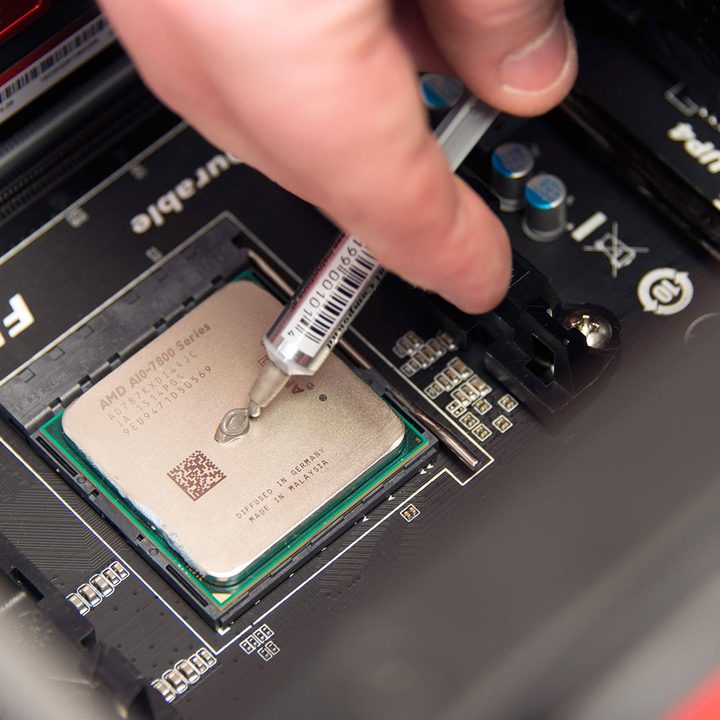
The key to applying thermal paste is not to overdo it; you only need to use a small, pea-sized bit of paste – anything more would be excessive. As long as you aren't using a conductive heat paste, however, putting on too much won't break anything, it'll just be messy and in extreme cases, can cause your cooler to actually be less effective.
Step 1: Install your CPU in the motherboard if you haven't already, then use the plunger on the tube of thermal paste to squirt a pea-sized amount in the center of the processor.
Step 2: Next, install the CPU cooler while applying top-down pressure to the unit. Note that there is no need to first spread the paste before installing the cooler; the cooler's pressure will evenly distribute the thermal paste.
Step 3: Once the cooler is installed, check the CPU's edges to see if any excess thermal paste has spilled over, and, if needed, wipe it away with a microfiber cloth or paper towel.

How to clean off thermal paste
If you already have a working machine that needs thermal paste to be reapplied, you'll first need to clean off the old thermal paste. Before beginning, ensure that the CPU cooler has been removed, and you can visually see the thermal paste; it is generally white or gray.
Step 1: Begin by wiping the top of your CPU with the microfiber cloth to remove as much thermal paste as you can without issue.
Step 2: Place the microfiber cloth over the end of the isopropyl alcohol bottle and upend it until some of it has saturated the cloth, then wipe the CPU down until all the old heat paste has been removed.
If you like, you can use cotton swabs soaked in isopropyl alcohol to remove any errant bits of heat paste that are proving tricky to get to, but you don't have to.
Step 3: Repeat the above process to remove any old thermal paste that may be stuck to the underside of your CPU cooler.
Step 4: Now you can move on to applying new heat paste, as per the section above.
How often should you apply thermal paste?
This one is up to you, as some leave their heat paste for years at a time without much issue, and some replace it every year. Intel recommends reapplying the solution "every few years" or if you remove your cooler for any reason. Typically, your thermal paste will last you quite a while, but keep an eye on your temperatures, as if they start to rise, it could be a sign your thermal paste is drying up.
Need help with that? Here's how to check your CPU temperature.

Does your PC need thermal paste?
Yes, kind of. You have to have something to fill the gaps in between the cooler and the processor, and heat paste is the most common and effective solution. However, if you don't want to re-apply heat paste at least once every couple of years, you could opt for a thermal pad instead.
Thermal pads perform the same job as heat paste, but they're a malleable material with strong thermal conductivity. That lets them transfer heat from the CPU to the cooler efficiently, but without the chance of drying out or degrading, so performance should remain the same for years to come. They don't tend to offer as strong performance as the best heat pastes, but for peace of mind and ease of use, they win hands down.
Want to upgrade your CPU cooler at the same time as re-applying the heat paste? Here are our favorite AIO water coolers for easy installation. While you're at it, clean inside your PC to optimize airflow and encourage cooling.