  1. Home
  2. Computing
  3. How tos

How to delete a Discord server on desktop and mobile

Add as a preferred source on Google
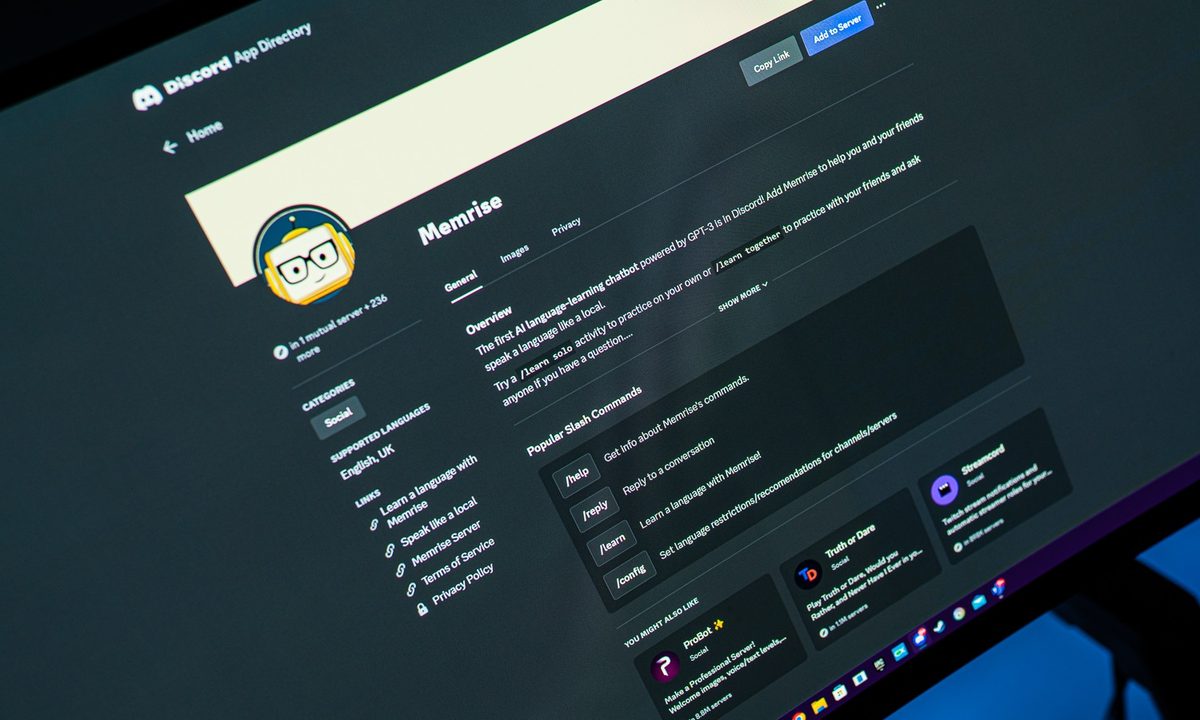
Memrise bot in the Discord app directory.
Jacob Roach / Digital Trends

Have you had enough of Discord for a while? We get it. It can be a little exhausting to say the least, especially if you’re running a jam-packed server, filled with multimedia and messages. Fortunately, if you’re in the mood to take a break, it’s not too hard to delete your Discord server.

Recommended Videos

Difficulty

Easy

Duration

5 minutes

What You Need

  • A PC, laptop, Mac, or mobile device with access to Discord

Of course, we would never leave you in the weeds. So to that end, we’ve put together this step-by-step guide to help you pull down your Discord server in no time at all.

Using the server settings

Step 1: You’ll need to open the Discord server you created by selecting it within the app itself.

Step 2: Once it’s been opened, select the name of the server situated at the top of Discord, adjacent to the Home button.

Step 3: Select the Server settings field.

The Server settings option on Discord for deleting a Discord server.
screenshot / Digital Trends

Step 4: Select Delete server adjacent to the bin icon.

The Delete server option on Discord.
screenshot / Digital Trends

Step 5: Discord will require you to enter the name of your server.

Step 6: Select the Delete server button.

Although you can recover a deleted Discord account, the platform does not provide the same option for deleting a server. Once you proceed with deleting your server, it will be permanently removed from Discord’s systems. As such, make sure you save anything that may be valuable within your server before you delete it.

Entering the name of a Discord server in order to confirm its deletion.
screenshot / Digital Trends

How do I delete a server on Discord on the iPhone?

Step 1: Open the Discord app on the iPhone, click the server you want to delete from the side, and then on the top right, select the Three dots adjacent to the server name.

Selecting the option to delete a Discord server on iPhone.
screenshot / Digital Trends

Step 2: Click Settings > Overview.

The Settings option on Discord for iPhone.
screenshot / Digital Trends

Step 3: Scroll down to the bottom and click Delete server. A message will ask you to confirm the deletion. Click Yes. You won’t have to type the server name.

The delete button for deleting a Discord server on iPhone.
screenshot / Digital Trends

How do I delete a Discord server without admin access?

If you don’t have admin control of a server (which you would if you created it or ownership was transferred to you), then you won’t be able to delete it.

However, if you feel the server itself is illegal, dangerous, contains spam, etc., you could report it to Discord, which will launch its own investigation and may decide to delete it.

You can do so via Discord’s official submit a request page, where you’ll be able to provide evidence via screenshots. You can also include a link to specific messages that are relevant in your report.

Rather than deleting the server, you could simply part ways. Here's how to leave a Discord server - it's much simpler.

Zak Islam
Former Contributor
Zak covers the latest news in the technology world, particularly the computing field. A fan of anything pertaining to tech…
Android will now warn you if someone is using AI to fake your contact’s voice on a call
Google's fake call detection is the first time a phone platform has built a real-time cryptographic defense against AI voice cloning scams.
Android fake call detection featured.

Yes, advancements in AI help people from different walks of life, but they have some cons. One of the most exploited con has been AI voice cloning. Over the years, it has reached the point where most people can no longer tell a deepfake voice from a real one. 

Scammers already know this, and they’ve been spoofing users’ contacts, cloning their voice, and committing financial frauds for quite some time. Android's new fake call detection is designed to stop that exact scenario before it costs you.

Read more
Qualcomm’s Snapdragon X2 Elite finally lands in a mini PC, and it looks like Windows’ answer to the Mac mini
Qualcomm Snapdragon X2 Featured Image Render

For the past two years, Qualcomm's Snapdragon X series has largely been confined to notebooks. The chips delivered impressive battery life and surprisingly competitive performance, but they never got the chance to challenge compact desktop machines like Apple's Mac mini or even the more powerful Mac Studio. The Ascent QN10 changes that.

Packing the 18-core Snapdragon X2 Elite processor alongside Qualcomm's integrated Adreno GPU, the tiny desktop also becomes the world's first mini PC to offer 80 TOPS of AI performance through its dedicated Hexagon NPU. So, ASUS is introducing a new form factor for Qualcomm's most powerful PC silicon.

Read more
Amazon announces Prime Day sales date and it’s happening a tad earlier this year
Amazon moved Prime Day to June for the first time, quietly positioning it ahead of the back-to-school season.
Electronics, Computer, Tablet Computer

Amazon Prime Day is back, it is four days long again, and, for the first time in Prime Day’s history, it’s kicking off in June rather than July. 

So, if you spent last summer waiting until mid-July to buy that thing at a discounted price, you now have about two fewer weeks to make up your mind.

Read more