  1. Home
  2. Computing
  3. How tos

How to double-space in Google Docs

Add as a preferred source on Google
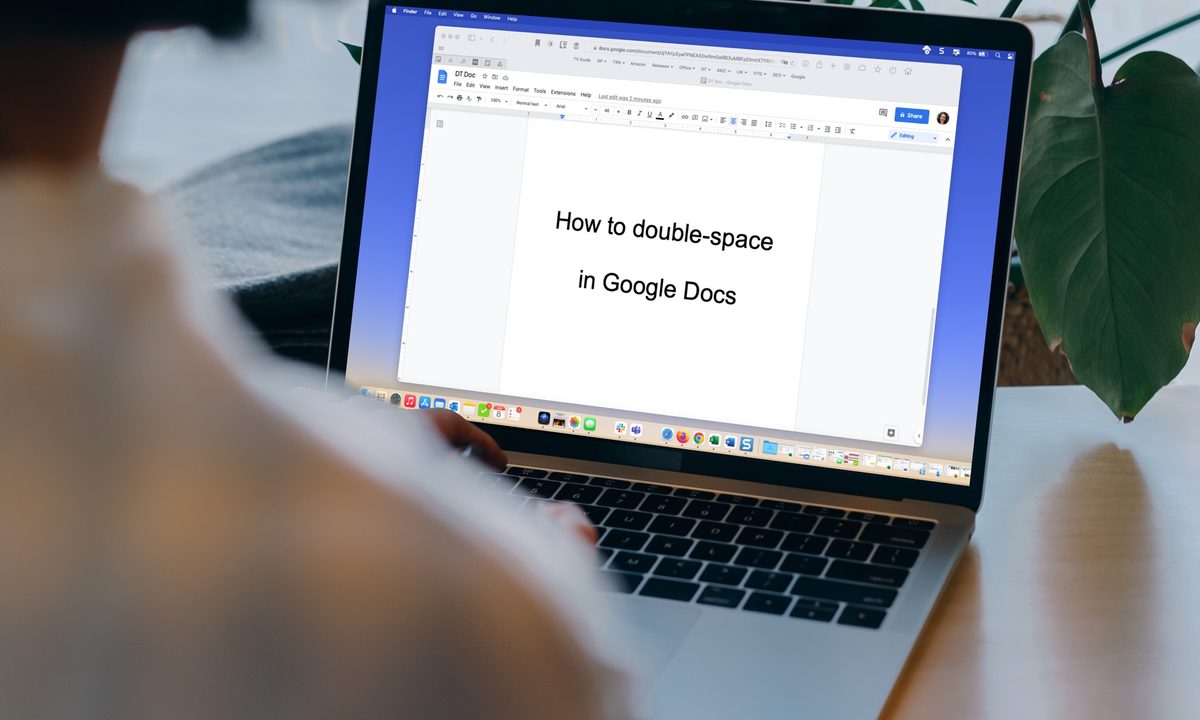
Double-spacing in Google Docs on a MacBook.
Image used with permission by copyright holder

Whether for personal preference or as a requirement for the APA or MLA writing style, we’ll show you how to double-space in Google Docs.

The nice part about this format in Google Docs is that you can apply it to the entire document or only selected blocks of text. Plus, you can double-space in Google Docs on the web and in the mobile app.

Recommended Videos

Difficulty

Easy

Duration

5 minutes

What You Need

  • Web browser

  • Google account

  • Google Docs mobile app (optional)

Quick answer: If you're on the web client and want to get things done fast, all you need to do is click Format at the top, go to Line & paragraph spacing and then select Double.

Read on for a more visual guide and to learn more about the procedure.

Double-space in Google Docs on the web

Head to Google Docs on the web, sign in, and open your document or create a new one.

Step 1: If you already have text on the page, select all relevant text in your document that you want to transform to double-spacing.

Text selected in Google Docs.
Image used with permission by copyright holder

Step 2: Go to the toolbar and select the Line and paragraph spacing button or go to the Format menu and choose Line and paragraph spacing.

Step 3: Select Double using either the drop-down or pop-out menu.

Double in the Line and Paragraph Spacing options.
Image used with permission by copyright holder

Step 4: Your selected text or new document now have double-spacing applied. You can follow the same steps to choose a different line spacing option later if you like.

Double-spaced text in Google Docs.
Image used with permission by copyright holder

Double-space in Google Docs in the mobile app

If you use the Google Docs mobile app on Android or iPhone, you can apply double-spacing to your document there as well. Open the app and follow these steps.

Step 1: Create a new document or open an existing one. Select the Edit button (pencil icon) on the bottom right to enter edit mode.

Step 2: If you have existing text that you want to double-space, select it. You can tap and hold a word on Android or double-tap one on iPhone and then drag the small blue circle through the text.

If this is a new document without text, move onto the next step.

Step 3: Tap the Format icon at the top, which is an uppercase A with four lines on Android and an uppercase underlined A on iPhone.

Step 4: In the formatting tools that appear at the bottom, select Paragraph.

Step 5: Next to Line spacing, tap the Arrow on the far right pointing up until you reach 2 or 2.00.

You can then select a spot in your document or the Format button to close the tools at the bottom.

Follow the same process to choose a different line spacing option later if needed.

Now that you know how to double-space in Google Docs, find out how to apply strikethrough in Google Docs or how to select more than one portion of text.

Sandy Writtenhouse
Sandy has been writing about technology since 2012. Her work has appeared on How-To Geek, Lifewire, MakeUseOf, iDownloadBlog…
Asus reveals ROG Strix XG129C, a tiny secondary monitor chasing Elgato’s gamer lunch
The secondary display category has been waiting for a product that combines a proper screen, real color accuracy, and gaming ecosystem integration in one tidy package.
Strix XG129C secondary display.

If you’ve ever wished your work desk had a dedicated screen for reviewing your system’s performance, chat windows, or streaming controls, so that you don’t have to disturb your main monitor, Asus has heard you. 

The ROG Strix XG129C is a 12.3-inch secondary display with a touchscreen, designed to sit beneath your primary monitor and handle everything that could be a distraction on your main screen, and it costs $199. 

Read more
Intel’s turnaround is one for the ages, without having much to show for it
Wall Street is betting big on Intel before the results arrive
Logo

Intel’s comeback has become one of the market’s biggest surprises. Its stock has risen nearly 490% over the past year, pushing the company back into record territory and reviving confidence in a chipmaker many had written off.

The problem is that Intel still has little product success to justify that excitement.

Read more
Apple’s Continuity features are so good, they make Windows and Android feel incomplete
Android and Windows try, but Apple's ecosystem is on a whole different level.
Mac iPad iPhone with blurred background

Windows and Android platforms have been trying to catch up to Apple's ecosystem. And honestly, in some areas, they have succeeded. But replicating a feature here and there is very different from pulling off what Apple has built. The seamless, almost invisible way all of Apple's devices work together is genuinely hard to replicate.

Apple calls these Continuity features. You can use these features to seamlessly transition from one device to another, unlock devices without entering passwords, transfer files, and much more. 

Read more