
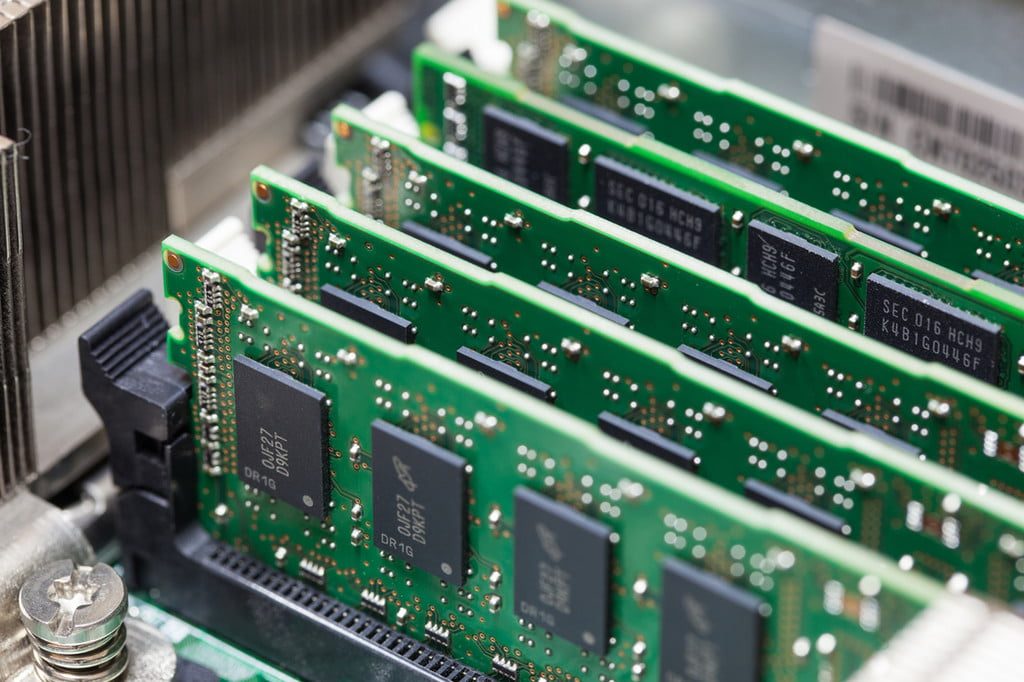
Pushing your hardware to its full potential — such as by enabling XMP — ensures that you get the best performance which is crucial for all sorts of heavy tasks including gaming. Memory is one of the key components that can bring a noticeable improvement in video quality and speed.
Surprisingly, even if you know what RAM is and how it works, you may not know that RAM speed typically isn't as fast as the manufacturer claims. That is why you need to implement XMP (or Extreme Memory Profiles) to enjoy superior performance.
Before you enable XMP though, it is best to check the existing clock speed of your memory. Head over to the Task Manager on Windows by either doing a quick search under Settings or by right-clicking on the bottom taskbar and selecting Task Manager.
In the Task Manager, click on More details to gain access to additional system information. Next, select the Performance tab and then open the Memory section. On the bottom right you should see your RAM’s current running speed in Megahertz (MHz).
If the existing speeds are lower than the claimed maximum speed of your RAM kit, it means that you need to enable XMP. For instance, we are running a pair of Geil 8GB DDR4 memory modules that are claimed to run at a maximum clock speed of 3200MHz. However, they are running at 2133MHz by default.
How to enable XMP on your RAM from BIOS
Step 1: XMP can be enabled by heading into your motherboard’s BIOS. To do so, reboot your PC and wait for the splash screen to appear, which is usually a logo or some sort of graphics of your motherboard manufacturer. At the bottom, there should be instructions on how to enter the BIOS which is usually done by pressing either the delete key, escape key, or one of the function keys.

Step 2: Once you have entered the BIOS, you need to look for XMP. Certain motherboard BIOS will have an Easy Mode that highlights only the most frequently accessed settings. Thus, you may need to enable Advanced Mode to get access to the XMP settings.

Step 3: In our case, the Gigabyte Z590i Vision motherboard BIOS highlights XMP right on the main screen. We can quickly enable XMP from here, or turn on Advanced Mode of the BIOS to access additional XMP settings. Gigabyte and ASUS motherboards usually have XMP settings under the Tweaker or Extreme Tweaker tab.

Step 4: Select XMP which should give you the option to enable Profile 1 (which is the one we need) or disable XMP. Certain memory kits offer more than one profile, thus giving some more flexibility.

Step 5: Once you have selected the profile you want, preferably with the highest speeds, go back to the main BIOS screen and look for the option to save and exit BIOS. You should now have XMP enabled with the memory running at the desired maximum speed. Make sure you go back into the Task Manager to see if the revised memory clock speeds.

Frequently asked questions about XMP
What is XMP?
XMP stand for Extreme Memory Profiles. These are tested and predefined profiles as opposed to manually overclocking memory which requires fiddling with the frequencies, voltages, and timings. An extension to the standard JEDEC (Joint Electron Device Engineering Council) specifications, XMP was developed by Intel to make overclocking easier and more accessible.
Does all memory have XMP?
XMP is supported by all modern high-end memory but manufacturers also have lower-grade memory modules that rely exclusively on JEDEC profiles, which is an open industry standard. To manufacture memory with XMP a special certification is required from Intel which in some cases makes little to no sense for some manufacturers. Notably, it is the system integrators that rely on memory with only JEDEC rather than XMP. So in simple words, the answer is, no. Not all memory support XMP, hence it is advised to check the full specifications of your memory and motherboard on the manufacturer’s website before making a new purchase.
Should you enable XMP?
If your motherboard and memory both support XMP, you should enable this feature. It allows for the memory to run at the intended clock speeds, which means you can squeeze out the best performance. Since XMP is advertised by Intel as a safe way to overclock your memory, it should not harm your system in any way. Having said that, running your memory at its factory settings is perfectly fine as enabling XMP is not mandatory.
Can XMP damage the CPU?
Enabling XMP is a simple way to overclock your memory which is done by typically increasing the voltage beyond the standard ratings, typically going up from 1.35V to 1.5V. Since the memory controller is a part of the CPU, increasing voltage on the memory also has an effect on the CPU. Changes in voltages can cause system instability, which can easily be fixed by going back to the original settings in the BIOS. If you do end up damaging your system, especially the CPU due to an overclock, it is not something that is covered under warranty. Intel has mentioned during a press briefing of its Rocket Lake chipsets that, “XMP is classified as overclocking, so memory overclocking would fall under that same umbrella.”
You don’t have to worry all that much though, as the risks involved are very low when moving from stock clock speeds to XMP.
If overclocking your RAM with Extreme Memory Profile settings doesn't give you the performance boost you had hoped, it might be time to look at the best RAM available and upgrade your computer's memory.


