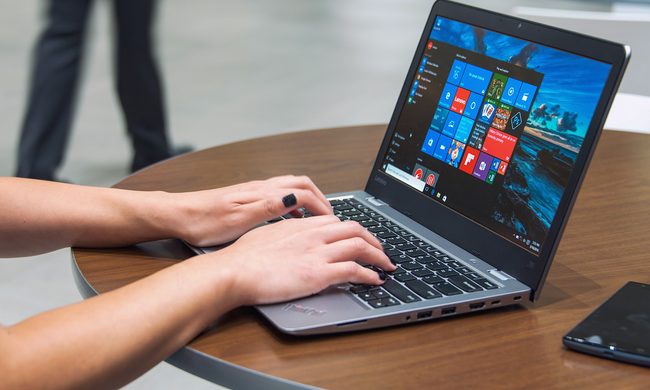
Even the best gaming laptops can overheat, especially thinner ones that prioritize compact designs over extensive cooling capabilities. This often leads to significant heat generation during demanding tasks such as gaming. Inadequate cooling systems, limited airflow, and the accumulation of dust and debris further contribute to overheating issues.
If you’re looking to prevent your laptop from overheating, the first step is to identify the underlying causes of the overheating issue. Several factors can contribute to your laptop overheating during gaming or other resource-intensive tasks.
Causes of gaming laptops’ cooling problems
Inadequate airflow: Poor airflow around your laptop can lead to heat buildup. Ensure there’s enough space around your laptop for proper ventilation.
Room temperature: Operating your laptop in a hot environment can exacerbate overheating issues. Try to keep your gaming area cool and well-ventilated.
Insufficient cooling system: If your laptop’s cooling system, including fans and heat sinks, is not functioning optimally, it can struggle to dissipate heat effectively.
Hardware limitations: Some laptops may have hardware components that are not designed to handle intensive tasks, leading to overheating under load.
Dust buildup: Accumulation of dust and debris in your laptop’s cooling fans and vents can impede airflow and cause overheating.
Overclocking: Overclocking your laptop’s CPU or GPU beyond its recommended limits can generate excessive heat, leading to overheating problems.
Once you’ve pinpointed the reason for your laptop’s overheating, you can take appropriate measures to address the issue and prevent further overheating. This may include cleaning the cooling system, optimizing system settings, improving airflow, or adjusting usage habits to reduce heat generation.
Here are some measures that you can take.
Place your laptop on a desk
One of the simplest ways to keep your laptop cool during gaming is by placing it on a desk or a flat, sturdy surface. Moving to a desk or table allows cool air to circulate freely around your laptop, aiding in effective cooling.
Ensure that the desk or table is not too close to walls or other furniture, which can hinder airflow. Additionally, using a laptop stand to elevate your laptop can further enhance airflow beneath the laptop’s base.
If you prefer gaming from the comfort of your couch, lap desks can be a viable alternative. While not perfect, they help bridge the gap and improve airflow compared to directly using your laptop on softer surfaces.
Keep your laptop clean
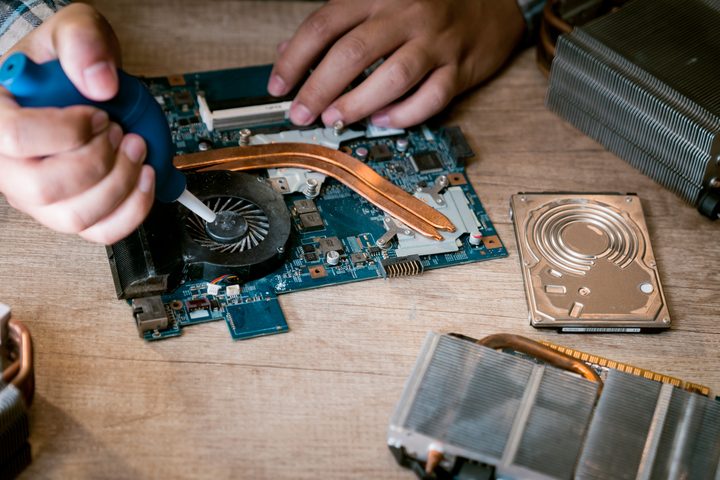
Dust and dirt can clog up the vents and fans, reducing airflow, thus it’s essential to keep your laptop and its surroundings clean. To clean your laptop, it is recommended to use a canister of compressed air and a damp cloth to meticulously clean the vents and fans, removing any dust or debris.
Removing the bottom gives you better access to the internals, including the cooling fans, but it is highly recommended to refer to your laptop’s service manual if you haven’t done this before.
For your keyboard, you can also use compressed air to blow away any debris lurking between or under the keys. Just make sure not to use a fully wet cloth, as it can damage your device.
Invest in a cooling pad
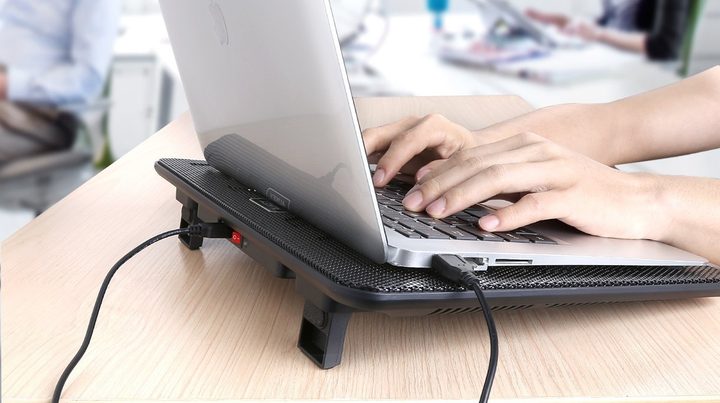
A laptop cooling pad is an external accessory designed to cool down your laptop during gaming sessions. These cooling pads can be placed under your gaming laptop or attached directly to your laptop or laptop stand.
Most laptop cooling pads are USB-powered and function by blowing cool air toward your laptop’s exterior using single or multiple built-in fans, complementing the cooling efforts of your laptop’s internal fans. When used in conjunction with a well-ventilated room, a laptop cooling pad can effectively reduce the temperature of your gaming laptop.
Replacing thermal paste or pads
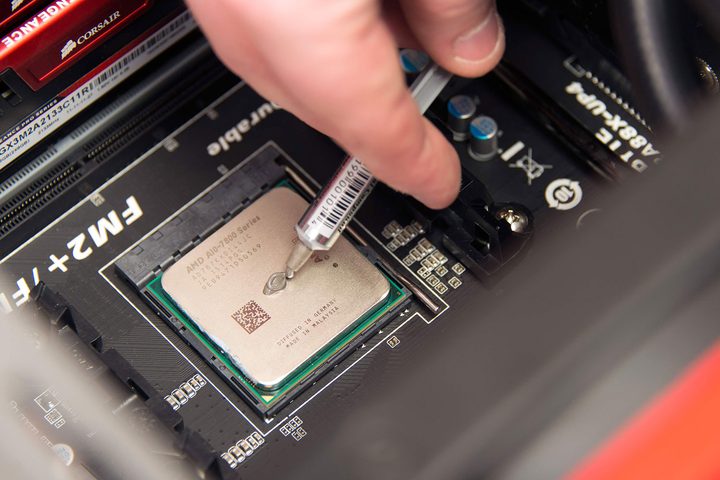
If your laptop is experiencing overheating issues, you might need to consider replacing the existing thermal paste or thermal pads. Thermal paste is a compound that aids in conducting heat away from the processor. Similarly, thermal pads are used to cool down other parts of the motherboard, like memory and power regulators. Over time, they can degrade and become less effective at dissipating heat, leading to overheating problems.
Typically, thermal paste replacement is only needed after several years of use, so it’s not an immediate concern. However, replacing the thermal paste is worth considering if purchasing a new laptop is not feasible.
It’s important to note that replacing thermal paste is a delicate procedure that requires careful attention to instructions to ensure proper application and functionality.
Tweak graphics settings
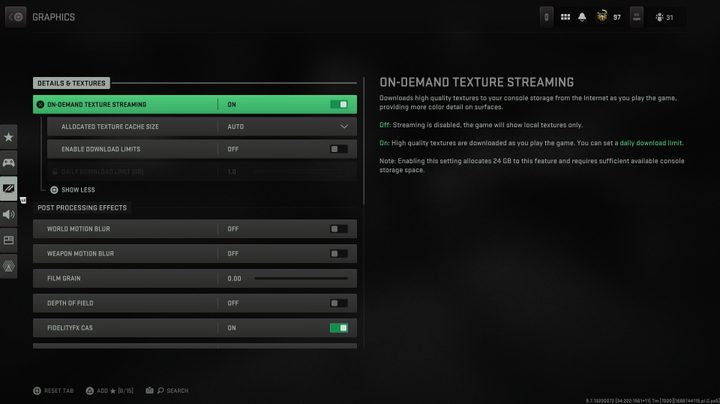
Reducing the graphics and fps settings within a game can help alleviate strain on your laptop’s hardware. High graphics and fps settings tend to stress the GPU, generating more heat, so lowering them can be beneficial.
Games like strategy war games and fast-paced shooters are particularly demanding on your laptop’s resources. Most game developers provide recommended laptop specifications. If your laptop falls below these recommendations, reducing settings such as graphics fidelity and turning off features like anti-aliasing can help reduce heat production and enhance performance.
Ensure proper ventilation
An effective way to maintain your laptop’s temperature during gaming sessions is by ensuring that your room is cool and properly ventilated. This is crucial because a hot room will inevitably lead to a hot laptop. Like all electronic devices, laptops require fresh air for effective cooling. Therefore, keeping your room well-ventilated by opening windows and using fans to promote air circulation is essential.
Positioning your laptop near an air conditioning unit can provide cool air circulation to its hardware components. However, if you don’t have access to air conditioning, it’s advisable to avoid using your laptop in cramped or poorly ventilated rooms.