
Sometimes we can use computers for days, weeks, or even years before we run across what seems like a simple task, only to realize that we have no clue how to do it. You may know this feeling if you’ve recently discovered there are some programs on your Mac that you want to delete, for example.
While MacOS has many benefits, it isn’t always obvious how to get rid of apps that you no longer need, and the operating system doesn’t come with an instruction manual to tell you what to do. Here’s how to uninstall apps on a Mac and as well as what to do with apps you can’t delete.
Uninstalling apps downloaded from the App Store
This method applies to pretty much any app you’ve downloaded from the Mac App Store. If you’re looking to uninstall one of these apps from your system, here’s the quickest and most efficient way to go about it.
Step 1: Head over to the Dock and look for an option that says Launchpad — the icon shows a silver rocket ship. You can also find it through the dedicated Launchpad key (F4, or the button with the rows of icons on the Touch Bar) or by doing a four-finger pinch together on the Apple trackpad.
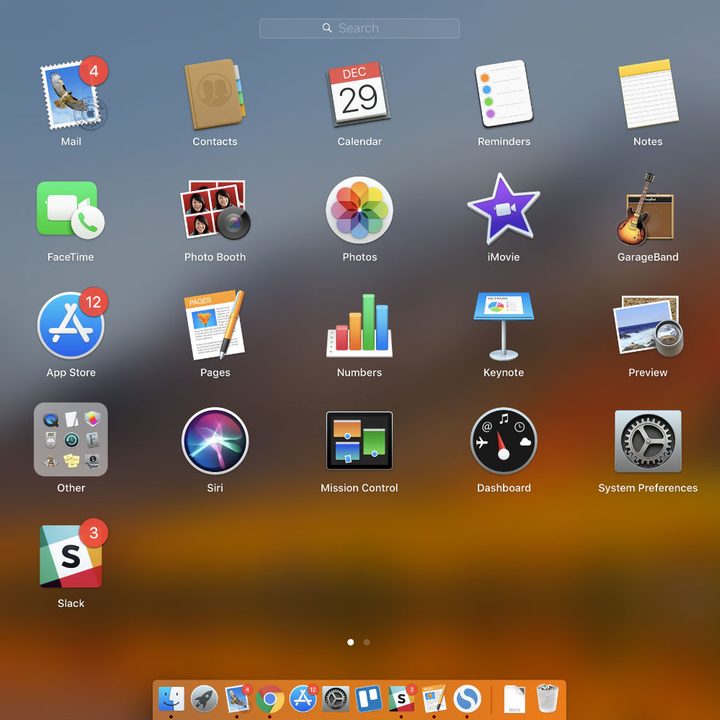
Step 2: Once open, Launchpad will replace any current windows with a grid of apps. You can view, open, and rearrange apps here if you want, but for now you’re mostly using Launchpad as a tool for deleting unwanted software.
Step 3: Click the app you want to delete and hold until the icon starts to jiggle. If you’ve ever used iOS, you know what this is about — the jiggle motion indicates that an app is ready to be moved or deleted.
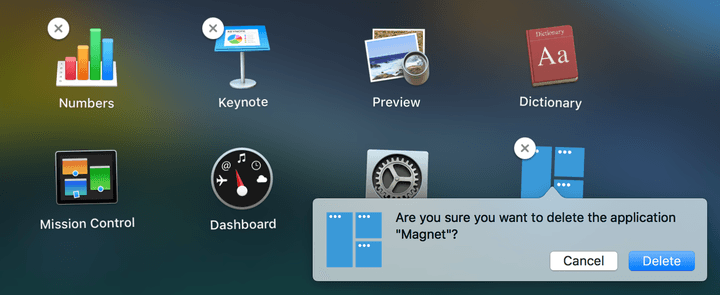
Step 4: When the icon starts jiggling, you should see an “X” appear in the upper-left corner of each icon. Now, simply click this button and confirm your decision with the Delete button to rid your machine of the app in question.
That’s it! Also, don’t worry about accidentally deleting an app that you want to keep. You can reinstall any of the apps you’ve deleted — without having to pay for them again — by going to the App Store and downloading them as you normally would.
How to uninstall apps that aren’t in Launchpad
If you don’t see the app you want to get rid of in the Launchpad, don’t worry! There’s still probably a way to uninstall it. However, you’ll have to work a little harder this time around. Here’s what you do.
Step 1: First, click Finder in the Dock — the icon resembles a smiling computer screen. Afterward, either search for the app that you want to get rid of, or head over to the Applications folder and scroll through until you find the app in question.
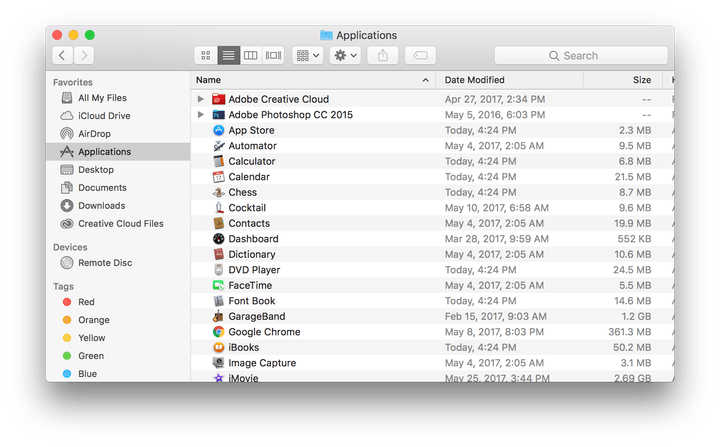
Step 2: Check to see if the app has its own folder. If it does, select this folder to look inside. Many larger or older apps are typically bundled with an Uninstaller, which will get rid of the app for you. If the app folder includes one of these Uninstallers, click it. This will automatically run the Uninstaller, which will give you a unique set of instructions for deleting the software.
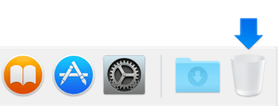 Step 3: If the app doesn’t have its own folder or an Uninstaller, you still have options. Click the application icon in Finder, hold it, and drag it to your Dock. Toward one end of your Dock you should see a wastebasket icon, which signifies the Trash. Drag the app icon here, and it should transport the app to the Trash.
You can program your Trash to auto-delete after a certain amount of time, or you can Ctrl + Click the Trash and select Empty Trash to delete the contents immediately.
Apps that you can’t remove
Keep in mind that there are a number of apps that you will not be able to uninstall. These are apps that are part of MacOS, play an integral role in Apple services, and generally represent the Apple brand to such an extent that Apple won’t let you get rid of them.
These include Safari, Mail, and many of the other apps that naturally appear in your Dock.
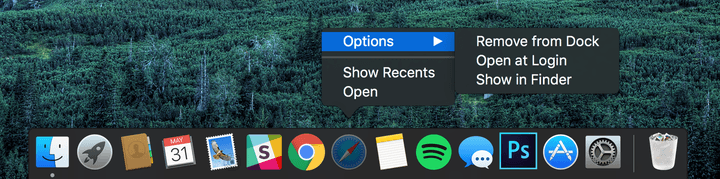
While there is no getting rid of these apps, that doesn’t necessarily mean you have to keep looking at them. If you want to pretend that they aren’t there, Ctrl + Click these apps in the Dock, then, select Options in the resulting menu and click Remove from Dock. This is a nice little way to clear up space in your Dock, even if you can’t permanently delete this software.
In Launchpad, you can also put the icons into folders to get them out of the way. Just like on your iPhone, click and hold an icon, then drag it over another icon. This will automatically create a folder that you can then drag other icons into. You can also just drag the icon to a different page of apps to clean things up a bit.



