
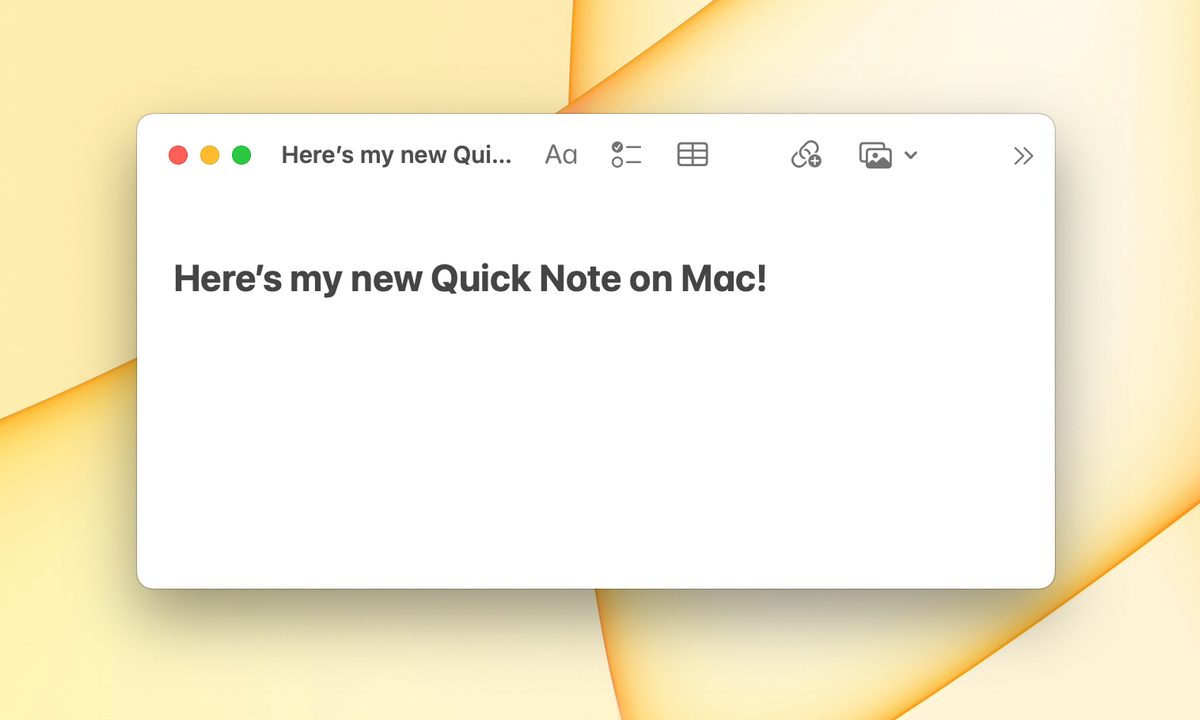
Apple brought a slew of new features with MacOS Monterey, including updates to Safari and the option to use Shortcuts. Another convenient feature is the ability to use Quick Note with the Notes app.
First introduced with iPadOS 15, Quick Note lets you capture a note while using any app on your Mac. Not only that, but you can start a new note with a keyboard shortcut or Hot Corner and easily save links and create persistent highlights when you use Safari.

How to create a Quick Note
You have a couple of easy ways to create a new Quick Note while performing any task on your Mac.
Option 1: Use the keyboard shortcut Fn + Q. This opens a blank note ready for your thoughts or ideas.
Option 2: Move your cursor to a Hot Corner. If you don’t have a shortcut set up for your lower-right Hot Corner, one will be added for Quick Note when you upgrade to MacOS Monterey.
To check or change the location, go to System preferences > Desktop and screen saver > Hot corners.
When the Quick Note appears using either of the above actions, you can move it wherever you like on your screen. You can also resize it by dragging in or out from a corner or edge.
Of course, you can also create a Quick Note directly in the Notes app if you like. Select Quick note on the left and choose the Create a new note button in the toolbar.

How to save a link in Safari to a Quick Note
When you use Safari, you can easily create a Quick Note there as well. This is handy if you want to save the website or page you’re visiting.
To save a link to the site, select the Share button in the toolbar and pick New quick note or Add to quick note. This saves a link to the site with the page or article name.

How to save content in Safari to a Quick Note
Another great feature for Safari is that you can highlight and save content to a Quick Note. This creates a persistent highlight so that when you revisit the site, the text will remain highlighted for you.
Step 1: Select the content on the page you want to save by dragging your cursor across it.
Step 2: Right-click and select New quick note or Add to quick note.
Step 3: The note will display the text you selected in a quote and a link to the web page.
When you revisit the page, you’ll see a thumbnail of the Quick Note pop up, and the selected text will still be highlighted.

How to always use your last Quick Note
One feature of Quick Note you may want to adjust is to always resume the last note. For instance, if you have a note with websites for research, you can continue to add to that same Quick Note rather than create a new one each time.
Step 1: Open the Notes app.
Step 2: Go to Notes > Preferences from the menu bar.
Step 3: Check the box for Resume last quick note.
If you change your mind later, head back to this same spot and uncheck the box. You’ll then see a new Quick Note each time.

How to view your Quick Notes
All Quick Notes you create are available in the Notes app. Select Quick notes on the left, and you’ll see your notes on the right. If you sync the Notes app with your iPhone or iPad, you’ll see them in the same spot on those devices as well.
You can edit, delete, add images, and insert tables in a Quick Note just like any other note.
All of this makes Quick Note a terrific addition to MacOS Monterey.


