
Are you eyeing that big, beautiful TV in the living room and wondering what it would be like to use it as your computer monitor? With the right connections and some innovative accessory setup, you can make your TV double as a computer display in no time.
Read on to find out how to use your TV as a computer monitor.
In the market for a new TV? These are the best TVs of 2020.
Check your connections
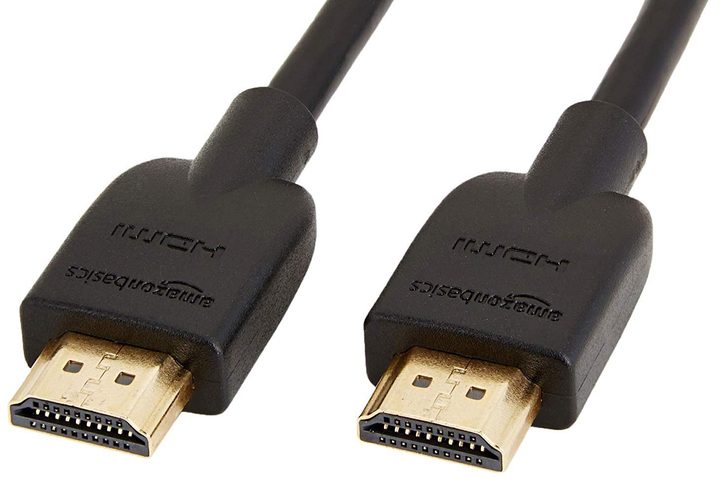
First, your PC and TV need to have the right ports. Typically this isn’t a problem, as all modern TVs support a ubiquitous audio/video standard called HDMI. TVs have at least one labeled HDMI port located on the back, along the side, or both if there is more than one.
Computers are a little more hit or miss, however. Most desktops have at least one HDMI port on the back: One within all the other ports associated with the motherboard, and/or one on a discrete graphics card if it’s installed. Laptops are less likely to have an HDMI output if they’re ultra-thin or MacBooks, relying on USB-C connectivity instead.
Overall, there are two types of HDMI connections. The more common scenario is two female ports — one on the PC and one on the TV — that requires a single cable with male connectors on each end. Just plug the cable into each port and you’re good to go. If your TV has more than one HDMI port, use the remote to switch to the PC’s connection.
The other less common scenario sees a mini-HDMI port on the PC side, which is smaller than the typical HDMI port. This connection requires an HDMI-to-mini-HDMI cable. Again, just plug the cable into each port and you’re good to go.
Finally, make sure your HDMI cable is long enough to support the setup you have in mind. Issues with space and positioning often mean that a longer cable is necessary for supporting TVs as monitors.
When you don’t have HDMI
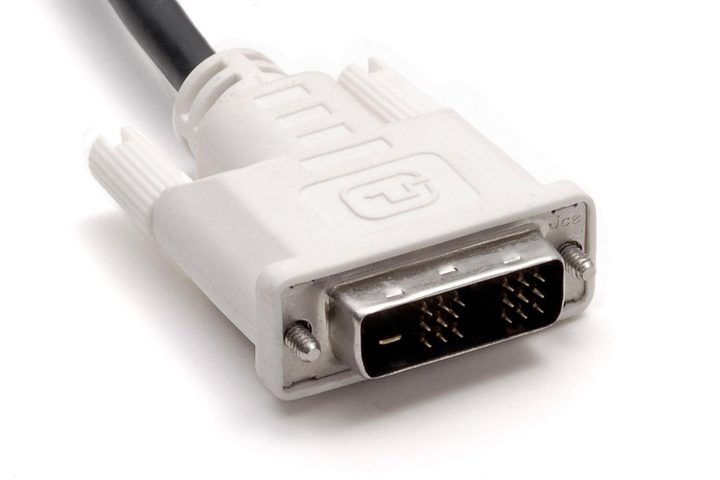
There are two common cases where either your TV or your computer doesn’t have the right HDMI ports. However, don’t fret: There’s a workaround.
First, if you have an older TV or computer, it may have a DVI port rather than HDMI. The former was the primary video connection before HDMI became more common. In this case, you will need a DVI-to-DVI cable, or a DVI-to-HDMI adapter cable, like this AmazonBasics model, which is very affordable.
However, using an adapter can increase the chances of input lag, lower video quality, and other issues, so there’s a tradeoff to consider.

Second, a PC may only have DisplayPort connections. This is unlikely on desktops but can happen even on newer computers that choose to prioritize DisplayPort or mini-DisplayPort — a standard that’s common among monitors but very rarely seen with TVs. In this case, there are affordable DisplayPort-to-HDMI adapter cables for desktop and USB-C-to-HDMI adapter cables for laptops.
For desktops with only DVI video output, you may want to consider upgrading the graphics card. On laptops, you’re stuck using adapter cables unless you’re willing to spend loads of money on an external GPU dock.
Working with audio
HDMI supports audio, but routing audio from your computer to your TV can be a bigger task than routing video. The key is in the capabilities of your PC.
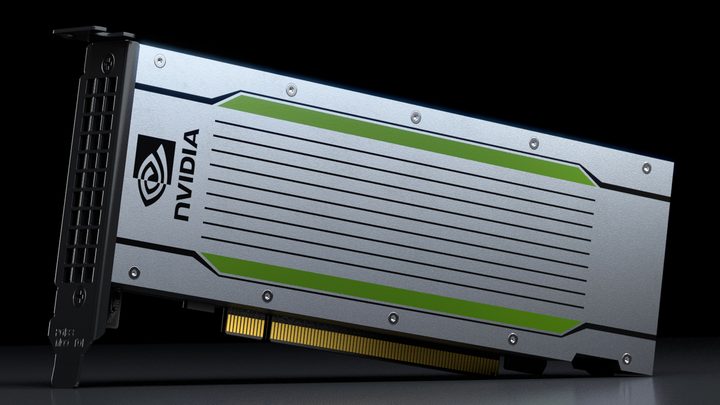
Most modern GPUs have integrated audio codecs, a design specifically made for HDMI and DisplayPort, which can produce excellent audio results. A single HDMI or DisplayPort cable supports both video and audio, and typically you must tell the operating system to send audio through that connection versus the motherboard audio ports or built-in speakers.
In some cases, a desktop graphics card ships with a S/PDIF pass-through cable. When connected, this allows the PC’s digital audio to pass through the graphics card and out the card’s HDMI port. This eliminates the need for a separate S/PDIF cable connection between the PC and TV. However, this connection requires opening the PC and connecting the cable from the motherboard to the graphics card.
For PCs with video output older than HDMI, like DVI, you’ll need to either plug headphones into the PC, or get audio cables to connect the digital or analog audio outputs on the PC to the audio inputs on the TV. In some cases, like on a laptop, you may need a 3.5mm connector on one end — it connects to the headphone jack — and multiple analog connectors on the other.
Understand the limitations
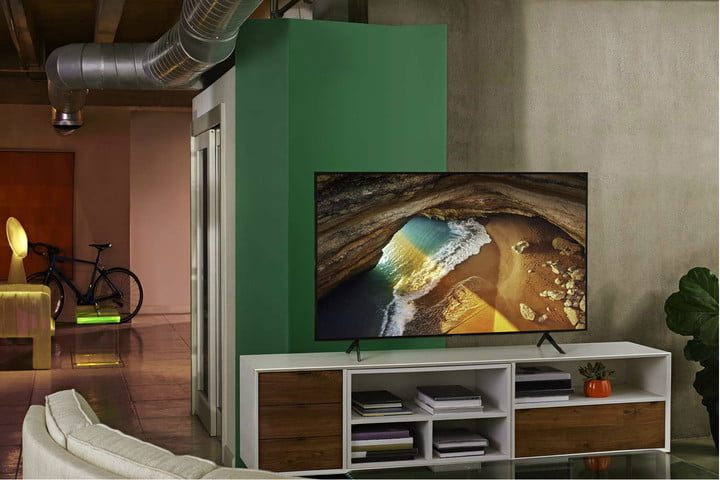
Transmitting the image from a PC to a TV is only part of the story. Unlike monitors, TVs aren’t exactly designed to support computer-based input, which means your experience can vary greatly depending on the hardware you have. Input lag, mouse movements, text size, and resolution may all create hurdles on your way to a perfect experience.
While not all these hurdles are easily surmountable, the following suggestions can improve your TV connection.
Use Chroma 4:4:4 subsampling
Chroma subsampling is a compression standard used to send video data. The 4:4:4 subsampling skips as much compression as possible to send the fullest amount of color data through HDMI connections. That makes it ideal for computer-to-TV connections, great for text size and other formatting, and generally a must-have if you are serious about your setup. Look at TV specifications for Chroma 4:4:4 subsampling, or find a knowledgeable representative to ask.
Use matching HDMI generations
You’ll get better results if all your devices and cables support the latest HDMI standard. The newest version is HDMI 2.1 and is completely overkill for anything but 4K resolution or higher at high frame rates. Just making sure you’re using a high-quality HDMI 1.4 or 2.0 connection on all devices is a good bet.
Have a good processor
Depending on what you use your computer to do, you may experience slow operating speeds or other major impediments to performance when using older PC models. Gaming is one of the areas where it can cause issues. Upgrading to a later version can be a solution. If you need some assistance with selecting the right processor for you, we invite you to Check out the best CPUs available today in this handy list.
Healthy TV mounting practices
Although TV mounting doesn’t improve or worsen the picture quality, it still impacts your eyes and neck. It’s essential to find the perfect position that lets you utilize your TV as a monitor screen while still maintaining proper posture (and, of course, remaining comfortable). If your television is mounted high up on the wall or placed in a position that requires you to look up, you’ll experience pain and fatigue in your neck or eyes from constantly tilting your head and gaze up to see it. You may find that a standing desk can help out in this area.
Get a newer HDTV
The HDR10 is the new gold standard of HDR televisions on the market. This TV offers exceptional visual quality for entertainment, gaming, and so much more. We think you should take advantage of this fantastic bonus, especially since it’s widely available on a variety of newer TVs.



