
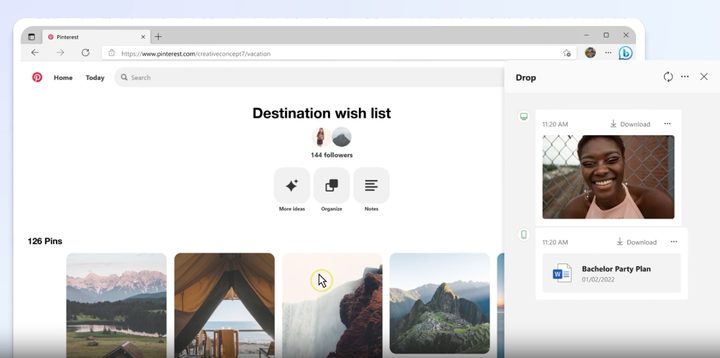
Microsoft Edge is my go-to web browser. As aggressive as Microsoft might be with pushing Edge on Windows 11 users over alternatives like Firefox and Google Chrome, it sure is useful compared to its competition.
Jam-packed with AI features thanks to Copilot and even memory-saving features like sleeping tabs, it’s hard for me to use any other browser but Edge. But one thing I love about the browser is a secret feature that’s pretty well kept in the sidebar — and it’s called Drop.
Changing how I transfer files
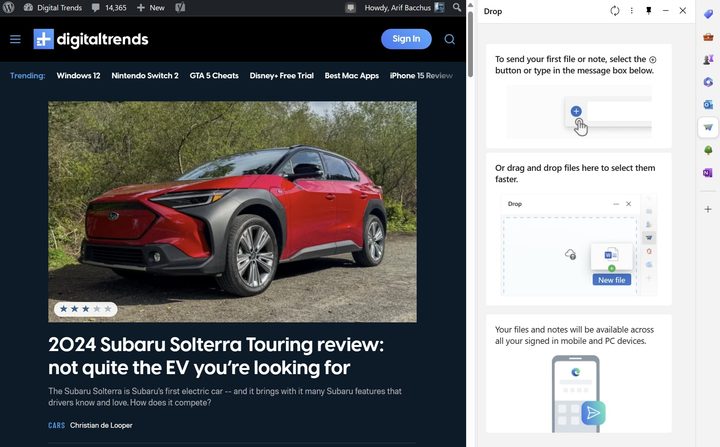
As a how-to guide writer at Digital Trends, I’m always taking screenshots on my PC and my phone. A quick and easy way to get those screenshots from one PC to another and between devices is through Edge’s Drop feature. Powered by OneDrive, Drop works better than some of the other methods that I’ve used in the past.
Available right in the sidebar in Microsoft Edge, I just click the drop icon and upload what I want to be transferred. Then, I open Microsoft Edge on my other device and visit Drop again to see the same file waiting for me. Before Drop existed, I had to manually visit OneDrive, upload a folder for the file, and even download it again from OneDrive on a subsequent device. I could also use Intel Unsion in tandem with my iPhone to quickly transfer the file over.
Drop makes file transfers easy by handling them through a space in a web browser across Windows, Mac, Android, iOS, or Linux.
Drop even has a screenshot feature. Tap on the screenshot icon, and you can take a snip of whatever webpage you’re on and then save it in the space for later. I found this quite useful for sharing and saving screenshots of interesting sections of PDFs, particularly the patent applications that I always tend to read through. I now have a safe space for keeping them, across all my devices.
A good way to share notes, too
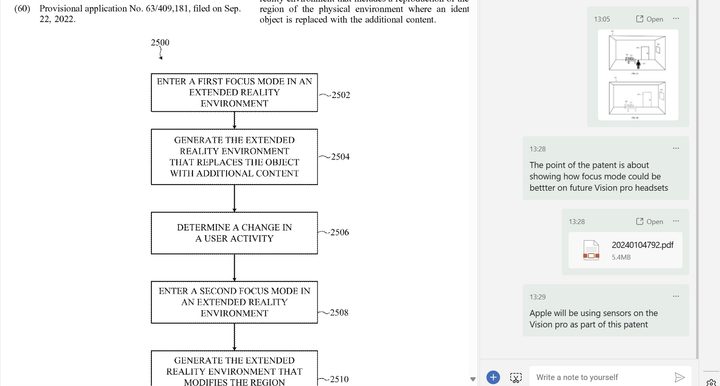
Microsoft Edge’s Drop feature isn’t just for files. As a Windows 11 user, I’m familiar with the Sticky Notes app. I always depended on this app whenever I was in a meeting or a briefing for a quick and easy way to take notes, but that changed once I found out about Drop.
Drop allows for note-taking in its own space. Just type the note, and you’ll see it in the Edge sidebar. Open Edge on another device, and it’ll be waiting for you. This is pretty efficient compared to my old method of going to Outlook.com, clicking on the OneNote Icon at the top of the webpage to see my open Sticky Notes from Windows. It makes me wish Microsoft could develop its own Sticky Note web experience.
Controlling Drop is easy
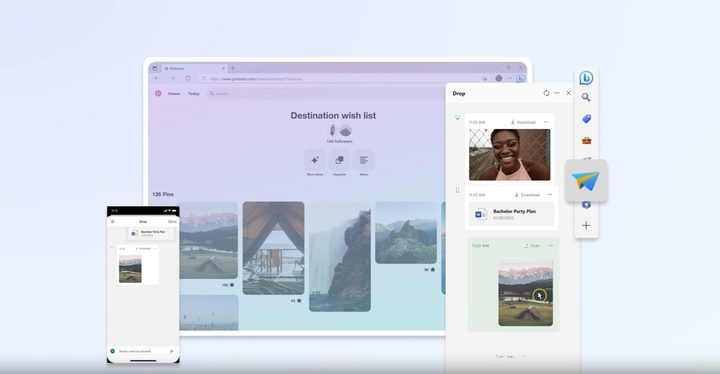
Drop is a pretty nifty feature, and controlling it is also easy. Everything stored in Drop can be deleted with an easy click. Depending on file size, it also doesn’t take up much space, so a free OneDrive account should do the trick. The settings page also makes it easy to see storage being used, and there are no hidden tricks. It’s free and easy to use, and it will make your life simpler, especially if your work is web-based like mine.
Just one of Edge’s productivity-boosting features
As much as I love using Drop in Microsoft Edge, there are plenty of other features that keep me using the browser each day. Split Screen helps split some of the tabs that I might have open in the browser for a better view of my work.
Vertical Tabs also helps me organize whatever I’m working on in an easier-to-understand layout. And I can’t forget tab groups, which I proclaimed as one of the many reasons Edge is better than Chrome. Drop is the cherry on top of why I continue to use Edge over any alternative web browsers.


