
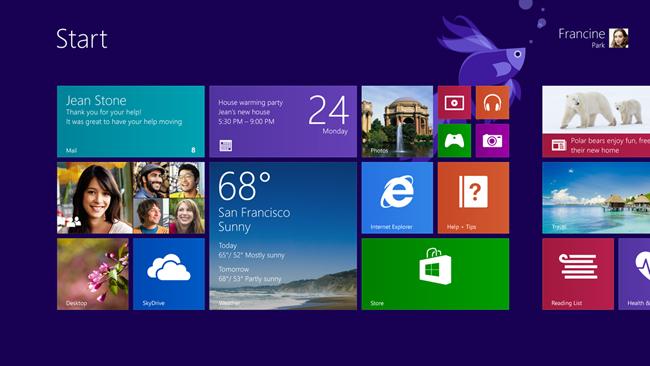
Now that you’ve read all about some of the new features coming to Windows 8.1, like NFC-printing and fingerprint reader support, Microsoft is ready to pull the curtain back to show you how these improvements will actually work. After executives Nick Parker, Tami Reller, and Antoine Leblond offered the first look at Windows 8.1 on stage at Computex 2013, the company released a video demo of the upcoming update to Windows 8 so the rest of us can see what it’s all about.
As you can tell from screenshots of Windows 8.1, the refreshed platform doesn’t look much different from its predecessor, Windows 8. The difference between the two are in the details.
For example, to access a full list of your apps, all you have to do is swipe up on the home screen to see all your installed apps on Windows 8.1. Rather than have just an alphabetical listing of your apps, you can sort them by categories (games, productivity, etc.), by date installed, or even by the ones you use most so those apps will pop up at the top of the page. Of course, you can pin these apps to home, which involves touching and holding a particular icon and clicking on the “Pin to Start” button.
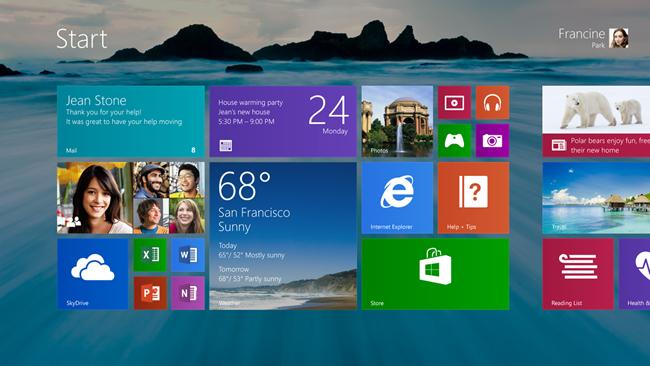
Microsoft is also introducing some new colors and motion-sensing wallpapers as part of Windows 8.1. In the video demo by Jensen Harris from the Windows User Experience Team, he shows off a dragon wallapaper that animates its tail according to where you swipe on the home screen. Previously, the above wallpaper with the moving water was shown as an example of another motion-sensing wallpaper. It turns out this is a wallpaper design for the Desktop mode, which you’re now able to see on the home screen. Harris didn’t really elaborate on this feature, but it certainly makes transitioning between the home screen and desktop look more seamless.
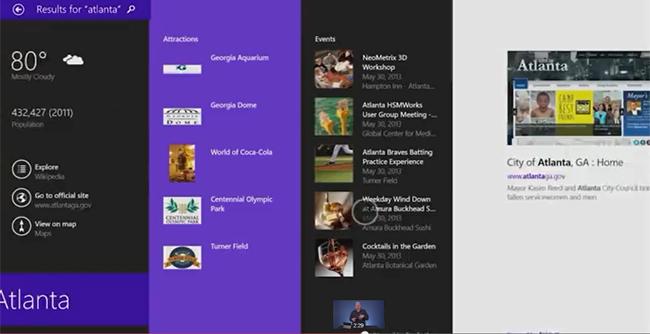
He also shared more details on the new Bing-powered search feature in Windows 8.1. Besides pulling content from both the Web and your local computer whenever you enter a search term, it’s the way the search results look that’s the real star here. Different types of content will be organized by different colored panels to help you better navigate the various results. You’ll even see thumbnails of webpages if they relate to your query and be able to drill down to a specific image size or color when searching for photos with this update. Not only will you be able to see relevant files on your computer, you’ll also be able to take related actions. According to Harris, if you type “Sk” into Windows 8.1, options like Skype and SkyDrive will pop up, in addition to whatever similarly named files and webpages Bing can find.
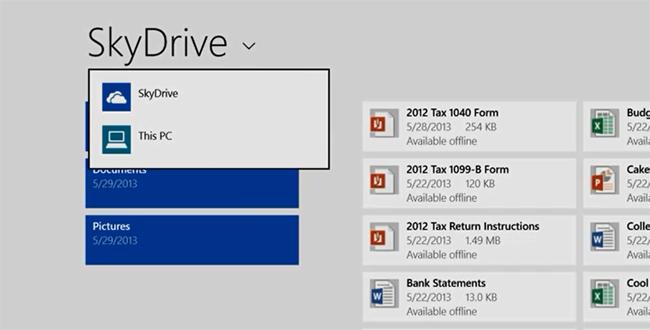
Microsoft is really pushing the benefits of SkyDrive with Windows 8.1. In fact, every app will now give you the option to download or upload your content to your local computer, “This PC” or SkyDrive, so you don’t have to open a separate app to access your cloud storage.
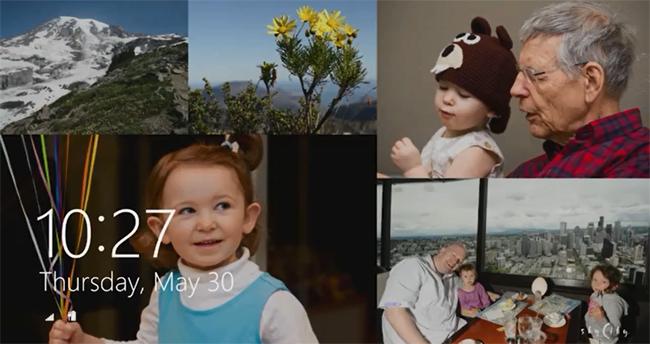
The new lock screen turns your device into a digital photo frame, which pulls photos from both your computer and your SkyDrive account. It looks like it’ll be able to automatically rotate several photos, as well as show more than one on the same screen (pictured above).
As we previously reported, the improved Snap mode in Windows 8.1 will let you to tailor the screen size for each app when you have more than one open at the same time. With Windows 8, you need to very methodically open the first app, adjust its size, then open a second to fill the extra screen real estate. Judging from the video, opening multiples in Windows 8.1 will be more intuitive. All you have to do is open an app like your email, then open a second one like your photo gallery app, and the operating system will automatically know to split the screen for both. With this update, you can have up to four apps opened at the same time, as long as your display is large enough to handle all the content, according to Harris.
With the public preview of Windows 8.1 set for June 26, we’re sure this won’t be the last that we hear about this upcoming update to Windows 8.
Images via Microsoft’s video


