From the creators of ChatGPT comes Sora, an AI model developed by OpenAI that generates realistic videos from text descriptions that you input. While there are a range of video generation tools out there like Veo from Google Gemini, Sora is one of the most popular.
After launching Sora 2 in September 2025, OpenAI clarified that this new addition can generate realistic video with synchronised audio, improved physics, and even enhanced control over the creative process. Alongside the launch of the software came an accompanying app which is also a social network for creating and sharing AI-generated videos which are called Cameos.
I decided to have a play around with Sora 2 and see what prompts I found worked the best. After generating over 100 videos using Sora 2, here are my tips and tricks to get the best results paired with example prompts so you can get stuck in.
1. Use cinematic tags
Rather than just describing the setting or the focus of your video, using cinematic tags can really help set the mood and describe to Sora exactly what you’re looking for.
Specify the look that you want for the video, as well as any lighting or shadow effects requirements. You can also state what camera you want the video to look like it’s filmed on, as well as the depth of field.
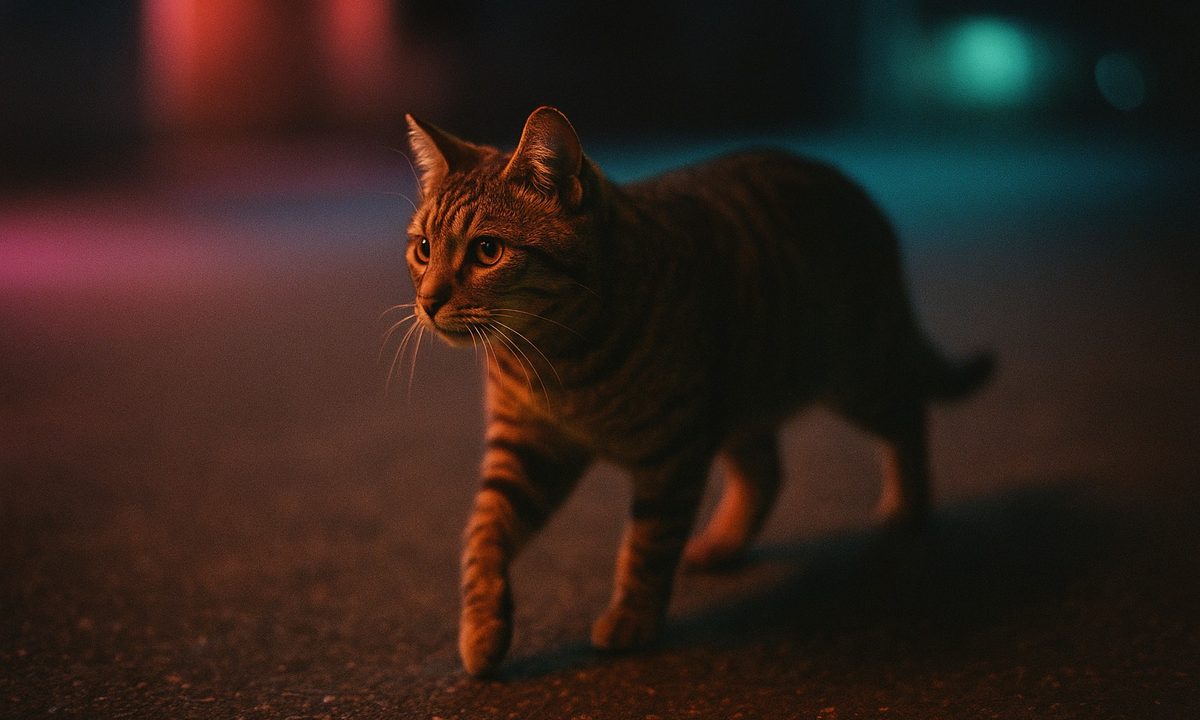
Instead of: “A cat is walking on a rainy street at night.” try the below:
Cinematic, Kodak 50mm lens, soft neon lighting, deep shadows, shallow depth of field. A brown tabby cat walks across wet asphalt under a single, flickering streetlamp in a Tokyo alley.
2. Outline camera motion
If you want camera motion within your video, then be sure to outline exactly how you want this to look rather than being vague. Whilst explaining camera motion, also be sure to clarify to Sora exactly what the focal point of the video is so it knows exactly what to focus on when moving the camera.
Instead of: “The drone flies high, then zooms in fast while the man quickly runs to the door.” try the below:
A slow, 3-second vertical crane shot up from the ground, tracking a man who takes three deliberate steps and stops at a glowing doorway.
3. Use reference imagery
If you already have something in mind, whether that be a person or set, you can use this image as a reference when generating your video.
As well as uploading the image, be sure to reference the image within your prompt so Sora knows exactly how to utilize it.
If it’s a picture of a person, clarify if you want just the face or the whole shot. If it’s a picture of a setting, clarify which part of the setting you’d like.
Instead of trying to describe your own face, upload an image and then use the below prompt:
Use the uploaded image as the main subject’s face. A weathered, bearded figure (The Subject) stands on a snowy mountain peak at dawn. Camera slowly pushes in (dolly in) on the subject’s determined expression. Epic, hyper-detailed fantasy art style.
4. Focus on short clips
If you’re hoping to generate a longer video, particularly that made up of multiple clips, then instead ask Sora to generate these clips separately. You can still ask for these clips using the same prompt, so that way the setting and theme remains the same.
Instead of generating long clips, even if you require them, try and create multiple shorter clips and then stitch them together. You can do this using the below prompt:
(Clip 1, 6s) “A medium shot of an antique clock chiming midnight. Soft close-up, warm candlelight.” THEN (Clip 2, 6s) “Same location, camera pulls back (dolly out) to reveal the room is covered in dust. Misty, atmospheric lighting.”
5. Specify dialogue and sounds in a separate block
If you’re hoping to have specific dialogues or sounds within your video, then make sure you specify exactly what you want this to be in a separate block of text rather than trying to mix it in with details of the visuals for the video.
Ensuring this is in a separate block of text will make sure that Sora doesn’t get confused and knows exactly where to implement the sound effects or dialogue.
Instead of just putting in the prompt based on visuals ensure you add sounds too. You can do this in a separate block of text as below:
A medium shot of an astronaut looking out of a dusty porthole at the Earth. The camera slowly dollies in on their reflective visor. Atmosphere is moody and low-lit.
[AUDIO SYNC CUES]: At 0:02: The sound of a single, soft footstep. At 0:04: The astronaut sighs heavily (a close, dry mic sound). At 0:07: Faint, vintage radio static fades in, accompanied by a soft, melancholic piano score. Voiceover (calm, female): “Is this all there is?”
Combining all of these tips and tricks will ensure that you get the best video that you can out of Sora. Remember that detail is key. The more detail you provide to the AI, the better a job it can do in generating the video that you are envisioning.
Even if it feels like you’re going overboard with what you’re asking, Sora can take all of this detail into account and apply what it thinks is necessary. So don’t ever feel like you’re doing too much.
And creativity options are only going to expand. OpenAI is continuing to add more features to Sora, with multiple new tools on the horizon.