

If you use an iPhone, iPad, or Mac, you know how frustrating it can be to try signing into one of your favorite online accounts on a Windows PC only to realize you don’t have that login. If you’re like me, you switch devices throughout the day. When logins don’t sync, that means looking up and typing long complicated passwords, which is time-consuming and error-prone.
You might expect passkeys to help, but there are still problems. Many websites support passkeys but not all, and the lack of universal support and compatibility issues prevent passkeys from fully replacing passwords in 2025.
You need a simple way to get your Apple passwords on a Windows PC and, fortunately, there are several ways to do so. While Apple makes an iCloud app for Windows, it might not be the best option. I’ll share my experience with Apple’s solution, cross-platform browsers, and the best password managers to help you find the method that fits your workflow to sync logins without the hassle.
iCloud Passwords
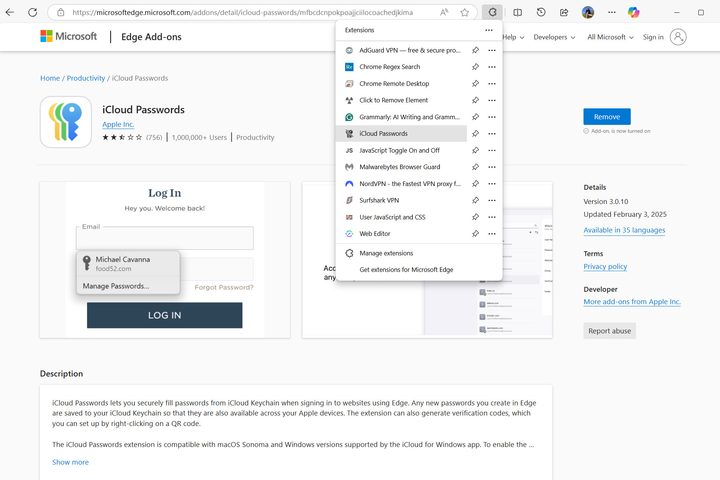
If you prefer to stay fully in the Apple ecosystem, iCloud is an easy option. You simply add Apple’s browser extension, iCloud Passwords. It’s available in Google’s Chrome Web Store, Microsoft’s Edge Add-ins, and Mozilla’s Firefox Add-ons. Make sure the developer is Apple. I didn’t see any fake versions but you don’t want to risk exposing your Apple ID.
After adding the extension, you’ll need to install the iCloud for Windows app from Microsoft’s app store. It lets you access any passwords, files, and photos stored in your Apple iCloud account from Windows.
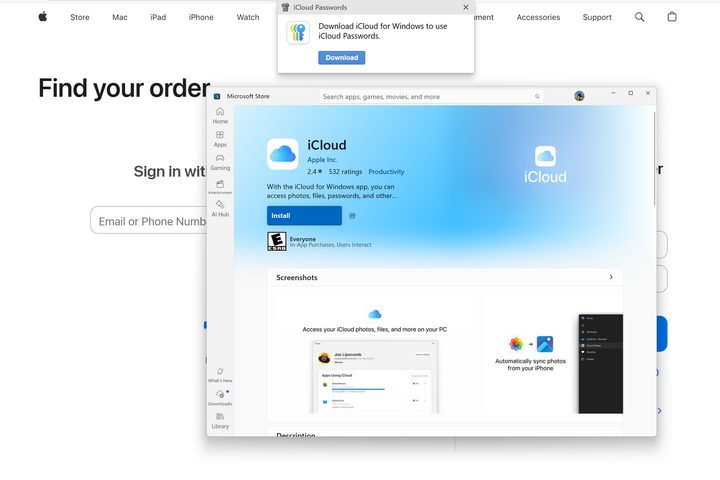
After signing in and authenticating, your Apple passwords will autofill and sync as you’d expect. In theory, it’s a relatively quick, easy solution.
In practice, the iCloud for Windows app can cause problems. I found it to be a resource hog with high CPU and network usage even if there’s little new data to sync. A quick internet search confirms it’s not just me. Cross-platform users have been suffering with iCloud for Windows for many years.
Apple doesn’t provide any solution for Android devices either. Ultimately, iCloud Passwords isn’t a complete solution for syncing logins across devices. It’s probably only useful if you mostly stick to Apple’s ecosystem with occasional Windows use.
Cross-platform browsers
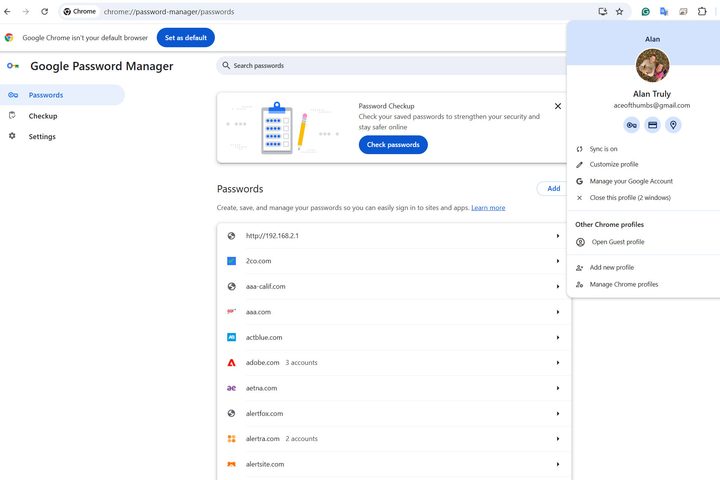
You don’t have to use Safari on your iPhone, iPad, or Mac. There are plenty of wonderful browsers for macOS that also work on Windows and across mobile devices. If you choose a cross-platform browser, your logins can travel with you from your MacBook to your Windows PC and Android phone.
Google Chrome is a great example. Most Android phones and Chromebooks store passwords in Chrome’s built-in password manager, so many of your favorite accounts are already saved.
Install Chrome on macOS and sign into your Google account. You can import your Safari passwords and favorites. If you make it the default browser, all links will open in Chrome, which is handy when you are creating new accounts.
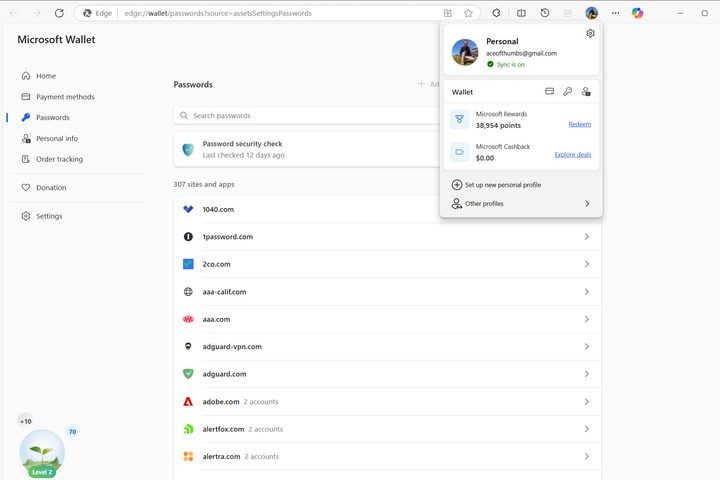
Edge is Windows’ default browser and Microsoft makes Edge apps for macOS, iOS, and Android. Like most modern browsers, it can sync logins and bookmarks between all your computers and phones.
Of course, there are strong competitors to Google Chrome and Microsoft Edge that offer unique user interfaces, more privacy, and less bloat. Just make sure you trust the developer before storing important account logins in an unknown browser.
Password managers
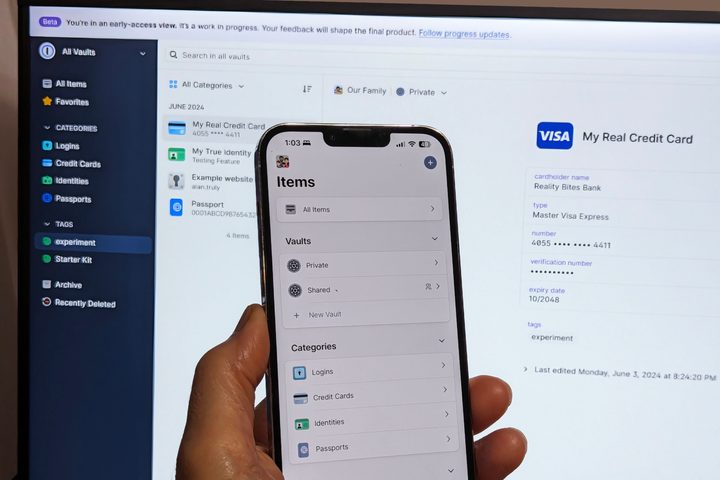
Google, Microsoft, and Apple have good security, but the best password managers offer more robust protection, keeping your logins safe and private while easing cross-platform operation, syncing, and sharing.
Password managers use end-to-end encryption that’s just as hard to crack as the tech giants’ security, and also requires a strong master password, secret key, or biometrics to unlock credentials. This is in stark contrast to built-in solutions from Google, Microsoft, and Apple that let you use a simple password or even a PIN to unlock your device. That’s weak protection when you consider that all your accounts become accessible.
If you use a password manager like 1Password, better security is combined with greater freedom to share logins with others. 1Password lets me specify a contact or create a link that anyone can use to temporarily access an account. An expiration notification alerts me when the link stops working so I can change my password and stop sharing.
While exploits and zero-day attacks are common ways to hack browsers, password managers are generally more secure, using a different system to safeguard your logins.
Privacy is a top concern and some of the best VPN services offer password managers and dark web monitoring to ensure your data isn’t leaking. For example, Nord Security has affordable plans for NordVPN and NordPass, both leading privacy solutions.
Proton makes a whole cybersecurity suite including encrypted cloud storage, email, calendar, and wallet, as well as the popular Proton VPN and Proton Pass password manager as a bundle. There’s even a free version with few limitations.
Which is right for me?
If you primarily use a Mac and an iPhone, Safari and iCloud work very well to keep your data synced between devices. When you pop over to Windows briefly, it might be most convenient to use iCloud for Windows and the iCloud Passwords extension in Edge Chrome, or Firefox to sync logins. Despite its flaws, iCloud works so well on Apple devices, that it’s not worth disrupting your normal process for better Windows integration.
If you’re a digital nomad who works on a variety of devices but doesn’t mind locking into one browser, Google Chrome, Microsoft Edge, and most other top cross-platform browsers take care of password syncing between your phones and computers. Just make sure you trust the developer.
For the best experience, it’s hard to beat a well-rated, full-featured password manager that lets you move from platform to platform with no hassle, storing and auto-filling cross-platform passwords and passkeys to simplify logins wherever you go.


