

When you need to print a label to prepare a shipment or output some documents for an important meeting, finding that your normally reliable printer is offline can be incredibly frustrating. Often you print something because it needs to be shipped or taken somewhere. When trouble arises, you’re delayed and need a quick solution.
Even the best printers can run into trouble occasionally. Let’s look at some common printer problems and how you can get it back online again.
The universal solution

It sounds too simple to actually work, but a universal solution to many problems is restarting your computer. It’s a good idea to reset the printer as well. This is done by powering the printer down, waiting thirty seconds for capacitors to discharge so all electricity stops flowing, then switching the printer back on.
After a full reset of the computer and the printer, give it another minute for Wi-Fi to reconnect, then try printing again. The gremlins that were wreaking havoc may be gone with this quick fix. If that doesn’t help, we’ve got more tips that might.
Which printer is selected?
If you own multiple printers, your document may have been printed but went to the wrong printer. Even if you only have one physical printer, a virtual printer that saves documents in PDF format can be set as the default.
In Windows, search Settings for “printer,” then check if one printer in the list has the word Default below and in gray text. If so, this might be where your print job went. You can change the default or toggle a switch in printer settings to let Windows choose it for you.

You can manually choose the destination in the system print dialog. Some apps have their own controls that might not make the destination clear.
The Mac also has a default, and we cover how to set the default printer for Windows and Mac in a separate guide with plenty of screenshots to make it easy to understand.
Clear the print queue
If a particular print job had some glitch, you might be able to bust that clog by clearing your print queue, a list of files lined up in the computer awaiting their turn to be sent to the printer.
To see the documents in the queue, select the printer in settings, then click the Open print queue button. If a particular file is blocking printing, you might see multiple copies of that document and others that got jammed up behind it.
To clear the queue, select the three dots at the top right and choose Cancel all.

On a Mac, the process is similar, but you start in System Settings.
Check Wi-Fi or cable connection
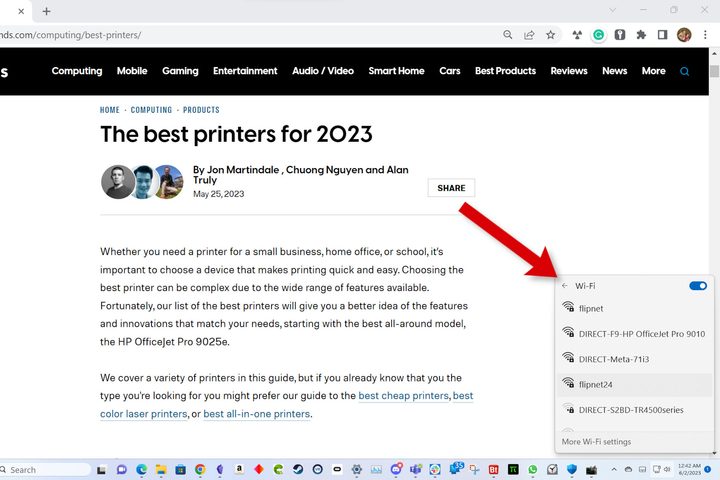
If you’re connecting to your printer wirelessly, the issue might be related to your Wi-Fi. Some printers require your computer or phone to be on the same Wi-Fi network as the printer. If your router has multiple networks, try logging in to the others. The printer might become responsive after this simple change.
If you use a USB or Ethernet cable to connect your printer, it might have gotten unplugged. A quick look around the back or side of the printer and computer can verify whether you’re still connected. If someone tripped over the printer cable recently, there’s also a possibility the cable is damaged. A new USB or Ethernet cable might be required.
When all else fails
Windows has a troubleshooting wizard that might be able to guide you through some solutions. It will recommend setting your non-functional printer as default. You can skip this step if you believe that isn’t the problem.
The troubleshooter attempts to check whether the printer needs more paper, ink, or toner, whether there’s a paper jam, and if it’s switched off. If Windows identifies a problem, you might be able to get your printer online easily by correcting those issues.

Unfortunately, the results aren’t always accurate. If no problems are found, it’s best to go to the printer and check those details yourself.
The Windows printer troubleshooter is good at detecting when a new printer driver is needed and will guide you through updating the driver software.
On a Mac, the last ditch effort to solve printer problems is a complete reset of the print system. You’ll need to add all of your printers back if you do this.
Open System Settings, then search for printers. Hold the control key and click on the printer list at the right, then choose Reset Printing System. This removes all printers, deletes all print jobs, and clears all printer information, hopefully solving the problem.
Now you can add your printer to your Mac and try printing again.
Faulty printer?
It’s possible that your printer simply died. If you buy the cheapest printer available, it won’t be as durable as some expensive models. Spending a bit more upfront can provide more value after a few years of use.
It’s worth checking your printer warranty. Most major manufacturers offer a one-year limited warranty to protect you. If you bought a lemon that dies in a few months, you should get some compensation and possibly a new printer. Go to the support section of the printer manufacturer’s website to get further help.


