

When buying a new laptop, you may have noticed that’s labeled with “S Mode.” It’s a version of Windows 10 that deliberately limits users to installing apps from the Windows Store and imposes certain other restrictions. That’s a weird thing to do when you think about it. Who wants their PC to be more limited, on purpose?
Well, Microsoft gives reasons for S Mode. However, after spending significant time with S Mode, we’re unconvinced they add up to a compelling reason to use it for the average person.
What’s the deal with S Mode?
So, what’s Windows 10 in S Mode? Essentially, it’s a locked-down version of Windows 10 that was originally released as Windows 10 S, a stand-alone variant that showed up first on Microsoft’s Surface Laptop. Windows 10 S was aimed at the education market as a response to the success of Chromebooks, and while Microsoft was offering free upgrades to Windows 10 Pro for a time, the intent was that users would stick with Windows 10 S for the duration.
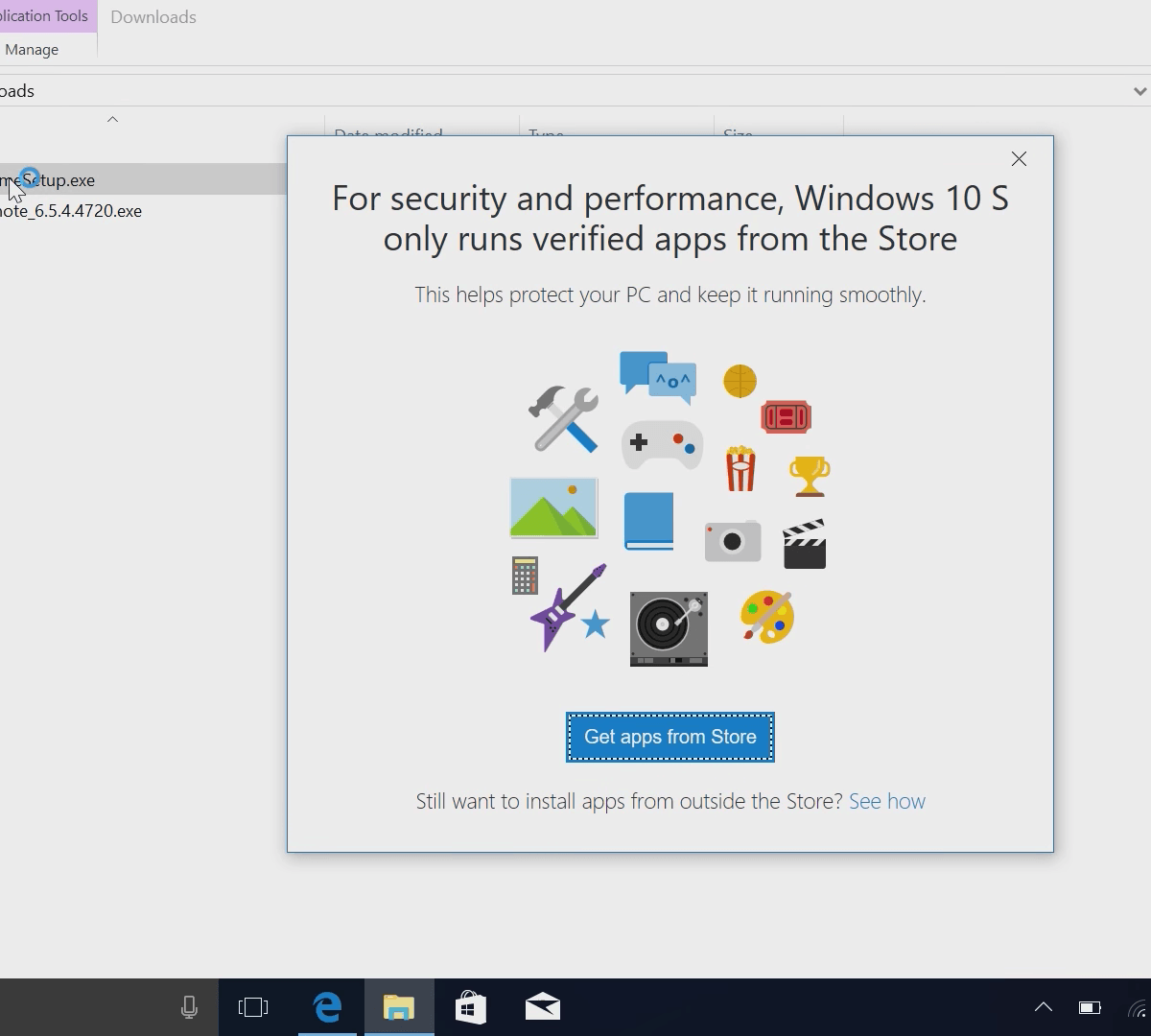
S Mode’s primary limitation is still intact: You can only install apps from the Windows Store.
Given a rather lackluster response, though, Microsoft relented and turned Windows 10 S into Windows 10 in S Mode, making it easier to switch to the “real” version of Windows 10. And all of that happened within mere months, making Windows 10 S one of the shortest-lived operating system versions ever. Now, you’ll find S Mode on everything from the Surface Go to the Asus NovaGo.
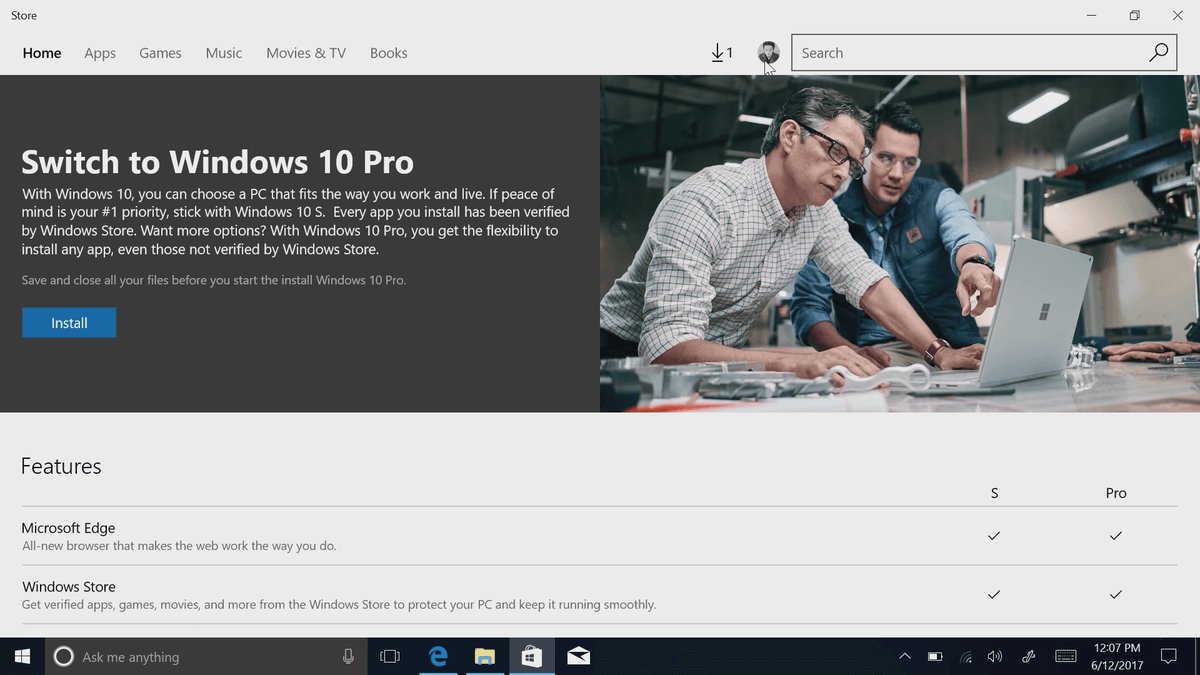
S Mode’s primary limitation is still intact: You can only install apps from the Windows Store. That means you can only run Microsoft Edge as your default browser (although you can install any browser available in the Windows Store, which at this point is just Edge) and only Bing can act as your default search engine. Finally, the only antivirus app you can run is Windows Defender.
On the surface it feels like nothing more than a way to channel Windows users into using Microsoft applications and services. But it can’t all be bad, right? There must be some advantage?
So, what about those S Mode advantages?
Microsoft makes several claims to support its contention that people should use S Mode. To begin with, S Mode is meant to be more secure. Apps installed from the Windows Store are sandboxed, meaning they can’t affect other apps and they can only access the hardware and OS resources they’re explicitly allowed.
S Mode is meant to be more secure, to perform better, and to be more efficient.
And, Microsoft must approve apps before they’re available in the Windows Store. Apps are updated and uninstalled via the same Windows Store mechanisms. Everything is more uniform and predictable, and therefore easier to maintain. In schools, business, and public use areas that might prove useful. Fair enough.
Second, these limitations are supposed to improve performance and battery life, perhaps adding some value for the average person. But is this really true? It’s a difficult question to answer, because benchmarking performance and battery life between the two environments is complicated by the fact that most benchmark utilities won’t run in S Mode.
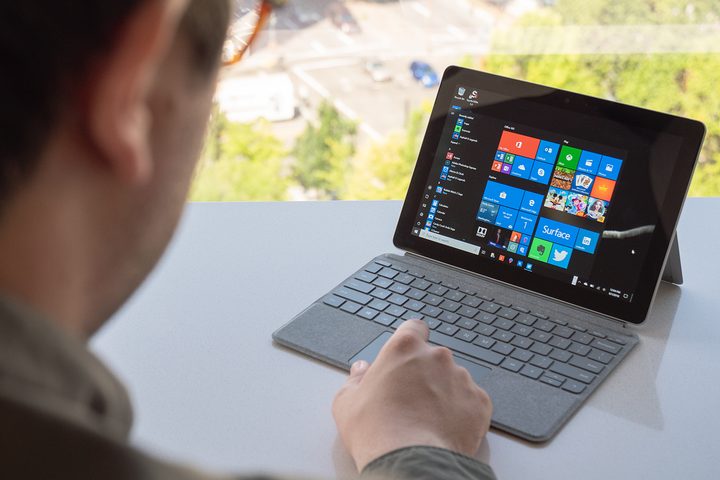
Subjectively, we can say that in terms of performance, Windows 10 in S Mode seems faster because Windows 10 apps tend to be lighter and more casual than legacy Windows apps. That is, you’re doing less with them and so, sure, they perform better. But that’s a rather dubious advantage. If you install a legacy app from the Windows Store, which right now is mainly Microsoft’s Office 365 suite, then you’re not going to tell a difference in performance.
Unsurprisingly, using Windows 10 in S Mode feels a lot like using Chrome OS, especially when it comes to limitations.
When we compared battery life, frankly we didn’t see a huge difference. Yes, many Windows 10 apps are also more efficient than many full-featured desktop apps, again because they’re simply less intensive. And much of the alleged efficiency gains come from using Microsoft’s Edge browser versus alternatives like Chrome or Firefox. That’s great if you’re happy using Edge – again, a dubious advantage for most people.
In other words, S Mode might be a bit more efficient, but only because it forces you not to use intensive applications. There’s nothing inherent to S Mode that positively affects performance.
Do I like it? About as much as I like Chrome OS
Unsurprisingly, using Windows 10 in S Mode feels a lot like using Chrome OS, especially when it comes to limitations. As much as Chrome OS creates issues with my workflow, the situation here is even worse. The Windows Store app count is increasing very slowly, and it’s even a bit sketchy at times with app clones and other scams. What happened to Microsoft’s claims of enhanced security?
There are many apps, including a handful of important Windows utilities, that aren’t in the Windows Store, and therefore aren’t available for use in S Mode. The Microsoft Store is a ghost town, left without even common apps like YouTube or Kindle. The one silver lining is the inclusion of the full desktop version of Microsoft’s Office suite — once again, another first-party Microsoft product.
The limitations don’t stop with apps though. Even peripheral support in S Mode is hit and miss. Some devices will work and some won’t, depending on the manufacturer and whether or not drivers are available that can load automatically. If your device relies on extra software, however, then you’re likely out of luck.
As far as I can tell, my Epson multifunction device isn’t available in S Mode — or at least the advanced scanning functions aren’t. And, while I can plug in the Logitech dongle for my mice, I can’t install the software that allows me to configure their extra buttons and scroll wheels.
That stinks.
Windows with walls
Creating a closed-off system feels antithetical to what Windows has always stood for. One of the benefits of using Windows over other platforms has always been customization and choice, whether that was in hardware or in software. But with Windows 10 in S Mode, sometimes unknowing people are being forced into walled-off gardens where Microsoft Edge is the only browser in town.
Creating a closed-off system feels antithetical to what Windows has always stood for.
As much of a Windows 10 fan as I am, if I were forced to choose between Chrome OS and Windows 10 in S Mode, I’d choose the former. Google’s lightweight OS achieves what it’s aiming for — a secure, inexpensive, and easy to maintain environment — in a way that S Mode does not. Underneath Microsoft’s “lightweight” option lies the same basic complexity of Windows 10, only without the advantages.
If you have a single important application or software for a single hardware device that must be installed outside of the Windows Store, then you’re as unlikely to like S Mode as I am. In my limited use, I don’t see that there’s enough of a performance advantage to make those limitations worthwhile.
Of course, Microsoft doesn’t claim to have made S Mode for me. Instead, the company made it for schools and other organizations that want to lock down their PCs so that students and employees don’t install apps and hardware that an IT department can’t centrally manage or that reduces security. In those cases, then, I suppose S Mode is a necessary evil, but it’s one that I’d rather avoid.


