Steam is much more than a digital marketplace for PC games. Over the years, Valve as expanded the platform in various ways, turning it into more of a social media platform. Along with achievements, you’ll earn trading cards for playing games. Trading cards offer desktop-resolution art from the game, which you can download and do with as you please. You can also use trading cards to craft badges, which show on your profile page and contribute to your Steam level.
There’s a catch, though. You can never earn all of the trading cards from a game. There’s a limited number of drops, and once you’ve reached that limit, you won’t earn any more trading cards. The only way to complete your set is to buy the remaining cards from the Steam Community Market, which sell for a few cents each. If you can’t be bothered, here’s a step-by-step guide on how to sell Steam trading cards.
Further reading
Download the Steam Guard Mobile Authenticator app
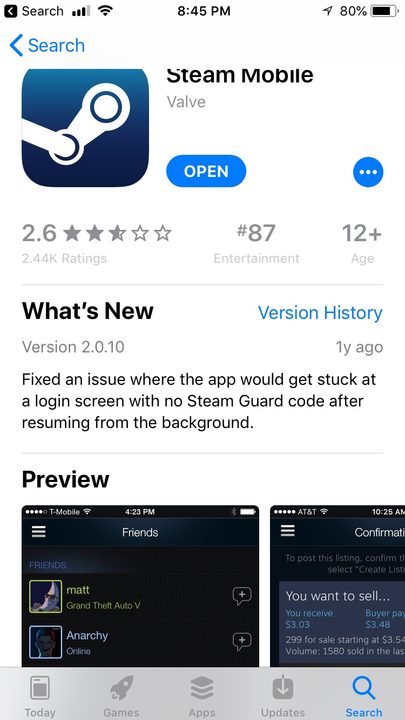
In order to use the Steam Community Market to sell cards (or anything else), Valve requires that you set up two-factor authentication with its Steam Guard Mobile Authenticator app. You can find the app in the Google Play store, the iOS App Store, and the Microsoft Store. Sign in to the app with your Steam account to use it and activate two-factor authentication. Keep it handy — you’ll need it to confirm some actions when you try to sell cards.
Play some games, earn some cards
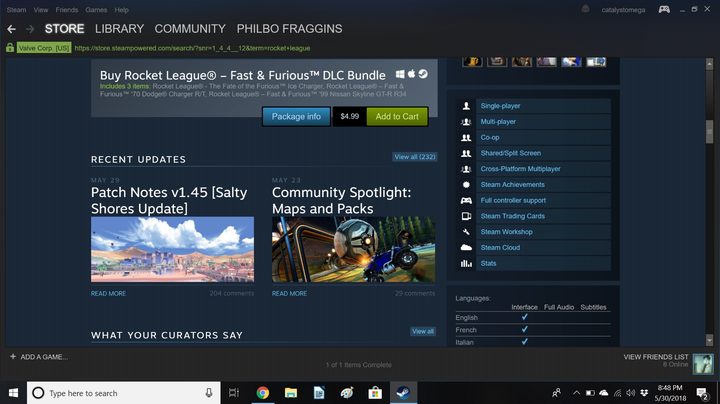
Not every game on Steam issues trading cards, but if you find games that have some, procuring a few is as easy as installing a game and playing. Cards drop after you’ve spent a certain amount of time playing the game, and there’s usually a limit on the number of drops per session — how many cards you can get depends on the game. To check if a game supports cards, check its store page under the list of features to see if it’s tagged as including Steam Trading Cards. That’s not completely foolproof — some games dish out cards even though it isn’t listed as a feature — but the designation is pretty reliable. You can also search Steam using the Steam Trading Cards tag to find more games with cards.
Find the cards you don’t want in your inventory
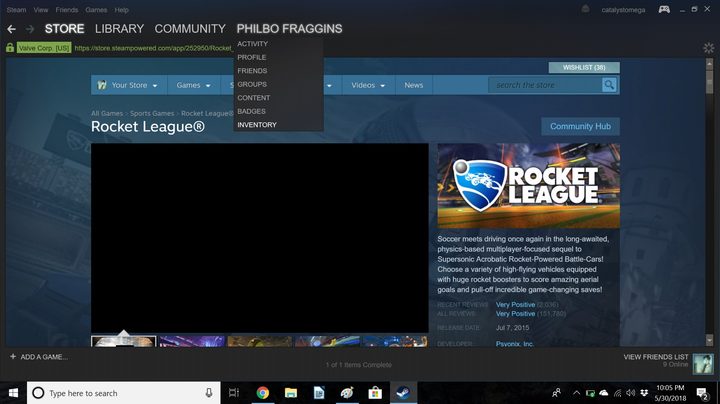
When cards are added to your account, they appear in your Steam inventory. You can find your inventory by hovering over your account name at the top of the Steam window and clicking “inventory” on the drop-down menu that appears. On the Inventory page, click the left-most “Steam” tab to see your cards. From there, you can select cards and find the ones you’re ready to get rid of on the market.
Clicking on a card allows you to read its description and find other info, including the number that have sold on the market in the last 24 hours, and what the lowest starting price is on the market.
List your card
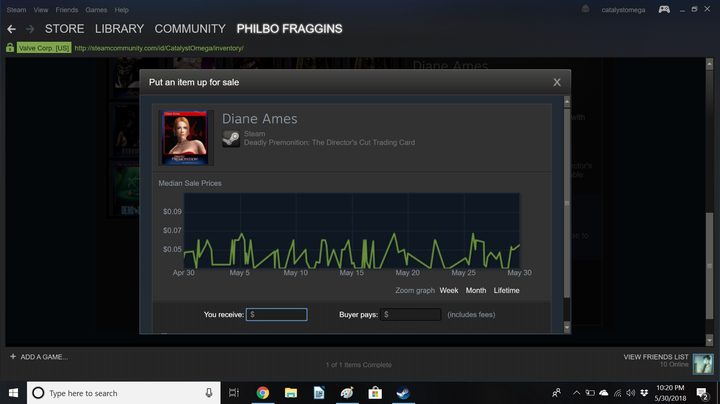
When you’re ready to sell, click your card and scroll all the way to the bottom of the screen, to the bottom of the section on the right side that gives you information on the card. Beneath the information about the sales volume and starting price on the Community Market, you will see a button marked “Sell” that will get you started. When you click it, you’ll get a window that lets you set your price for the card, and shows you a graph of how many cards have sold lately, and at what price. Use that information to decide how much to ask for the card when you list it.
You can set your price in either one of two ways: How much money you will receive from the person buying your card, or how much they will pay in total. The two prices are different because Steam adds a small fee to every transaction on the Community Market, so the price the buyer pays is always a little higher than what you receive in Steam credit.
Confirm the listing
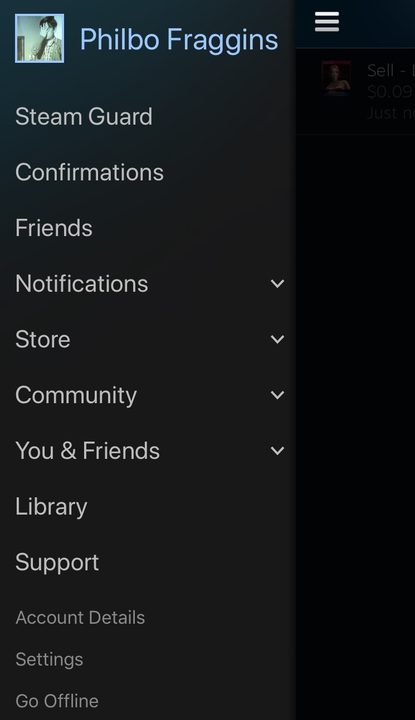

Now it’s time to grab your Steam Guard Authenticator app. Log in to the app and go to the “Confirmations” tab on the main menu, which you can access by tapping the three lines in the top left corner of the app. Find the listings you want to confirm and tap the big gray box on their right side, then click “Confirm Selected.” Once you hit that button, your card goes on the Community Market.
Check your listings
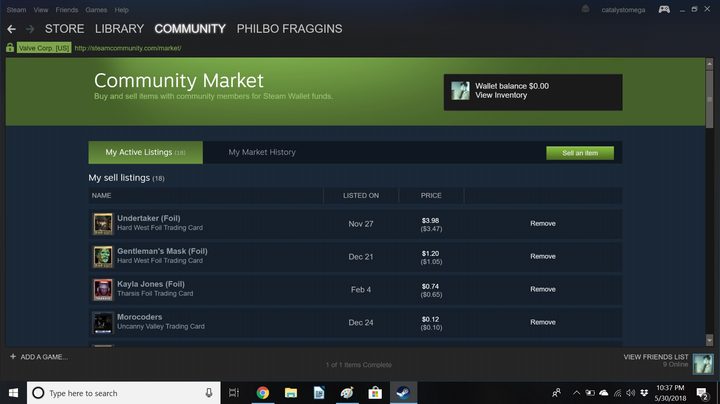
Once you post a card, it’s easy to find and view your listings or adjust as needed. To find them, hover over the “Community” tab on Steam to pull up the drop-down menu and hit “Market.” Steam will show your current active listings, which you can remove if you need to (and relist if you want to change prices), as well as your complete market history on another tab. Otherwise, that’s it — you have listed your Steam trading cards on the Community Market, and all that is left to do is wait for pennies’ worth of Steam credit to roll in.