If you’re a PC gamer, you already know about Steam, a megalodon-sized digital video game distribution service from the Valve Corporation. Did you know that you can share your massive collection of games with others? No matter if you are running a Windows PC, MacOS machine, or Linux box, you can play your favorite games with friends and family. Are you interested in the process? Here’s how to share games on Steam.
If you’re looking for the best in video games, be sure to check out our guide on the best Steam games available right now. Want something more affordable? Here are the best free games on Steam at the moment.
Why you should share Steam games
While your first thought may be to share your favorite titles with friends, the Steam sharing feature is intended to be used by those within a single household — but we won’t say anything if you choose otherwise. Once enabled, everyone who is a member of the shared library will be able to access each other’s titles without the need to purchase another digital license. Best of all, saves and additional information, such as achievements, are all kept separate, so you won’t be mixing any of your data with friends or family.
Steam sharing limitations
There are a few limitations when it comes to Steam library sharing, the first being that not all games are available for sharing in all situations. Valve says this is the case due to technical limitations, but it could be the case that some publishers simply don’t want to play ball with the idea. When you do have access to a game, only one person can play it at a time. Sorry, you won’t be able to share a multiplayer game with your friend and play it at the same time.
Here’s an interesting decision Steam made: The primary owner of the title gets priority to play, and they can kick guests out of their current sessions. Lastly, up to five accounts and ten computers can access your shared gaming library. Once you hit the limit for computers, you’ll need to start pulling access before you invite anyone to your library. No, you can’t share specific games — you’ll need to share your entire library.

How to share games on Steam
The process for sharing your games on Steam is quite straightforward. However, you will need to first activate Steam Guard before you can enable Library Sharing. Steam Guard is Valve’s secondary security level, which requires you to enter a unique code before accessing services from a previously unrecognized device. Steam will either send this code via email or the Steam Mobile app on your iOS or Android device.
Enabling Steam Guard
Steam Guard may not be enabled if you have not verified your email address. To enable Steam Guard, begin by opening your Steam client on either your PC or Mac computer. Follow these step-by-step instructions:
Step 1: In the top-left corner of Steam, select the Steam Menu option.
Step 2: From the drop-down, select either Settings (Windows) or Preferences (MacOS).
Step 3: If not already verified, click the Verify Email Address button.
Step 4: Check your inbox for an email from Steam. Click on the provided verification link.
Step 5: If needed, restart the Steam application until the Settings window shows that you are verified under the Security Status heading.
Enabling Family Library Sharing
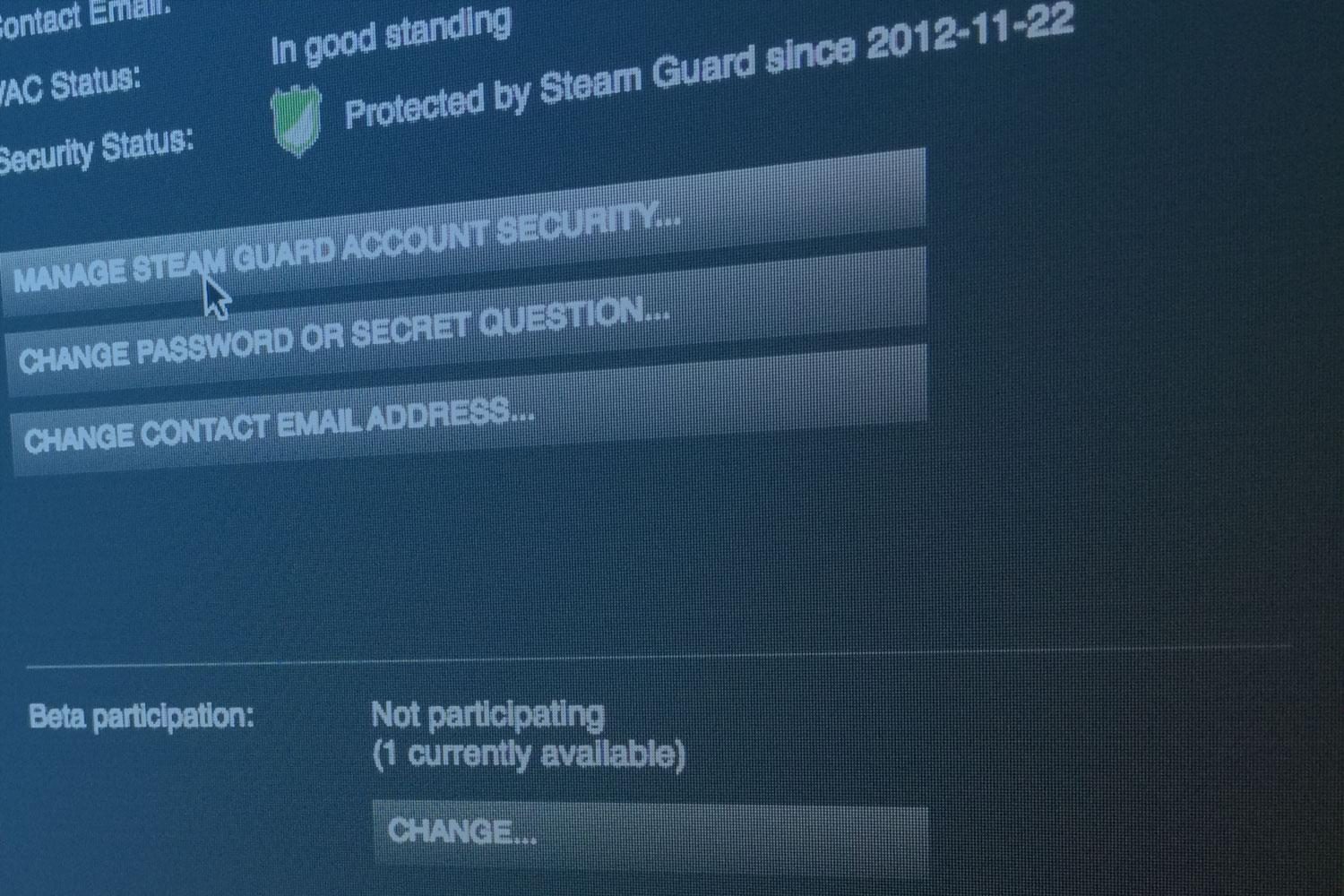
Once you are verified with Steam, a green shield icon will be shown when you open the Settings window; it will say Protected by Steam Guard. When you’re ready to begin sharing your library with family and friends, follow the steps below, using the computer that will have access to your games:
Step 1: Sign in to Steam using your account information.
Step 2: In the top-left corner of Steam, select the Steam Menu option.
Step 3: From the drop-down, select either Settings (Windows) or Preferences (MacOS).
Step 4: Select the Family option on the left side of the window.
Step 5: Under the Family Library Sharing header, click Authorize This Computer.
Step 6: Next, log out of your account.
Step 7: Have your friend or family member log in with their credentials.
Step 8: The computer should now have access to your game library.
Removing Family Sharing
If you want to remove anyone who currently has access to your library, you can do so in the Settings window, as used previously. With Settings open, navigate to Family Library Sharing under the Family Menu. Click the Manage Other Computers button to select any currently authorized computers that you wish to deauthorize.

Troubleshooting Family Sharing
If you are experiencing issues with Family Library Sharing, your first step should be attempting to deauthorize your friend or family member’s computer with your library. Follow the steps given above for enabling Family Library Sharing. Otherwise, games may be inaccessible if another authorized machine is currently playing it, you have already reached your limit of five accounts and ten devices for sharing, or you have been banned from online play by Steam’s VAC service.
For more information, we recommend contacting Steam Support.