When you’re ready to share your gaming prowess with the world, you can stream your favorite games from your PlayStation 5 (PS5) to services such as Twitch and YouTube. Whether you want to share some footage with friends, or you’re jump-starting a new online streaming business, the PlayStation 5 can broadcast your trophy triumphs to the world. In this guide, we’ll explore how to sign in to your streaming accounts and how to stream on a PS5.
Want to get started with Twitch on another gaming platform? Our guide on how to stream on Twitch from a PC, Mac, PlayStation 4, or Xbox One should be able to get you started.
Further reading
How to stream to Twitch
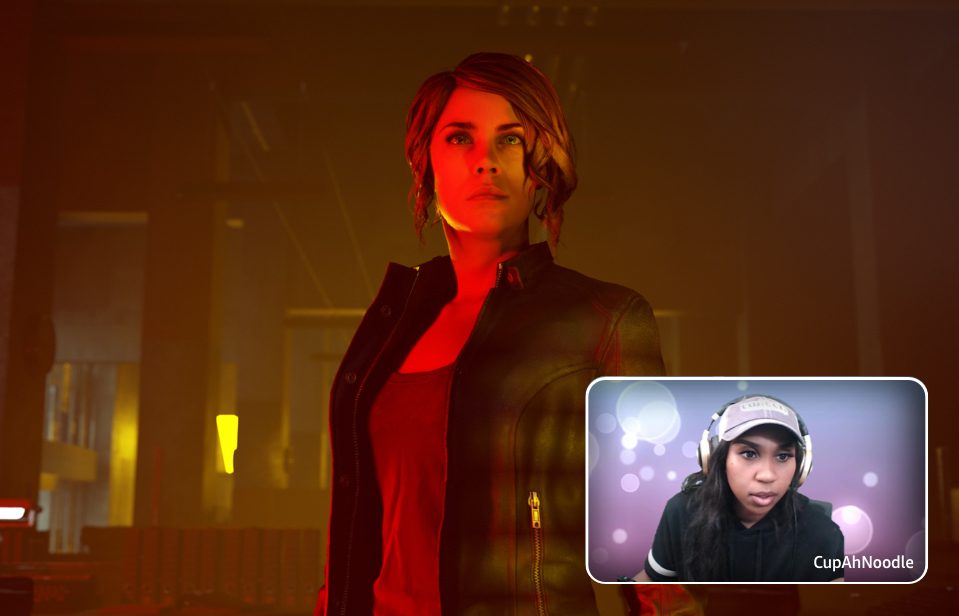
To begin streaming to Twitch from your PS5, you’ll first need to link your account to the system. To connect your Twitch account with your PlayStation, head to the Settings menu on your console, select Users and Accounts, and finally, Link with Other Services. Here, you can choose the Twitch icon and link your account. There are two ways to connect your Twitch account with your PS5; you can either scan the QR code provided on screen with a mobile device or visit the Twitch.tv/activate in a web browser, entering the code provided on screen.
Once you have signed into Twitch, you can begin streaming from within your favorite games. To start, launch the game you wish to showcase, then, when ready, press the Create button on your PS5 controller (it’s located to the upper right of the D-pad), then select the Broadcast option (the icon appears as a radio tower).
After hitting the Go Live button, your screen will display a Now Broadcasting banner, alerting you to the fact that you are now live. If you select the “…” button on-screen, you can change settings affecting your stream, including whether video and voice audio are enabled and your stream’s video quality.
To stop the stream, press the Create button once again and access the Broadcasting menu. Select the Stop Broadcast option to end the video stream. Alternatively, you can select the Pause Broadcast option if you wish to halt the stream temporarily.
How to stream to YouTube

Streaming on YouTube follows a similar process to streaming on Twitch; you will need to begin by linking your account to the system. To connect your YouTube account with your PlayStation, head to the Settings menu on your console, select User and Accounts, and finally Link with Other Services. From here, select the YouTube icon to begin the verification process. Once linked with your console, you can start streaming in-game.
Launch the game you wish to broadcast to YouTube, then press the Create button on your PS5 controller (it’s located to the upper right of the D-pad) when you are ready to share. In the menu provided on-screen, select the Broadcast option (the icon appears as a radio tower), and select Go Live. As with streaming to Twitch, pressing the “…” button will allow you to change several settings, including video and audio, as well as your stream’s overall quality.
To stop the stream, press the Create button once again and access the Broadcast menu. Select the Stop Broadcast option to end the video stream. Alternatively, you can select the Pause Broadcast option if you wish to halt the stream temporarily.
Options to consider
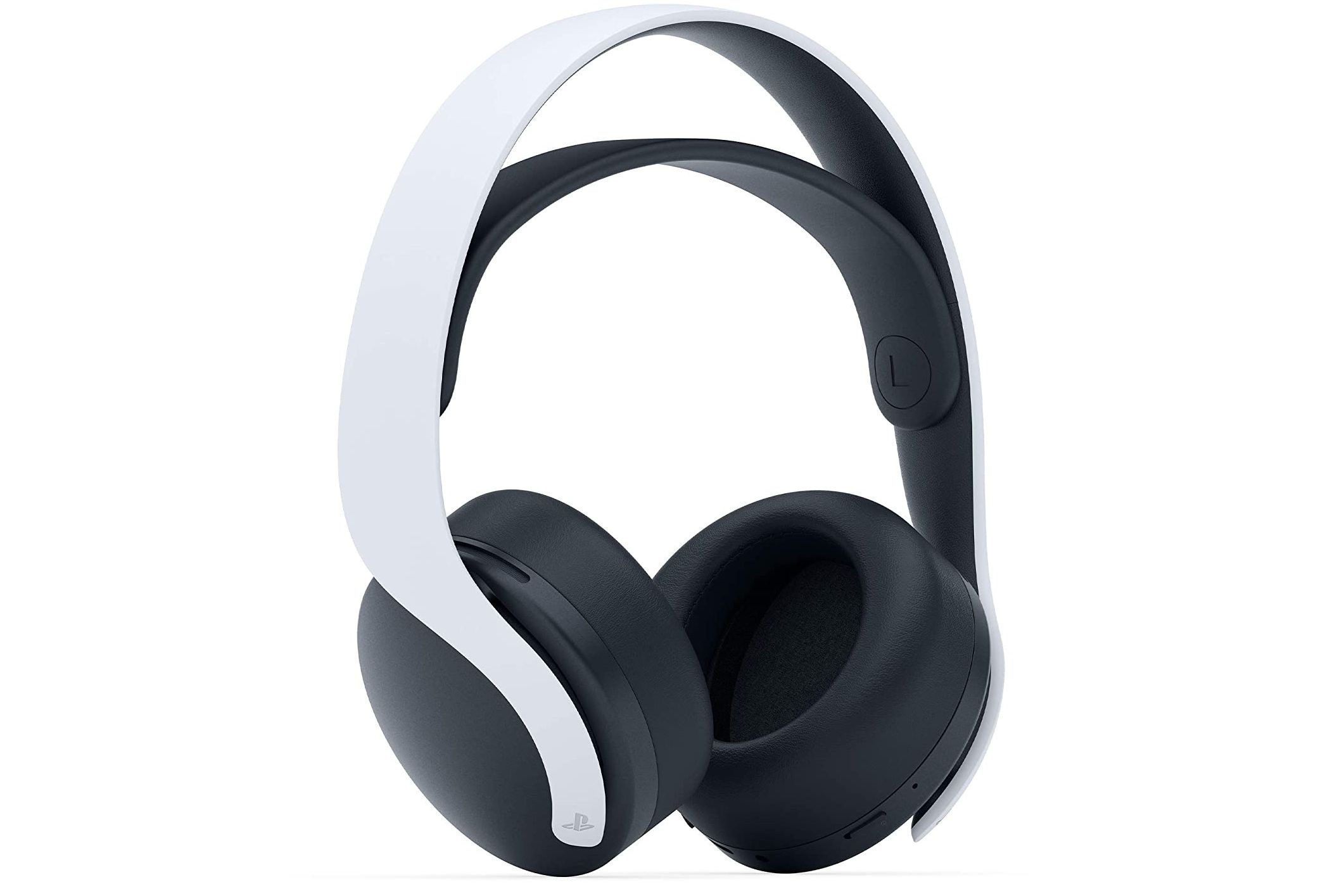
As mentioned above, you can customize your stream’s aspects, including whether or not your video camera (if a PlayStation 4 HD Camera is present) and microphone are enabled. If you choose to allow microphone audio and a dedicated microphone or headset is not present, the audio will be captured via the microphone on the PS5 controller. If you are looking to provide the best audio for your streams, be sure to check out our article on the best PS5 headsets you can currently purchase for your system.
When selecting a video quality option, you are presented options between 1280 x 720 30 fps (720p HD) and 1920 x 1080 60 fps (1080p HD). The higher the resolution, the better quality your broadcast will be, but the more bandwidth will be needed from your network. If you experience lag issues or stuttering in your broadcast, you may need to lower this setting.