
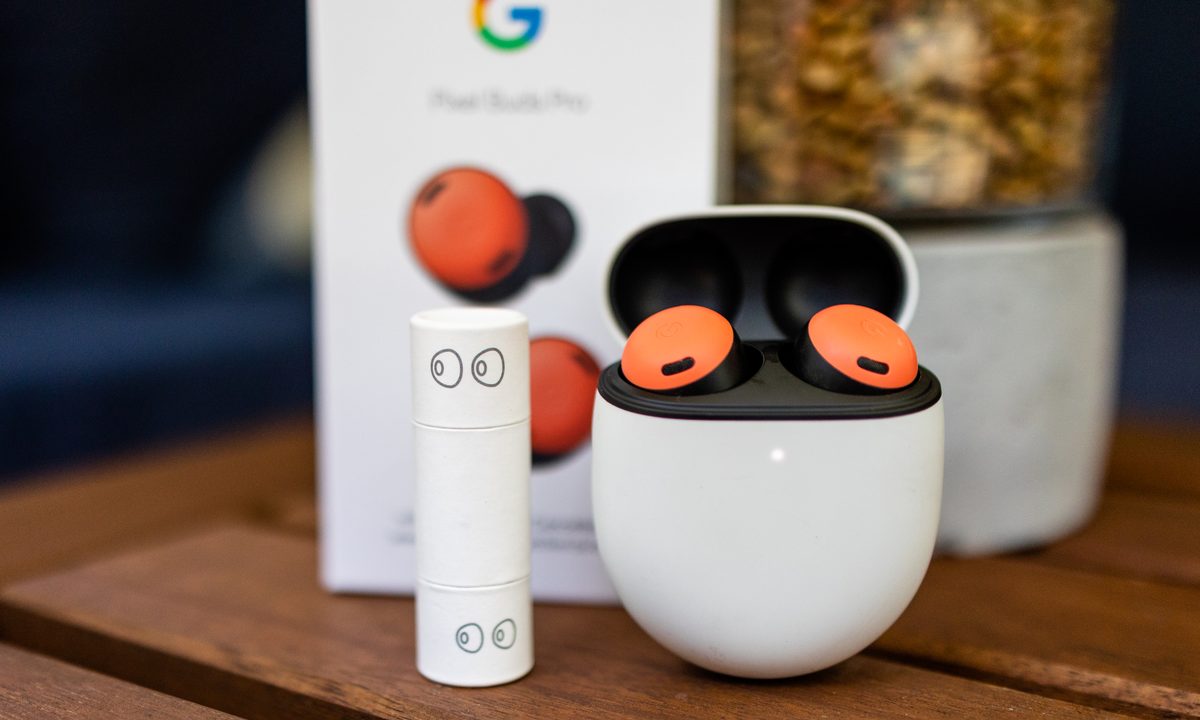
Google’s Pixel Buds Pro (we called them the best earbuds for Android) are packed with Google’s version of the latest earbud technology, including active noise cancellation (ANC), Google Assistant support, wireless charging, and more.
Right now, we want to talk about a particularly important trick and one of the most unique features on the Pixel Buds Pro – the ability to check their eartip seal. The ear seal indicates how well the eartip is fitting inside your ear, how effective the passive noise cancellation is, and generally how comfortable the Buds Pro feel. Here’s everything you need to know about using this feature.
How to check your ear seal in the Pixel Buds Pro
Before we start, make sure your Android operating system is updated. This shouldn’t be an issue for many since the ability to do this was added in Android 10, but it’s always a good idea to make sure you’re working with the latest version of Android to get all the newest features.
Step 1: Out of the box, your Pixel Buds Pro come with the mid-sized silicone eartips attached. Two other eartip sizes are included, one bigger and one smaller. You can also choose memory foam eartips for a tighter fit if you’ve had trouble with eartips in the past — Google even sells some in its store. Pick the eartips that seem like the best size for you. Ears can be weird: Sometimes, a different-sized tip in each ear works best.

Step 2: Place the Pixel Buds Pro in your ears, and give them some light twists to make sure they are firmly in place.
Step 3: Open your Android phone. If you are using one of Google’s Pixel phones, go to Connected devices. If you haven’t already paired your Pixel Buds Pro, you’ll need to go through the pairing process before beginning this step. Find your Pixel Buds Pro in your Connected devices, and select the Cog icon to visit your settings.
If you’re using a phone that’s not a Pixel, then you should have downloaded the separate Google Pixel Buds app during setup. Open this app to see similar options.

Step 4: In the settings, find and select Eartip seal check.

Step 5: The Pixel Buds Pro will now run the Seal Check and play some test audio samples while you wait for the program to complete playing. This will do a couple of things, including adjusting ANC to better fit how you wear your earbuds. But the most important part is providing users with a pass/fail result for their eartip seal.
If your Seal Check fails, that means it’s time to adjust your earbuds. Try switching to different eartips and trying again — larger tips, in particular, may be able to improve the seal. Work at it until the Seal Check gives your buds a passing grade.

Troubleshooting the ear seal check
If something's not quite right with your eartip seal, here are a few things to check.
Step 1: If the Eartip Seal Check doesn’t seem to be working at all even when you think you have a really good fit, you should check that the Google Pixel Buds app (on non-Pixel phones) is updated. Update and reboot it, then try again.
Step 2: If that doesn’t work, reset your Pixel Buds Pro entirely. Tell your phone’s Bluetooth to forget your Pixel Buds Pro entirely, and place them in the charging case.
Leave the charging case open. Press the Pairing button on the back of the case while it’s open and hold it for 30 seconds. The status light will blink, then eventually stop blinking to indicate it's resetting. The status light will then blink different colors for a while before going back to a pulsing white, indicating the reset is complete. Pair your earbuds and try again.
Step 3: Like we said, ears can be weird. Sometimes tips just won’t have a good fit depending on the size and shape of your ears. We mentioned memory foam eartips as an alternative, which may help. But ultimately, keep in mind that this is just an optimization process — your Pixel Buds Pro experience isn’t ruined if you can’t make it work. ANC and other features will still work.
Step 4: Lastly, if you’re disappointed with your Pixel Buds Pro experience, you can go through Google’s service site and see if you can get the earbuds replaced or exchange them for another model.
If you haven’t already taken a look, you should check out our list of Google Pixel Buds Pro tips and tricks.



